Search documentation
Find a documentation page by the words on it.
Documentation
Signing In
Providers and clinic staff sign in at auth.serelora.com. You can use your email and password, or Continue with Google when it is offered.
Step 1: Choose the provider portal
On the Welcome back screen, select I'm a Provider. The Provider Sign In screen opens. (Patients choose I'm a Patient and use the patient portal.)
Step 2: Sign in
Enter your address in Work Email Address and your password in Password, then select Sign In. Use the eye icon to show or hide what you type.
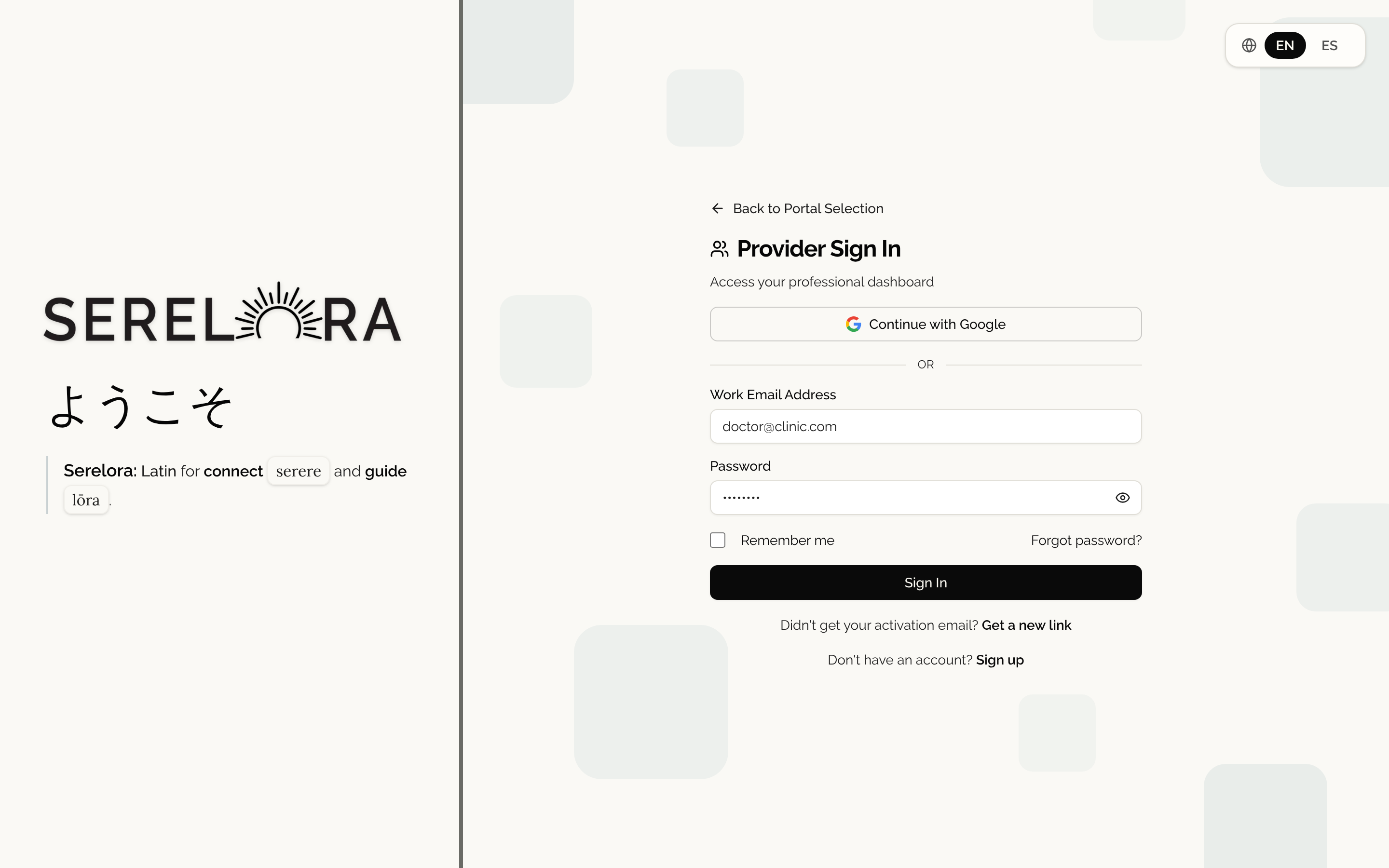
After you sign in, Serelora opens your clinic. A sign in lasts up to seven days, after which you sign in again. If you belong to more than one clinic, see Switching Between Clinics. To sign out, select your avatar at the top right of the header, then Log out.
Sign in with Google
When Google sign in is available, Continue with Google appears above the form on the sign-in, account creation and invitation screens. It is for providers only.
- You already signed in with Google before. Select the button and choose your Google account.
- Your Serelora account already uses that email address. Serelora never joins two accounts on an email match alone. It opens Connect your Google account and asks you to prove the account is yours once. If the account has a password, enter it in Password and select Connect Google. If it has no password, Serelora emails a one-time link to that address. Open it in the same browser within 10 minutes. After that, you can sign in either way.
- You are new to Serelora. Choosing Continue with Google on the account creation screen creates your account from your Google name and email. A
@gmail.comor Google Workspace account is signed in straight away. Any other address gets an emailed link to confirm it, which you open in the same browser within 10 minutes.
A Serelora account can be connected to only one Google account. If you try a different one, Serelora shows Your Serelora account is already connected to a different Google account. Sign in with that Google account or with your password.
If sign in does not work
Serelora shows Invalid email or password for any failed password sign in. It uses the same message for a wrong password, an unknown address and an account that has not been activated yet, so the screen never reveals whether an account exists.
- Wrong password. Select Forgot password? and follow Resetting Your Password.
- You never set a password. Select Get a new link under the form. See Verifying Your Email.
- Pending approval. If a clinic administrator still has to approve your account, Google sign in shows Your provider account is pending approval. You'll be able to sign in once an administrator approves it.
- Google problems. Serelora shows a plain message, such as Google sign-in was cancelled. or Sign in with Google isn't available right now. Use your email and password instead. Try again, or use your password.
Serelora limits repeated sign-in attempts. If you keep failing, wait a while before you try again.
See also
- Sessions and Signing Out says how long a sign in lasts and why logging out ends every session.
- Spanish on the Provider Sign-In Screens covers the EN and ES buttons.
- Signing In to the Patient Portal is for patients.