Search documentation
Find a documentation page by the words on it.
Documentation
Administering More Than One Clinic
One Serelora account can belong to several clinics, for example if you own two practices or a colleague works at both. You work in one clinic at a time, and each clinic is run separately. This page explains how to move between clinics and what you need to do in each.
What you need
- An account that is an active member of each clinic.
- The Admin role in each clinic where you manage staff, settings or the subscription. Your role is separate in every clinic, so being an Admin at one does not make you an Admin at the other.
Step 1: Switch clinics
If your account belongs to two or more clinics, the card at the left end of the header opens a list. Type in Search clinics… or pick a clinic. Serelora reloads the page you were on in the new clinic, and the list shows your access role in each clinic under its name. If you have unsaved changes in a patient record, Serelora asks first. See Switching Between Clinics.
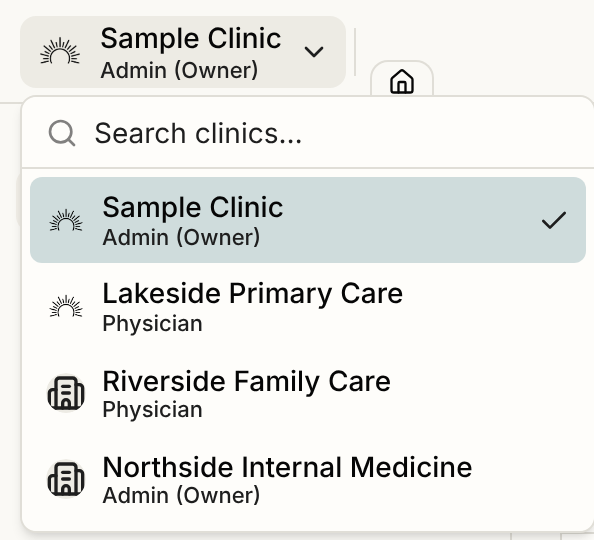
In the Serelora Provider app, the active clinic is on the home screen. Tap it to choose another.
Step 2: Add a person to a second clinic
Add them from Manage Clinic, Manage Staff, Add Staff, with the email address of their existing account. Serelora asks "This user already has a Serelora account. Add them to the clinic?" and sends an invitation. They join only after they accept. See Adding Staff and Accepting a Clinic Invitation.
Step 3: Set up each clinic on its own
These are separate in every clinic:
- Staff and roles. Each clinic has its own staff list, roles and permissions. See Roles and Permissions.
- Features. Feature flags are switched on clinic by clinic. See Feature Flags.
- The Audit Log. It shows the clinic you are working in only. See The Audit Log.
- The subscription and seats. Each clinic has its own, with one seat for each active member. See Your Serelora Subscription and Seats.
- Payments. A clinic connects its own Stripe account. See Connecting Stripe.
- Integrations you connect yourself. Your Gmail and Google Drive connections are for the clinic you are working in. See Gmail and Google Drive Connections.
- The Business Associate Agreement. Each clinic has its own signed copy. See Signing the BAA.
Step 4: Remove a person from one clinic
Removing someone from a clinic ends their access to that clinic only. Their account and their other clinics are not affected. See Removing Staff.
What Serelora does not do
- It does not show clinics together. Patients, the schedule, billing and the Audit Log are for one clinic at a time. Serelora has no combined view.
- It does not create a second clinic from the setup screen. The Set up your clinic screen is for an account that has no clinic yet. If you need another clinic created, email support@serelora.com.
- It does not carry roles across clinics. A person's access role is set separately in each one.