Search documentation
Find a documentation page by the words on it.
Documentation
Open Balances and Unpaid Invoices
Two pages answer the question of who owes the clinic money. Patients summarizes what is owed across the clinic and by patient. Payments lists invoices and payments one by one.
This feature is controlled by the Billing feature flag. If you do not see it in your clinic, contact Serelora at support@serelora.com and ask for it to be turned on.
Step 1: Read the summary on Patients
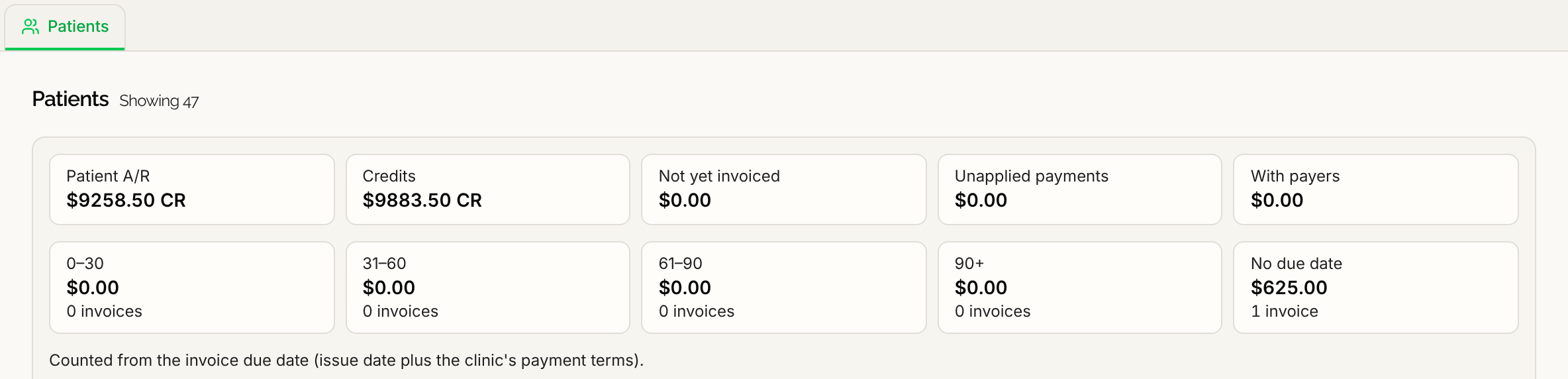
Select Billing in the sidebar, then Patients. At the top, a summary shows what is owed across the clinic. Its tiles include Patient A/R, which is what patients owe on open invoices, Credits, and Unapplied payments.
Below them, age tiles split what is owed into 0–30, 31–60, 61–90, 90+ and No due date, with the number of invoices in each. A line under the tiles says how the age is counted: from the invoice due date, which is the issue date plus your clinic's payment terms. The age tiles are information only. See Invoices for payment terms.
Top balances lists the largest balances. Select View all to open the full list of patients with balances.
Step 2: Find a patient
The table lists every patient with billing activity, A to Z. Each row shows the Patient, Account open, and the Oldest open item. A short tag can explain why a patient matches a filter.
- Use the filter menu beside the search box to choose All patients, Patient balances or Over 30 days. Patient balances shows patients with an issued invoice that still has a balance. Over 30 days shows those with an issued invoice more than 30 days past its due date.
- Type in Search by name or MRN… to narrow the list.
- Select Load more to see further patients.
Select a row to open the patient's chart on Billing, Summary.
Step 3: List unpaid invoices
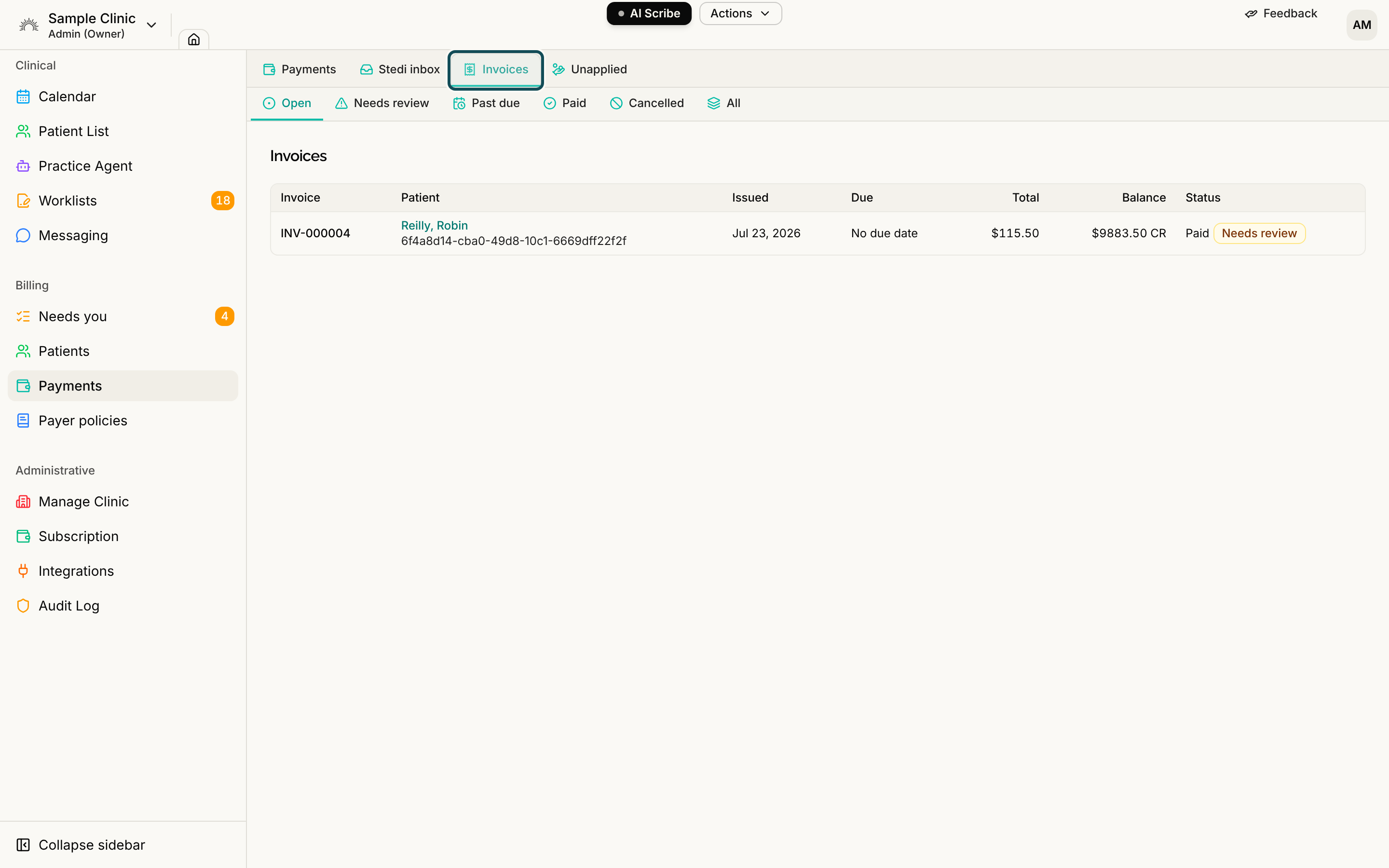
Select Payments, then the Invoices tab. It lists every invoice in the clinic with the Invoice number, Patient, Issued and Due dates, Total, Balance and Status.
Pick a chip above the table to filter it: Open (the default), Needs review, Past due, Paid, Cancelled or All. An invoice with no due date shows "No due date". Select a row to open the invoice in the patient's chart, where you can record a payment, send a payment link or adjust the balance.
Step 4: Review payments received
Select the Payments tab to list payments patients have made, with the date, patient, method, what each was applied to, the amount and any amount still unapplied. Select a payment to open it in the patient's chart. Money not yet applied to an invoice is on the Unapplied tab, see Applying Payments to Invoices.
Who can see this
The Billing pages are offered to Admins, Physicians, Office Managers and Administrative Assistants by default. See Billing Overview.