Search documentation
Find a documentation page by the words on it.
Documentation
Clinic Profile and NPI
Your clinic's profile holds its name, contact details, address, logo and time zone, and the organization NPI (NPI-2) that identifies the clinic. Everyone in the clinic can read it. Only people whose role can edit clinic settings, which is the Admin role, can change it.
Open the clinic profile
Select Manage Clinic in the sidebar. The Clinic Information tab opens first and shows the Clinic Information card.
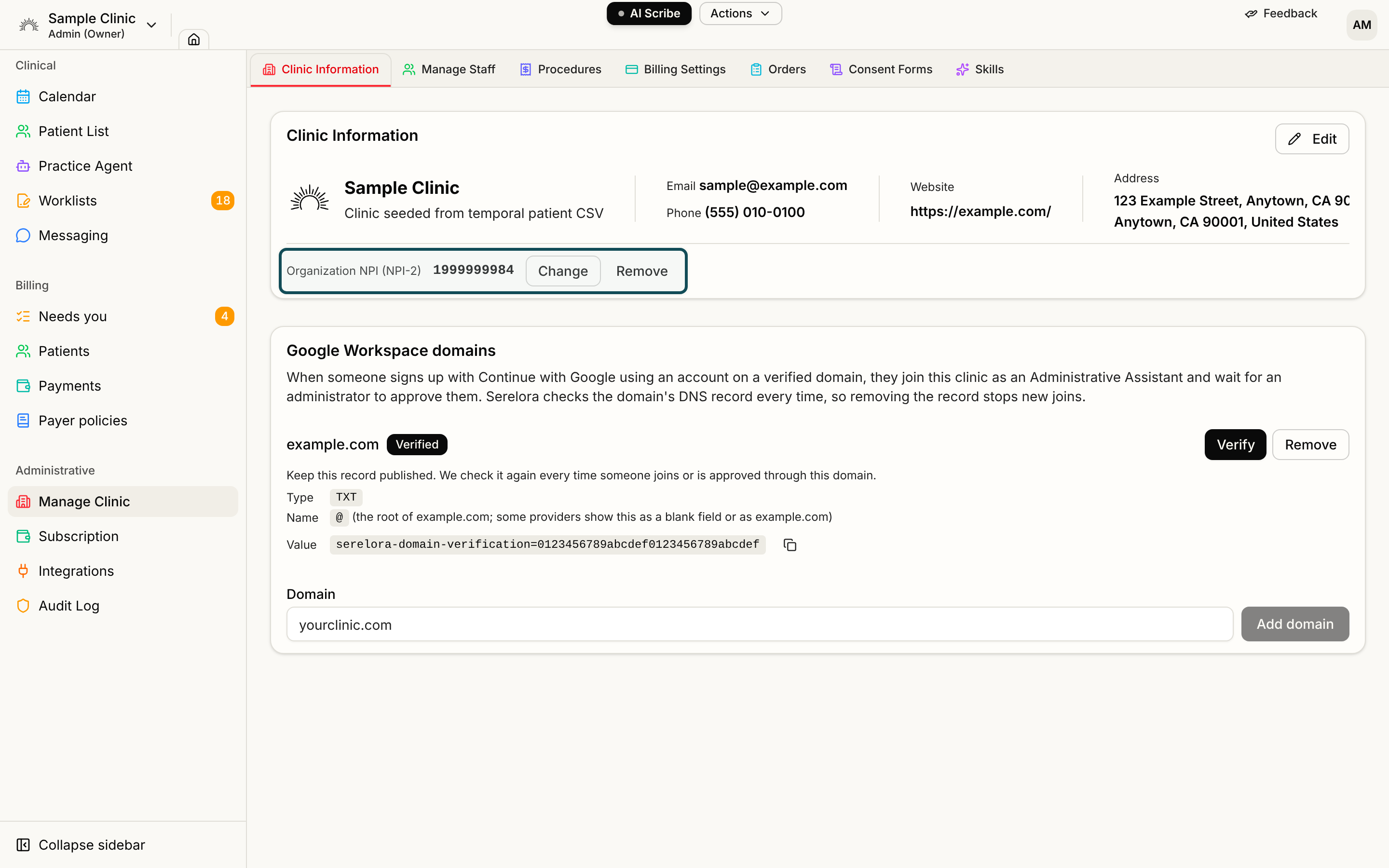
Step 1: Edit the details
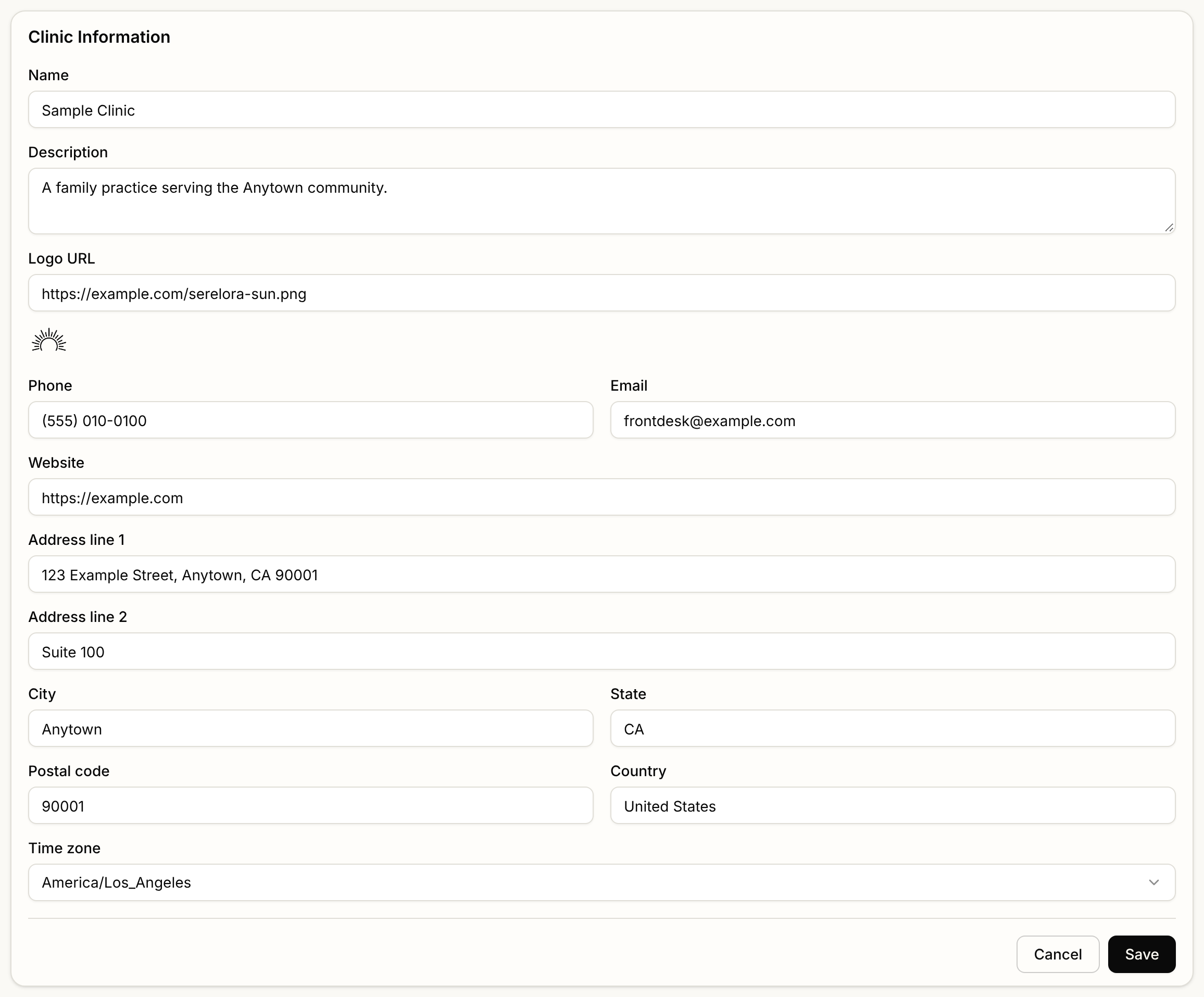
Select Edit on the card. Update any of these fields:
- Name, Description and Logo URL. Use an
httpsweb address for the logo. Serelora shows the logo beside your clinic's name in the clinic picker, and in the header of the invitation emails it sends to new staff. - Phone, Email and Website.
- Address line 1, Address line 2, City, State, Postal code and Country.
- Time zone.
Select Save, or Cancel to leave without saving. If you do not see Edit, your role cannot change clinic settings.
Step 2: Add your organization NPI
The NPI is the clinic's own number (NPI-2), not yours. A new clinic starts without one. Below the details, the line Organization NPI (NPI-2) reads Not set.
- Select Add NPI.
- Type the 10 digits and select Check. Serelora looks the number up in the CMS NPI Registry.
- Read the result. It shows Registered to the organization's name, with its city and state. Make sure that is your organization.
- Select Save NPI. Save NPI is available only for the digits you just checked.
Serelora shows the registry's name and place so you can catch a typo. It does not copy them into your clinic's details. The NPI saves by itself, never along with the other fields above, so saving one does not change the other.
If another clinic already uses the number, Serelora refuses it with We couldn't use that NPI for this clinic. If you believe it's correct, contact Serelora support. The message does not say who holds it.
Change or remove the NPI
Select Change to enter a different number and check it the same way. Select Remove to clear it. Serelora asks Remove this clinic's NPI? Exports will no longer identify the clinic by it, and the number becomes available to other clinics. Choose Remove NPI, or Keep it to cancel.
Once your clinic has sent insurance claims or eligibility checks, an administrator can no longer add, change or remove the NPI. Serelora shows The clinic's NPI and tax ID can't be changed once claims or eligibility checks have been sent. Contact Serelora support. Email support@serelora.com if you need a correction.
Other cards on this tab
- Business Associate Agreement. Shows your signed agreement and lets you download it. See Signing the BAA.
- Google Workspace domains. Lets colleagues join with their work Google account. See Google Workspace Domains.
The tax ID, taxonomy and billing address that insurance claims carry are on the Billing Settings tab, not here. See Billing Provider Details.