Search documentation
Find a documentation page by the words on it.
Documentation
Medication Reconciliation and Allergy Review
Reconciling means going through what the chart says the patient takes and is allergic to, correcting it with the patient, and recording that you did. Serelora keeps each entry's source, so you can see why a medication is listed before you change it.
What you need
- Permission to edit charts to correct entries and mark sections reviewed: Admin, Physician, Physician Assistant and Medical Assistant by default. Everyone else can read.
- The patient, or their list, in front of you.
Step 1: Read the Medications tab
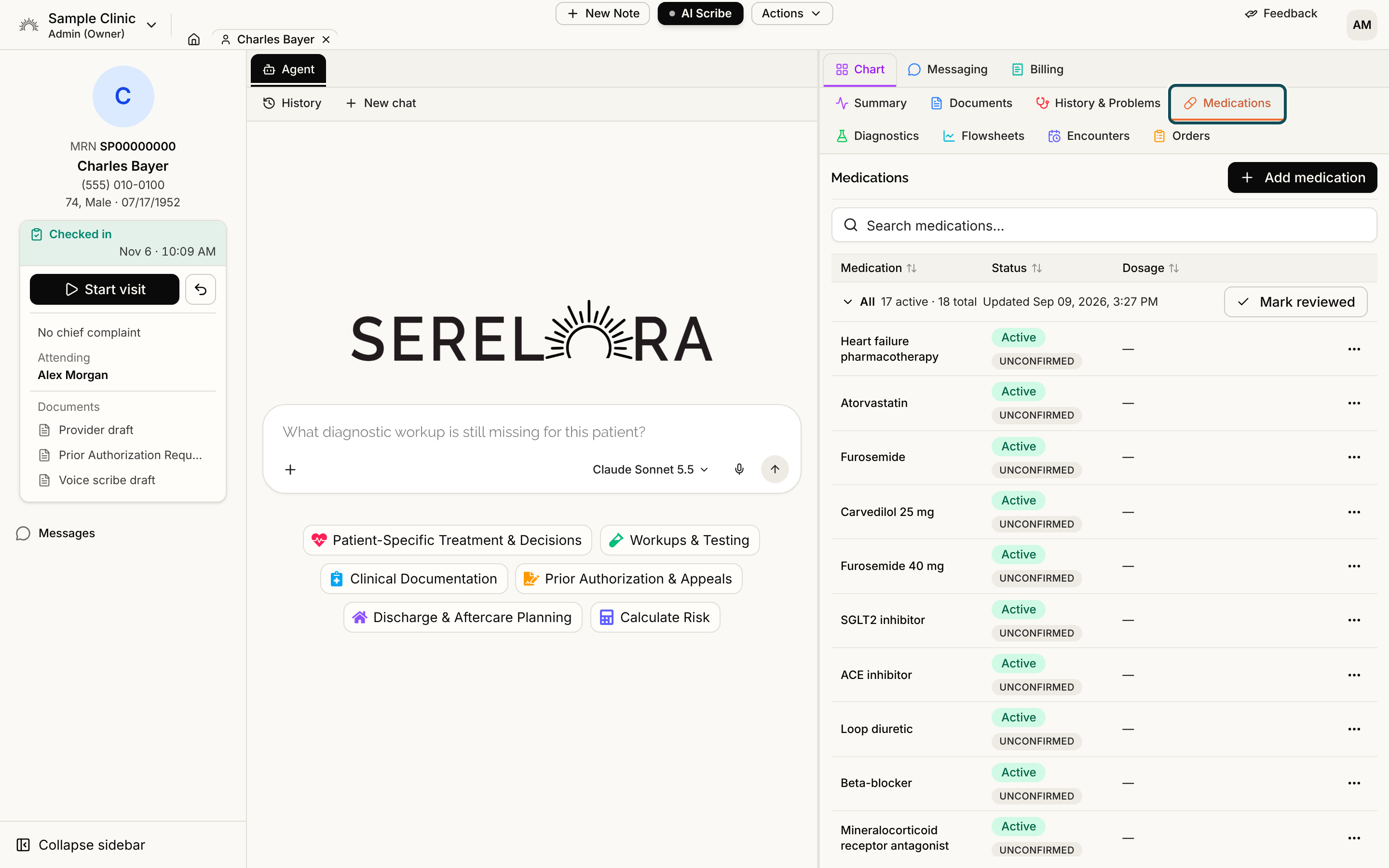
Open the Medications tab. Each row shows the Medication, a Status with two pills (clinical status, then verification such as Unconfirmed), the Dosage, the Prescribed Date and Last Confirmed. A medication that came from an outside record may carry Ordered, not confirmed taken, which means the source recorded an order and not that the patient takes it. Confirm those with the patient. See Medications.
Step 2: Check what the patient entered and what came from outside
If the patient completed pre-visit check-in, the check-in summary in Documents lists the medications they entered. Outside records and imports appear in Documents too. Select a medication to see its source. See Pre-Visit Check-In and Claim Detail and Where a Fact Came From.
Step 3: Correct the list
- Select the first Status pill to mark a medication Inactive or Resolved, and the second to Confirm it or rule it out.
- Open Row actions, then Edit…, to change the name, Dose / frequency or Prescribed date.
- Select Add medication for one the patient takes that is not listed. The search uses RxNorm.
See Correcting a Claim and Adding a Condition or Medication.
Step 4: Merge duplicates
The same medication from two documents is a duplicate, not an edit. Ask the agent "Clean up the duplicates in this chart" and merge the groups it finds in Manage Claims. See Cleaning Up Duplicate Claims with the Agent and Manage Claims.
Step 5: Review allergies
Allergies are on the Allergies card of the Summary tab, with the reaction and severity under each. There is no add button on the card. To add one, tell the agent:
Add an allergy to penicillin with hives as the reaction.
The agent prepares the entry in the Chart changes tab, and you check and approve it. To fix an existing allergy, use its Row actions menu: Edit…, Confirm, Refute (ruled out) or Mark entered in error. See Allergies and Reviewing Chart Changes the Agent Proposes.
Step 6: Mark both sections reviewed
When each list is complete, select Mark reviewed on the Medications tab and on the Allergies card. The header then shows Reviewed with your name, the date and the time, until a new entry arrives. This records that nothing is missing, which confirming one entry at a time does not. See Last Reviewed.
Step 7: Ask a safety question if you have one
The chart agent can answer a medication question with citations to the literature:
Is metformin safe given her eGFR?
Check the citations and the chart entries it links before you act. See Clinical Decision Support and Guideline Lookups.
What Serelora does not do
- It does not prescribe. Adding or editing a medication only records it. Nothing is sent to a pharmacy.
- It has no reconciliation screen. You work in the Medications tab and the Allergies card, and there is no side-by-side comparison of two lists.
- It does not warn about interactions or allergy conflicts when you add a medication. Ask the agent, and use your usual interaction checker.
- It does not pull a fill history from pharmacies. The list reflects the sources added to the chart, such as documents and health record files.