Search documentation
Find a documentation page by the words on it.
Documentation
NextGen Office EHR Pull
EHR Pull reads one patient's records from NextGen Office and adds them to the patient's Serelora chart. A clinician selects it from the chart's Actions menu, signs in to NextGen Office once to approve Serelora, and the records arrive as claims and documents. It only reads: nothing is ever written to NextGen Office.
This feature is controlled by the EHR Pull feature flag. If you do not see it in your clinic, contact Serelora at support@serelora.com and ask for it to be turned on.
EHR Pull is built and is switched on clinic by clinic by Serelora, as the flag note above says. It has not yet been confirmed against a live NextGen Office practice, so ask Serelora before you plan to rely on it. The chart agent method near the end of this page has not been released yet, and it is not available to clinics.
Three ways to use NextGen Office with Serelora
| Method | What it does | Where it stands |
|---|---|---|
| Roster import | Brings in your patient list from the Demographics Patient report. | Available. See NextGen Office Roster Import. |
| EHR Pull (Actions menu) | Reads one patient's records over SMART on FHIR. | Built, behind the EHR Pull flag, set up by Serelora. Not yet confirmed against a live practice. |
| Chart agent pull (chat) | The chart agent works through NextGen Office in a browser and files the patient's health summary. | Not released. |
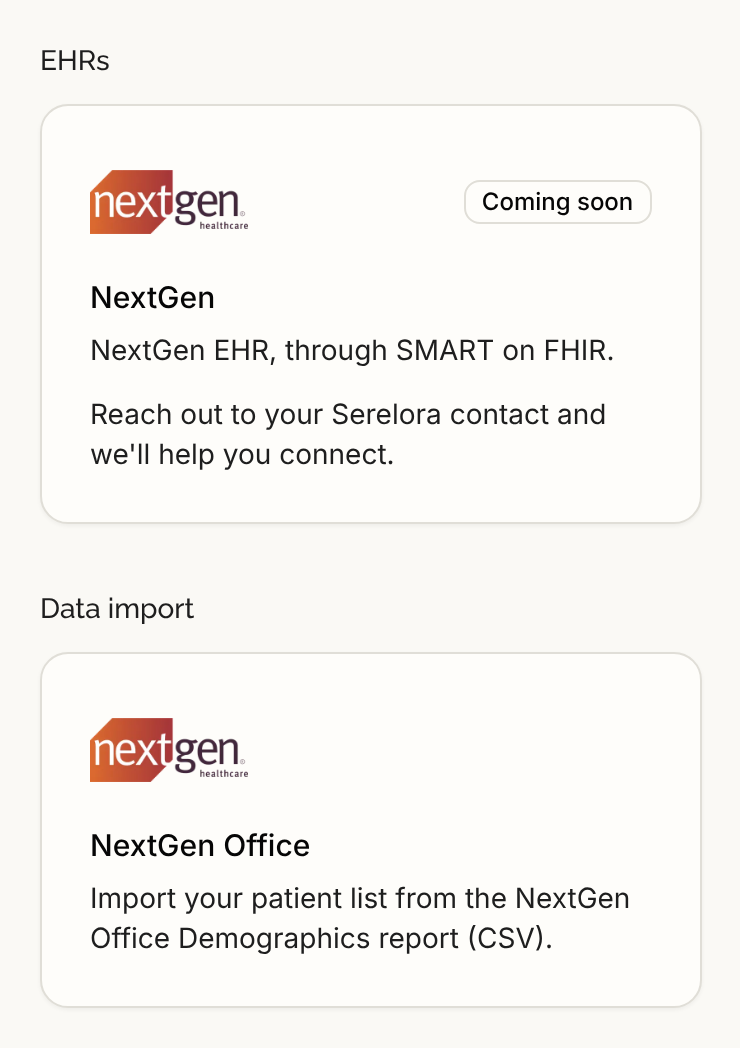
The NextGen tile in the EHRs group of the Integrations tab says Coming soon. It is not where either record method starts. The NextGen Office tile under Data import is the roster import.
What you need
- Patients already in Serelora with their NextGen Office chart number as the MRN. The roster import does this. EHR Pull finds the NextGen Office patient by chart number alone, with no name or date of birth check, so make sure the chart numbers match.
- Serelora to set it up for your clinic. Serelora turns on EHR Pull and connects your clinic to NextGen Office. You cannot do this yourself. At the moment Serelora can set it up for one clinic only.
- The permission to update charts. That is an Admin, Physician, Physician Assistant or Medical Assistant. Office Managers and Administrative Assistants do not see the EHR Pull row.
- Your own NextGen Office login. Each clinician connects their own account.
- The Serelora app enabled for your practice in NextGen Office, see If it does not work.
Step 1: Ask Serelora to turn it on
Write to Serelora at support@serelora.com and ask for EHR Pull with NextGen Office. When it is on, the EHR Pull row appears under Actions for the people above. If you do not see it, it is not on for your clinic or your role does not allow it.
Step 2: Open the patient's chart and select EHR Pull
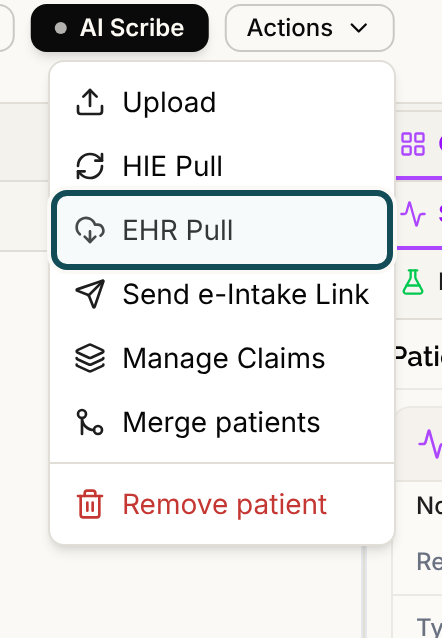
Open the chart, select Actions, then EHR Pull. It sits between HIE Pull and Send e-Intake Link. HIE Pull is different: it asks health information exchanges for outside records, see HIE Pull.
Step 3: Connect your NextGen Office account
The first time, and again if the connection expires, a message offers a Connect button. It reads "Connect your NextGen Office account. You'll be sent to NextGen Office to approve access, then returned to Serelora. Reopen this chart and choose EHR Pull again. If NextGen Office doesn't accept the connection, contact Serelora support." An expired connection says "Your NextGen Office connection has expired. Reconnect to continue." first.
Select Connect. The whole browser window goes to NextGen Office. Sign in and approve access. NextGen Office then sends you back to Serelora's home screen, not to the chart. Open the patient's chart again and select Actions, then EHR Pull again. Serelora does not resume the pull for you.
If something goes wrong during the connection, you may land on a plain page with an error message and a reference instead of Serelora. Go back to Serelora and send the reference to support.
Step 4: Wait for the result
A message reads "Pulling records from NextGen Office…" and starts with the patient's name, so a result is never mistaken for another chart. A pull can take up to a couple of minutes. You can keep working, and you can start a pull for a different chart. For the chart that is running, the EHR Pull row is greyed out, and a second attempt says "A pull for this chart is still running."
When it ends, a message says what happened:
| Message | What it means |
|---|---|
| "Sent to the chart. Records appear as processing finishes, which can take a few minutes." | The records were handed to the chart. |
| "Nothing new: these records were already received from NextGen Office." | The chart already has everything. |
| "Sent to the chart, but incomplete:" followed by parts such as Allergies, Medications, Results and vitals or Clinical notes | Some parts could not be read. The message stays until you close it, so an incomplete chart never looks complete. Try again in a few minutes. |
| "Nothing new was sent, and some records are incomplete:" followed by parts | Same, with nothing new to add. |
| "A previous send failed; open Documents and retry it." added to a message | A file from an earlier pull did not finish. Open the Documents tab and retry it. |
Step 5: Check the chart
Records appear as they finish processing, usually within a few minutes. Serelora refreshes the chart when the pull ends and again about half a minute later. Pulled files are in the Documents tab with the source NextGen Office, see Documents. Pulled documents go through the clinic's usual document processing, with the clinic's own settings, see How Serelora Reads an Uploaded Document. EHR Pull never picks a processing vendor for you.
What data moves
- Sent to NextGen Office: the patient's chart number, to find the patient, and your connection. Nothing else about the patient is sent.
- Read from NextGen Office: allergies, medications, conditions, results and vitals, encounters, reports, immunizations, procedures, the care team, clinical notes and the patient's health summary (C-CDA). Notes are taken only when their content comes with the record and they carry a date. A note without a date, or in a format Serelora cannot read, is skipped and listed as incomplete.
- Never written to NextGen Office, and the chart's demographics are never changed. The roster import owns demographics.
- Remembered: Serelora records which NextGen Office patient a chart was matched to, so a later pull for a different match is refused rather than guessed.
- Recorded in the audit log: each pull, with who made it and for which chart. Pull records hold no patient name, date of birth or chart number. See Audit Log.
Disconnect or turn it off
There is no Disconnect button for NextGen Office yet. To remove your connection or turn EHR Pull off for the clinic, contact Serelora. Turning the flag off removes the EHR Pull row. A change that adds a Disconnect my sign-in control on the Integrations page has not been released.
If it does not work
| Message | What to do |
|---|---|
| "EHR Pull isn't available for this clinic." | EHR Pull is not on for your clinic. Contact Serelora. |
| "NextGen Office isn't set up for this clinic yet. Ask your Serelora administrator to finish setup." | Contact Serelora. The clinic's connection is not set up. |
| "Connect your NextGen Office account to pull records." | Use Connect, step 3. |
| "This chart has no usable chart number (MRN), so it can't be matched in NextGen Office." | Add the NextGen Office chart number as the MRN in the patient record. |
| "No NextGen Office patient matches this chart number. Nothing was pulled." | Check the chart number against NextGen Office. |
| "More than one NextGen Office patient matches this chart number, so nothing was pulled." | Nothing is chosen for you. Contact Serelora. |
| "This chart is already linked to a different NextGen Office patient than its chart number now matches. Nothing was pulled." | The chart number was changed after an earlier pull. Contact Serelora. |
| "That NextGen Office patient is already linked to a different chart. Nothing was pulled." | Another chart already holds that patient. Check for a duplicate chart, see Merge Duplicate Patients. |
| "This chart's chart number changed while the pull was starting. Nothing was pulled. Try again." | Select EHR Pull again. |
| "A pull for this patient was just started. Wait a minute, then check the chart or try again." | One pull per patient at a time. |
| "EHR Pull is busy right now. Please wait a minute and try again." | Too many pulls are running or you have made many in a short time. |
| "NextGen Office didn't allow Serelora to read this patient's records. Ask your NextGen Office administrator to check that the Serelora app is enabled for your practice." | Your NextGen Office administrator must enable the app. |
| "Opening Serelora from NextGen Office isn't enabled yet. Open Serelora directly and use EHR Pull from the patient's chart." | Opening Serelora from inside NextGen Office does not work. Start from Serelora. |
| "We couldn't pull records from NextGen Office." or "Something went wrong on our end" with a reference | Try again, then contact support with the reference. |
What EHR Pull does not do
- It does not write to NextGen Office or change demographics.
- It does not match by name or date of birth. It uses the chart number only.
- It does not pull in the background or for many patients at once. It pulls the open chart when you select it.
- It does not bring in your patient list. Use the roster import.
Chart agent pull (not released)
This method has not been released yet. The steps below describe how it will work. It is being built for Serelora's test environment first and is not available to clinics. It will need its own per-clinic switch, EHR Browser Pull, and the Skills switch, both set by Serelora, and a NextGen Office procedure that Serelora sets up.
With this method you ask the chart agent to pull the record. After you confirm, a background job signs in to NextGen Office as you through its web pages, finds the patient, exports the health summary file (C-CDA) and files it in the chart. It is separate from EHR Pull: it works with your NextGen Office web login rather than an approval, and it starts only from the chart chat.
Step A: Ask the chart agent
Open the patient's chart and the chart chat. Ask:
Pull this patient's record from NextGen Office.
The agent replies "I've prepared a pull of this patient's record from NextGen Office. Review the card and confirm to start it; nothing is pulled until you do." Nothing has run yet.
Step B: Confirm, and save your login the first time
Open the card. The dialog Pull records from NextGen Office shows the patient and chart number. The first time, enter your NextGen Office username and NextGen Office password. Serelora saves them encrypted for your account at this clinic, and you are asked for a 2FA code on each pull. Select Confirm to start, or Cancel to stop. A Forget my NextGen login link removes the saved login, and the next pull asks again. Saving or removing a login needs the permission to connect your own accounts, which all six roles hold unless the clinic has changed a role.
Step C: Watch the run card and enter the 2FA code
A card above the chat's input reads "Pulling from NextGen Office…" with a line saying what it is doing, such as signing in and finding the patient, or that the patient was matched by MRN or by name and date of birth. Select Stop at any time.
When NextGen Office asks for a code, the card reads "Enter the 2FA code NextGen Office sent you." Type the 4 to 10 digit code and select Submit. If the code is refused, the card asks for the new one. If the agent needs to ask you something, such as which patient to use, the card shows its question and a field for an answer of up to 300 characters. It warns: "Never enter your NextGen password or 2FA code here."
Step D: Check the result
When it works, the card reads "Added to the chart." with an Open the document link, and "Extraction is still running." if the file is still being read. The file is filed like any C-CDA, see Importing a C-CDA Record. Serelora first looks for the patient by MRN, then by name and date of birth only if the MRN finds nobody, and it exports only once exactly one patient matches. Serelora then checks that the file names this patient. If it does not, the card says "The NextGen record didn't name this patient, so it was saved to the chart's documents without adding anything to the chart."
Limits and privacy
- A run stops after 10 minutes, or after 5 minutes of waiting for your code or answer. You can have one live pull per patient, and Serelora runs only a few pulls at once.
- While it works, an AI model reads each NextGen Office screen as text. Those screens can show patient information. Your password and 2FA code are typed into NextGen Office by Serelora and are never shown to the model.
- Each step is recorded in the audit log, for example that the pull was prepared and started, that your saved login was used, that a code was requested and submitted, how the patient was matched, and how it ended. Passwords and codes are never recorded.
- This method signs in to NextGen Office as you through its web pages. NextGen Office's own terms apply to that sign-in, so check them with your NextGen Office administrator first.
If a chart agent pull fails
| Message | What to do |
|---|---|
| "NextGen Office didn't accept your saved login. Re-enter it and try again." | Ask the agent to pull again. The dialog asks for your login again. |
| "NextGen Office didn't accept the 2FA code. Start the pull again to get a new code." | Ask the agent to pull again. |
| "You haven't saved a NextGen Office login yet. Add one, then try again." | Enter your login in the confirm dialog. |
| "No response arrived in time, so the pull was stopped. Start it again when ready." | Start again and answer sooner. |
| "No matching patient was found in NextGen Office. Nothing was pulled." | Check the chart's MRN, name and date of birth. |
| "More than one possible match was found in NextGen Office. Nothing was pulled." | Nothing is chosen for you. |
| "NextGen Office's screens didn't match what Serelora expected. Nothing was pulled." | Contact Serelora. |
| "The export didn't appear in NextGen Office. Nothing was pulled." | Try again, then contact Serelora. |
| "The downloaded file wasn't a usable patient record. Nothing was pulled." | Try again, then contact Serelora. |
| "The record was exported but couldn't be filed into the chart. Try again." | Try again. |
| "NextGen Office couldn't be reached. Try again in a few minutes." | Wait and try again. |
| "Serelora is already running the maximum number of EHR pulls. Try again shortly." | Wait and try again. |
| "The pull took too many steps and was stopped for safety. Try again." or "The pull took too long and was stopped. Try again." | Try again. |
| "The pull was interrupted (Serelora restarted). Start it again." | Start again. |
| "A pull for this patient is already running." | Wait for the running pull or select Stop. |
| "No NextGen Office procedure is set up for this clinic yet." | Contact Serelora. |
| "NextGen Office pulls aren't available in this environment." | Contact Serelora. |
For the matching connection on another EHR, see athenaOne Connection. For placeholder tiles, see Coming Soon Integrations.