Search documentation
Find a documentation page by the words on it.
Documentation
Adjustments and Write-Offs
An adjustment changes what a patient owes without changing the invoice's charges or its number. Use a credit to write off or discount a balance, and a debit to add to it.
This feature is controlled by the Billing feature flag. If you do not see it in your clinic, contact Serelora at support@serelora.com and ask for it to be turned on.
An adjustment only changes the balance. It does not send money back to the patient, and Serelora does not issue refunds.
Step 1: Open the invoice
Open the invoice from the visit's charges tab, or from Records in the patient's Billing tab. See Invoices. Adjustments are offered on invoices that are Issued or Paid.
Step 2: Select Adjust balance
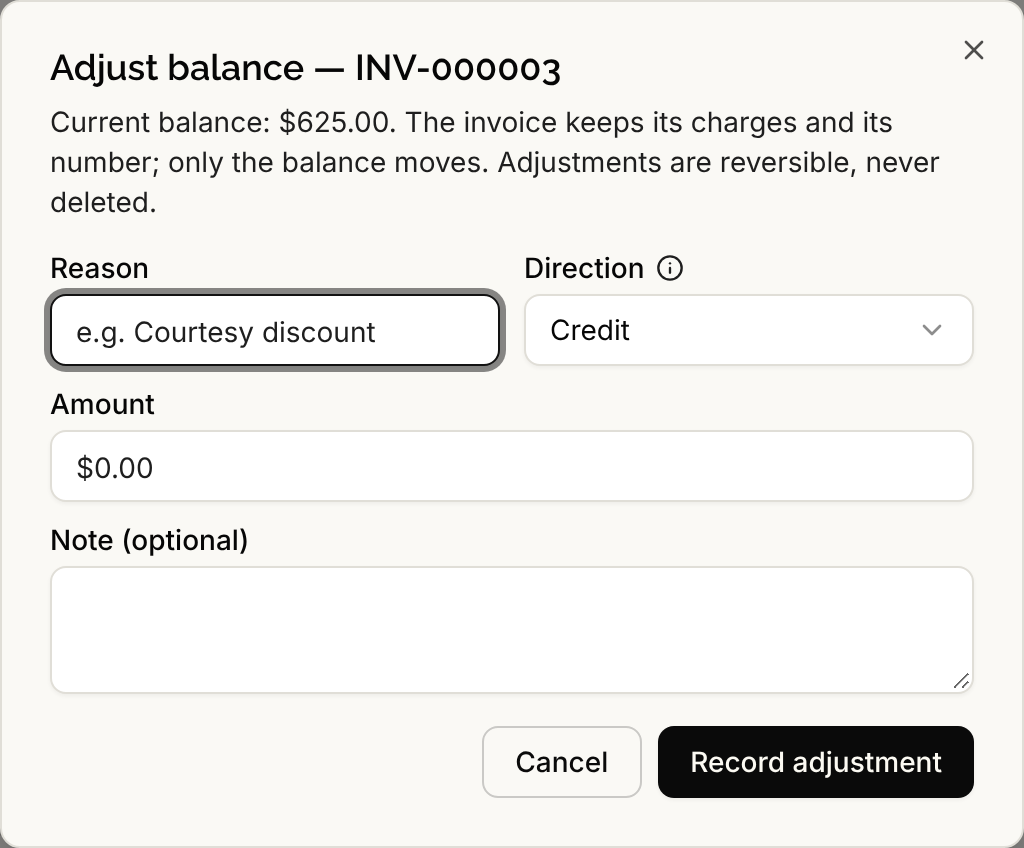
On the invoice card, select Adjust balance. The Adjust balance dialog shows the current balance and a reminder that adjustments are reversible and never deleted.
Step 3: Fill in the adjustment
- Reason: a short phrase, up to 60 characters, such as "Courtesy discount". It is required.
- Direction: Credit lowers what the patient owes, for a write-off or a discount. Debit raises it, for example after a returned check or to correct an under-charge.
- Amount: a positive amount. The direction decides whether it adds or subtracts.
- Note (optional): up to 500 characters of detail.
Step 4: Select Record adjustment
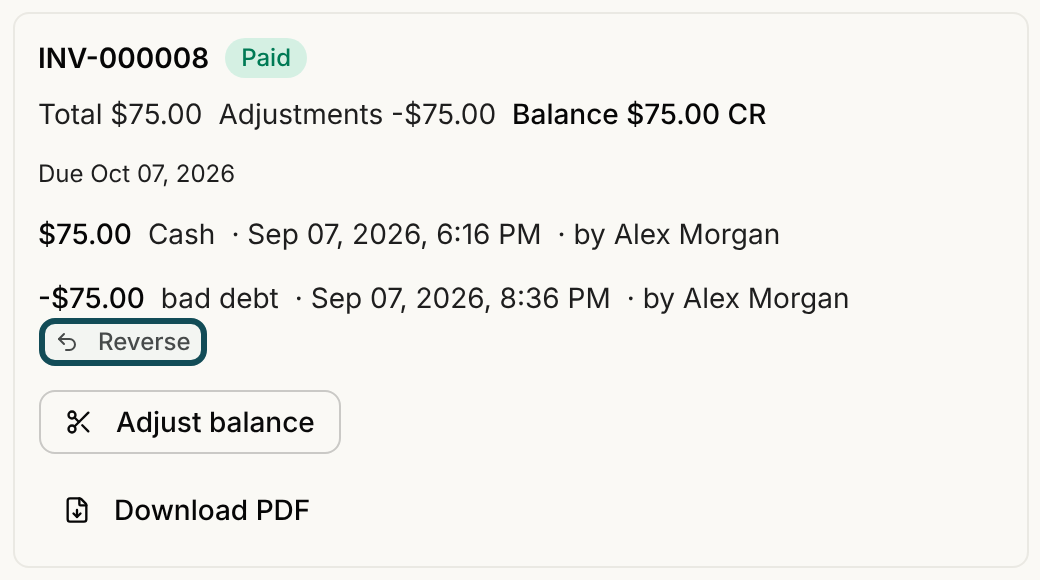
Select Record adjustment. A message says "Adjustment recorded". The adjustment appears on the invoice card with its amount, its reason, the date and who recorded it, and the balance updates. If a credit is larger than what the patient still owes, the invoice shows the difference as a credit balance, marked CR.
If you already emailed a payment link, send it again so the patient pays the new balance. See Sending a Payment Link.
Write off from the account balance
You can also write off a balance without opening the invoice. In the patient's Billing tab, open Summary and select Details on the Account balance card. Select Adjust balance and pick Write off patient balance. Choose the invoice under Apply to invoice, enter the Amount and a Reason, and select Post adjustment. The amount cannot be more than that invoice still owes.
Reverse an adjustment
Select Reverse beside an adjustment on the invoice card, or open the adjustment from Records under the Adjustments chip. The original adjustment stays on the invoice, struck through and marked "(reversed)", beside the reversal. Nothing is deleted, so the pair is a record that the balance was written off and then restored.
A reversal cannot be reversed. If you need the balance changed again, record a new adjustment.
An invoice with a live adjustment cannot be cancelled until the adjustment is reversed.
Who can do this
Admins and Office Managers can record and reverse adjustments by default. Anyone who can read billing can see them.