Search documentation
Find a documentation page by the words on it.
Documentation
Reviewing a Scribe Draft Note
The AI Scribe writes a draft. It is not part of the record until someone with permission signs it. Take a few minutes to read it against what happened in the visit, fix what needs fixing, and then sign.
Step 1: Open the draft
You have two ways in:
- Select View note on the Scribe note is ready notification.
- Open the patient's chart and select the Documents tab. A scribe note shows a draft status, Voice scribe draft in the Source column and the template name, such as History & Physical, in the Type column. Select the row to open it.
The note opens in the note editor under the heading Medical Note.
Step 2: Read the note
The scribe fills the template you picked. Each section of the template is a heading. Free-flowing parts such as the history of the present illness read as paragraphs, and lists such as a review of systems keep one line per item.
Read every section, not only the ones you expect to matter. Check names, doses, laboratory values, the assessment and the plan against what was said. Look for bracketed placeholders such as [Patient Name] that still need to be filled in. Serelora warns you about them again when you sign.
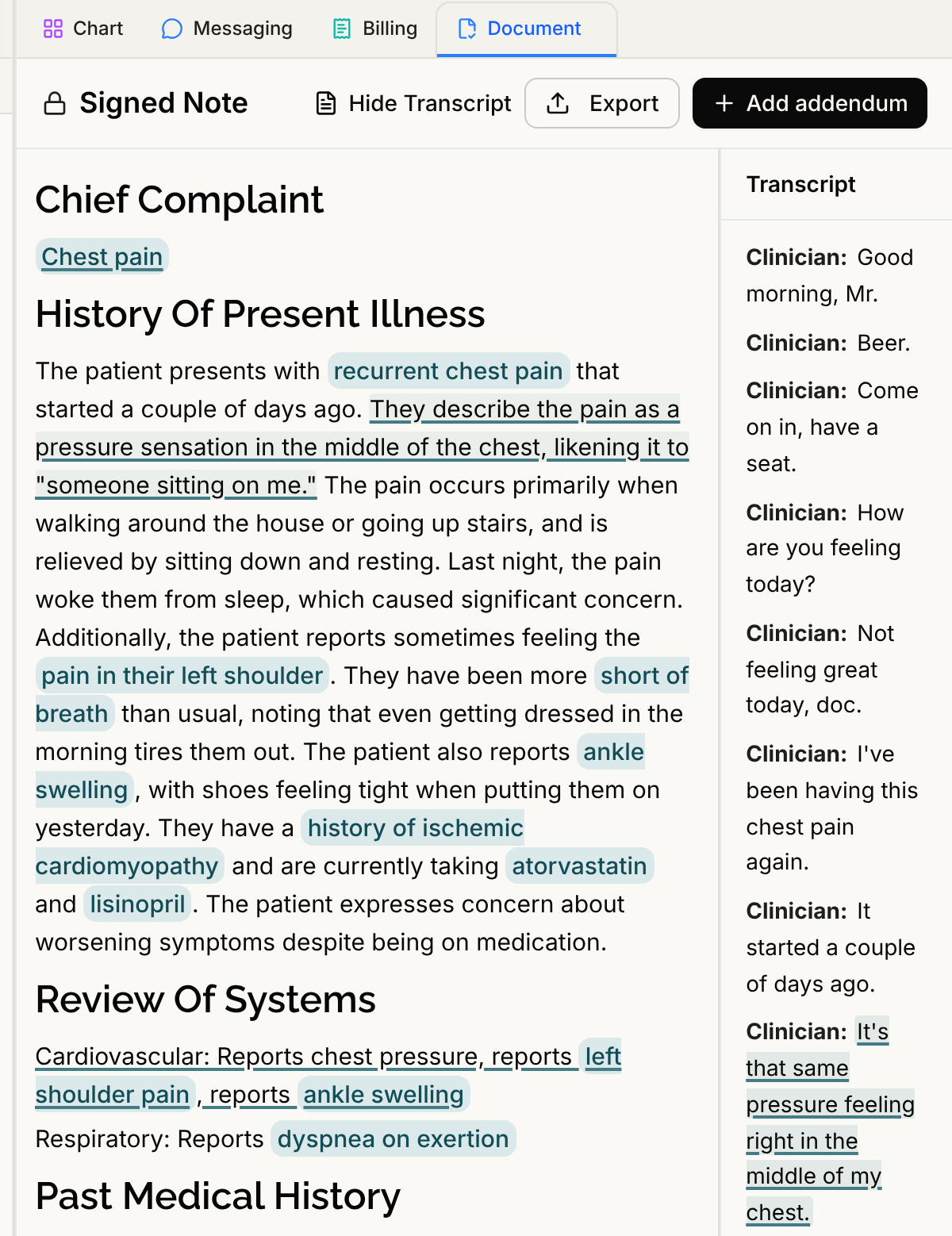
Step 3: Compare with the transcript
Scribe notes keep the transcript. Select Show Transcript at the top of the editor and the Transcript panel opens beside the note. Each line starts with who was speaking, such as Clinician or Patient.
- Select a transcript line and the note sentences it informed are highlighted in blue.
- Click into a note sentence, and the transcript lines behind it are highlighted and scrolled into view.
Select Hide Transcript to close the panel. The transcript is read-only. You edit the note, not the transcript.
Step 4: Edit the draft
Edit it like any other note: type, delete, change the formatting, or dictate. See Note Editor Formatting. Serelora saves as you work. The header shows Saving…, then Saved.
Select Save Draft to save and close the note, or Delete to remove the draft. Deleting asks you to confirm and cannot be undone.
Step 5: Sign or send for co-signature
When the note is right, sign it. What you see depends on your role:
- Admins and Physicians see Sign. See Signing a Note.
- Physician assistants and medical assistants see Submit for Review, so a physician can co-sign. See Co-Signing Notes.
Who can edit a scribe draft
Admins, Physicians, Physician Assistants and Medical Assistants can edit and save a draft. Office Managers and Administrative Assistants can open the chart but cannot change notes.