Search documentation
Find a documentation page by the words on it.
Documentation
Finding Your Way Around Serelora
Serelora has one header across the top of every page, a sidebar down the left, and a page in the middle. This page names each part, so you know where to look. What you see depends on your role and on the features your clinic has turned on, so a colleague's screen may show more or less than yours.
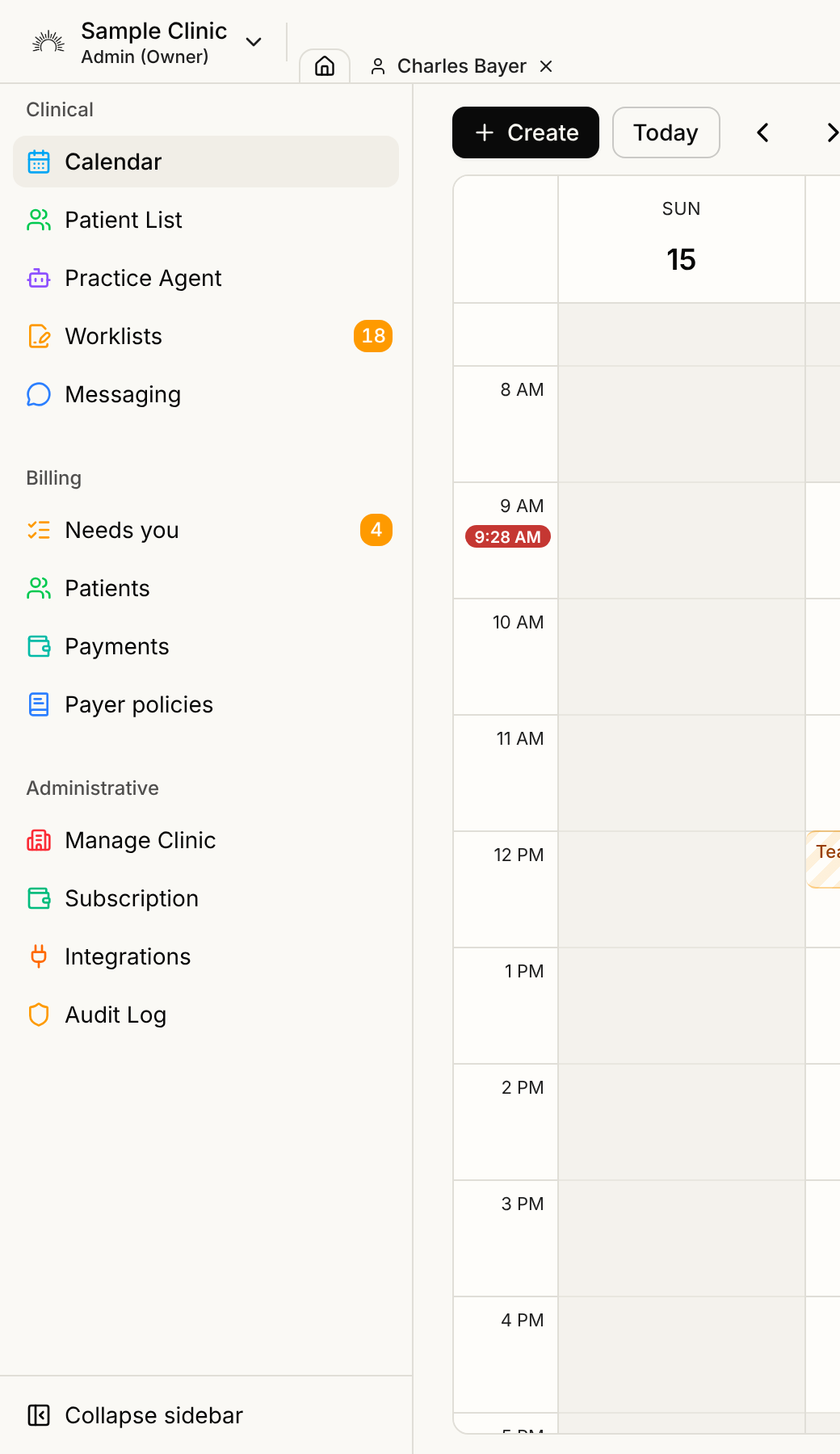
The header
From left to right:
- The clinic picker. A card showing your clinic's name and logo. If you belong to more than one clinic, you switch here. See Switching Between Clinics.
- The Home tab and your open charts. Home is the tab you leave a chart from: it returns you to the page you opened the chart from, or to the Patient List. Each patient chart you open gets its own tab beside it. See Working in Several Charts.
- The center buttons. AI Scribe opens the visit recorder. New Note appears only while a patient's chart is open, and only if your role can edit the chart. Actions opens a menu of things you can do for a patient. See The AI Scribe and Writing a Note.
- Feedback. Sends a message to the Serelora team. See Sending Feedback to Serelora. This button is hidden on narrow windows.
- Your avatar. Opens your account menu. See below.
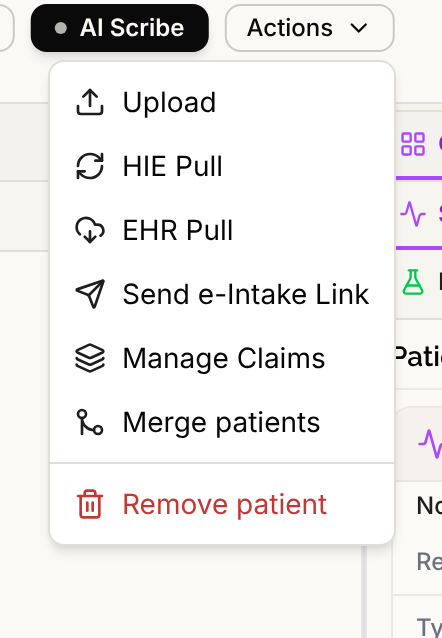
The Actions menu
Actions holds the things you do to a patient rather than inside a chart tab. On a patient's chart it can offer Upload, HIE Pull, EHR Pull, Send e-Intake Link, Manage Claims, Merge patients and Remove patient. Away from a chart, it offers the ones that ask you to pick a patient first, such as Upload and Send e-Intake Link.
The menu shows only what your role and your clinic allow. A row that is missing is not broken. See Roles and Permissions and Why a Chart Button or Tab Is Missing.
Your account menu
Select your avatar at the top right. The menu shows your name and email, then:
- Settings. Your own account, professional details and working hours. See Your Account Settings.
- A tutorial entry, when you are eligible for the guided tutorial. See The Guided Tutorial.
- Log out. See Sessions and Signing Out.
The sidebar
The sidebar has up to three groups. A group appears only when you can use at least one of its entries.
Clinical
- Calendar is the first page Serelora opens when you sign in. See The Calendar.
- Patient List finds and opens patients. See Patient List and Search.
- Practice Agent asks questions across your whole patient panel. It appears only for people whose role includes it and only when your clinic has it. See Practice Agent and Cohorts.
- Worklists gathers tasks waiting for you in tabs, such as Sign Notes, Duplicate Claims and Orders to Co-sign. A number beside it counts unsigned notes. See The Sign Notes Worklist.
- Messaging holds secure messages and mass messages. It appears when your clinic has patient messaging and your role can use it. A blue number counts conversations with unread patient messages. See Messaging Overview.
Billing, for people who add charges or issue invoices, when your clinic has billing:
- Needs you, Patients and Payments, and Payer policies where the clinic has insurance billing. See Billing Overview.
Administrative
- Manage Clinic holds your clinic's details, staff, procedures, billing settings, orders, consent forms and skills in tabs. See Clinic Administration.
- Subscription shows what your clinic pays Serelora. See Your Serelora Subscription and Seats.
- Integrations connects your own accounts and your clinic's outside services. See The Integrations Tab.
- Audit Log shows who did what. See The Audit Log.
The button at the foot of the sidebar, Collapse sidebar, shrinks it to icons, and the same button, now Expand sidebar, brings the labels back.
When a patient's chart is open, the sidebar shows that patient's summary instead of these entries, with the chart's Messaging entry beneath it. See The Patient Chart at a Glance.
Why something is missing
Two things decide whether you see an item. Your role has to include the ability, and for some features your clinic has to have the feature turned on. If either is missing, Serelora hides the button or entry instead of showing one that would refuse you. See Missing Clinic Administration Controls and Feature Flags.