Search documentation
Find a documentation page by the words on it.
Documentation
The Current Visit Sidebar
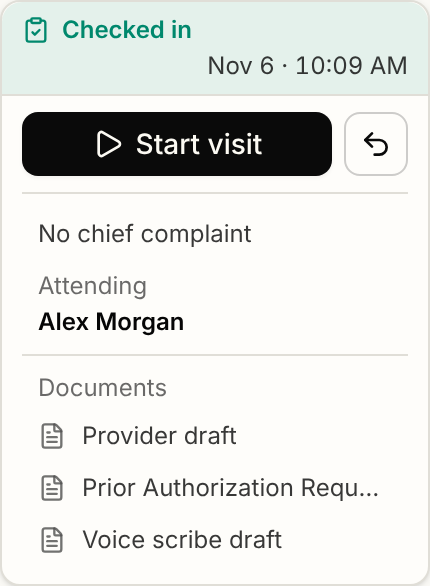
When you open a patient's chart, the Current visit card sits in the sidebar under the patient's name. It shows the visit that is open right now and holds every visit button, so you do not need to leave the chart to check a patient in or finish a visit.
This feature is controlled by the Encounters feature flag. If you do not see it in your clinic, contact Serelora at support@serelora.com and ask for it to be turned on.
What the card shows
- Status. A band at the top reads Checked in or In encounter, with a date and time on the right. The time is when the patient was checked in. Hover it to see that stated.
- Buttons. One step is offered at a time: Start visit until the visit is started, then Finish visit. Undo check-in sits beside the step as an icon, or as its own button when no step is offered.
- Visit line. The visit's reason and type. Select it (the tooltip reads Edit visit) to open Edit chief complaint, where you change the Reason and Type and select Save.
- Attending. The attending physician's name, with any other participants on one line beneath it. See Attending Physicians.
- Documents. One row for each note or upload filed under the visit. Select a row to open it. When nothing is filed yet, a New note row opens a blank note for this visit.
Which buttons you see
| Patient's visit | Buttons |
|---|---|
| No visit open | Check in if there is an appointment today, otherwise Start encounter. Briefly, Checking today's schedule… while it looks. |
| Checked in | Start visit and Undo check-in |
| In encounter | Finish visit and Undo check-in |
A button appears only if your role may use it. Check in, Start encounter and Start visit are open to every standard role. Finish visit is for Admin and Physician, Undo check-in is for Admin, Physician and Office Manager, and New note needs a role that can edit the chart (Admin, Physician, Physician Assistant or Medical Assistant). Everyone still sees the status, attending and documents.
With the sidebar collapsed
The sidebar shrinks to a column of icons. The visit status is an icon with a tooltip, and each button you may use is an icon button. Finish visit never finishes in one click here: it opens the sidebar and starts the checklist described in Finishing a Visit.
If the card cannot load
If it reads We couldn't load this patient's visit., select Retry. The card never says "No visit open" when it does not know.
The chart header's Actions menu has no visit rows. Visit actions are only in this card.
The other visit pages are listed in Visits and Encounters.