Search documentation
Find a documentation page by the words on it.
Documentation
Placing an Order
You place orders from a patient's chart. You pick what you want from a catalog, fill in any details, and sign the whole cart at once or save it as drafts. Only an Admin or a Physician can place and sign orders. A physician assistant proposes an order instead, see Proposing an Order for Co-Signature.
This feature is controlled by the Orders feature flag. If you do not see it in your clinic, contact Serelora at support@serelora.com and ask for it to be turned on.
Step 1: Open New orders
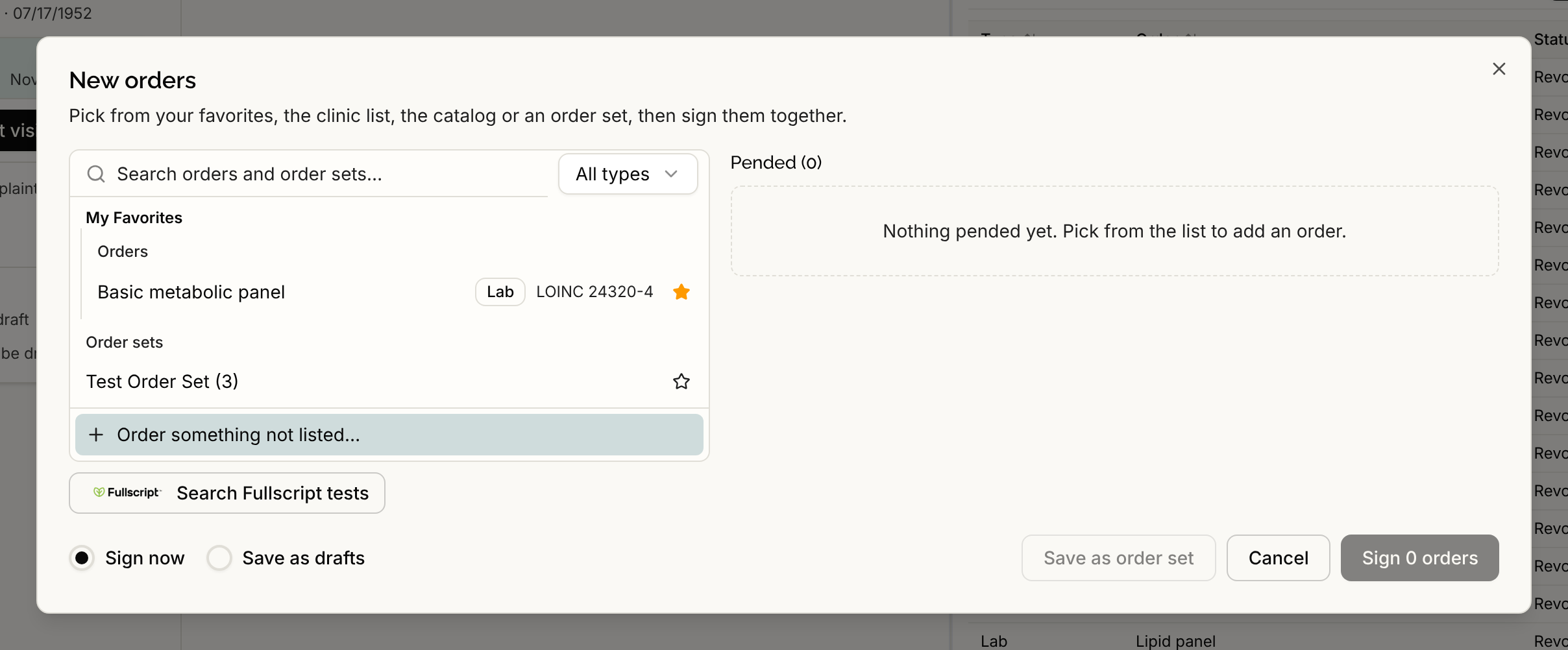
Open the patient's chart, select the Orders tab, then select New orders. A window opens with a search on the left and your cart on the right.
Step 2: Find what you want to order
Type in the Search orders and order sets… box. Use the type filter, which starts on All types, to narrow the results to Lab, Imaging, Medication, Procedure or Referral. Results are grouped as My Favorites, Clinic list, Catalog and Order sets. Press Enter or select a result to add it.
- With the search box empty you see your favorites, your clinic's list and its default order sets. If there are none, it says "No favorites yet. Search the catalog to find orders." Start typing to search.
- Select the star on a result to add it to your favorites or remove it. See Favorites and the Clinic List.
- Selecting an order set adds every order in it. The ones the set marks as selected by default are checked, and the others are added unchecked.
- If the order is not in the catalog, select Order something not listed…, choose the type and describe what you are ordering. The row is marked Uncatalogued.
Step 3: Check each order in the cart
Each row in the cart starts collapsed. Select a row to expand it, use its checkbox to include or leave it out, and select the X to remove it. A row that is missing something shows Needs attention.
- Every order has a Priority: Routine, Urgent, ASAP or STAT. The catalog suggests one, and you can change it. Add a Note (optional) if you want one on the order.
- A lab has Specimen and Fasting.
- A medication has a Sig, which is a ready-made set of directions. Choosing one fills Dose, Unit, Route, Frequency, Period and the dispense fields (Dispense, Refills, Days supply, Dispense as written). Change any field and the Sig changes to Custom. You can also set Duration, As needed (PRN) and Patient instruction.
Step 4: Sign or save as drafts
At the bottom, choose Sign now or Save as drafts. The main button then reads Sign N orders or Save N drafts, where N counts the rows you included. It stays off until every included row is complete.
Signing is all or nothing. If anything in the cart is refused, nothing is placed and the message tells you which order to fix. When it works, you see "3 orders placed" or "3 drafts saved", and the orders appear on the Orders tab.
A signed order is recorded in the chart. Serelora does not send it to a pharmacy or lab. See Orders Overview.
Let the chart agent pend orders
You can ask the chart agent in the patient's chat to propose orders. See Chart Agent Overview.
Order a CBC with differential and a basic metabolic panel for Jane Sample.
The agent searches the catalog and opens Review proposed orders. You can adjust, remove or add orders there, then sign them. Nothing is ordered until you sign.
Save a repeat cart
If you order the same group often, select Save as order set in the footer. See Order Sets.
See also Ordering with the Chart Agent.