Search documentation
Find a documentation page by the words on it.
Documentation
Custom Roles and Per-User Permissions
The six standard roles cover most clinics. When they do not fit, you can change a role, add your own, or give one person a few extra permissions. Only people whose role can manage staff and roles, which is the Admin role, can make these changes. Office Managers can view the Roles page.
Changes apply to your clinic only.
Change what a role grants
- Select Manage Clinic, then Manage Staff, then Manage roles to open the Roles page.
- On the role's row, select Edit. A panel opens. For a standard role it is titled Edit seeded role. It says that renaming it or changing its grants affects only this clinic.
- Change the Name, or tick and clear items in the Permissions checklist. The permissions are grouped by area, such as Billing and Visits.
- Select Save.
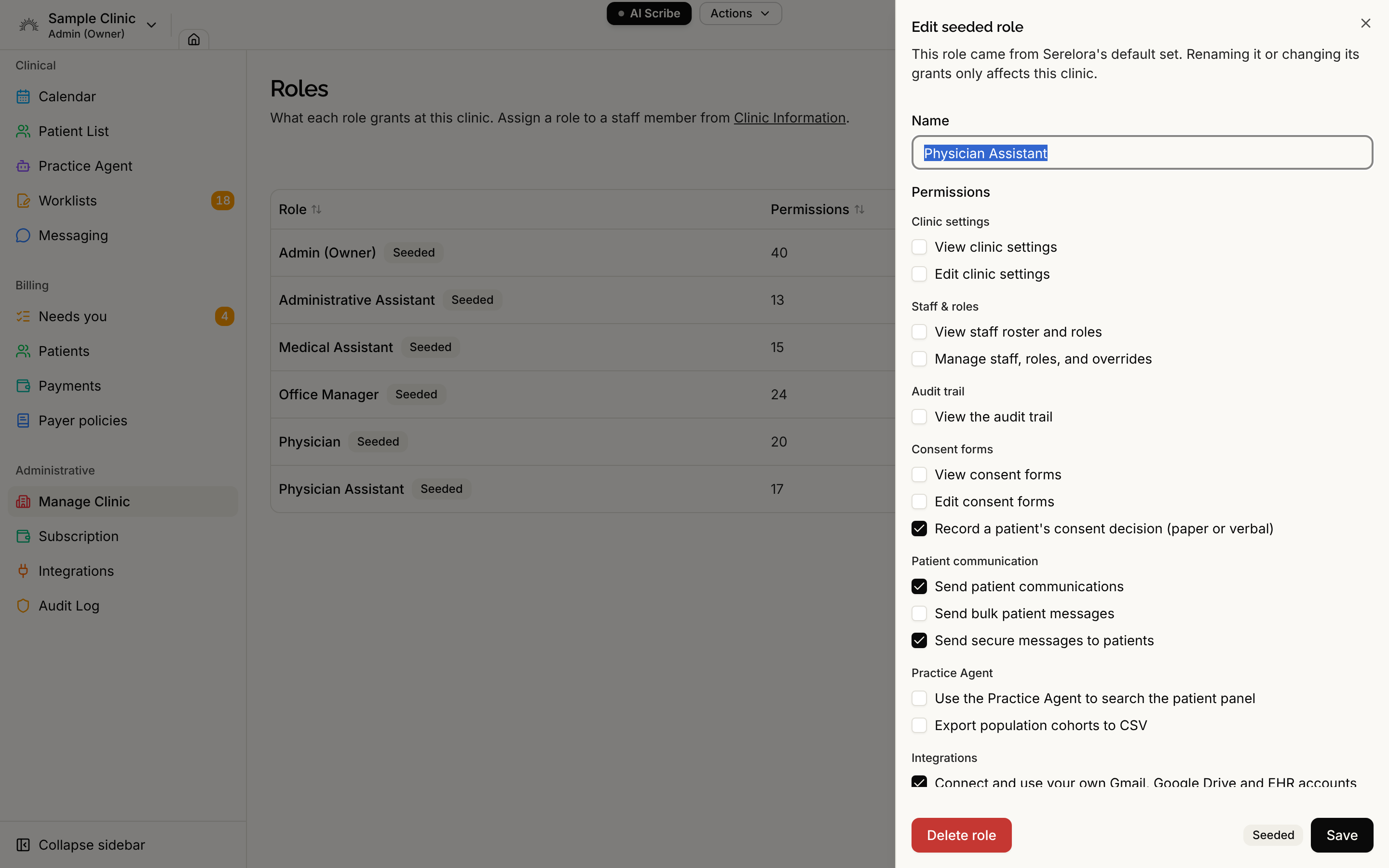
The Seeded badge on the Roles page marks the standard roles. It only means a role came from Serelora's default set. A seeded role can be renamed and edited like any other.
Create a custom role
- On the Roles page, select Add role.
- In Add a role, type a Name, such as Front Desk Lead, and select Create role.
- The new role starts with no permissions. Select Edit on its row, tick what it should grant, and select Save.
- Assign it to people from the Access Role column in Manage Staff.
Delete a role
Open the role with Edit and select Delete role. The button is unavailable, with an explanation, when:
- Staff still hold the role: 1 staff member still holds this role. Reassign them first. (With more than one person, the count changes.)
- It is the role new staff start with: This is the clinic's default role for new staff and can't be deleted. For every clinic this is the Physician role.
Give one person extra permissions
Use this when one person needs something their role does not include, such as a Medical Assistant who also needs to issue invoices.
- In Manage Staff, select the actions button (three dots) on the person's row, then Permissions.
- Under Additional permissions, tick what they need. Permissions their role already grants are shown ticked and disabled, with the tooltip Granted by the role's name role.
- Select Save permissions.
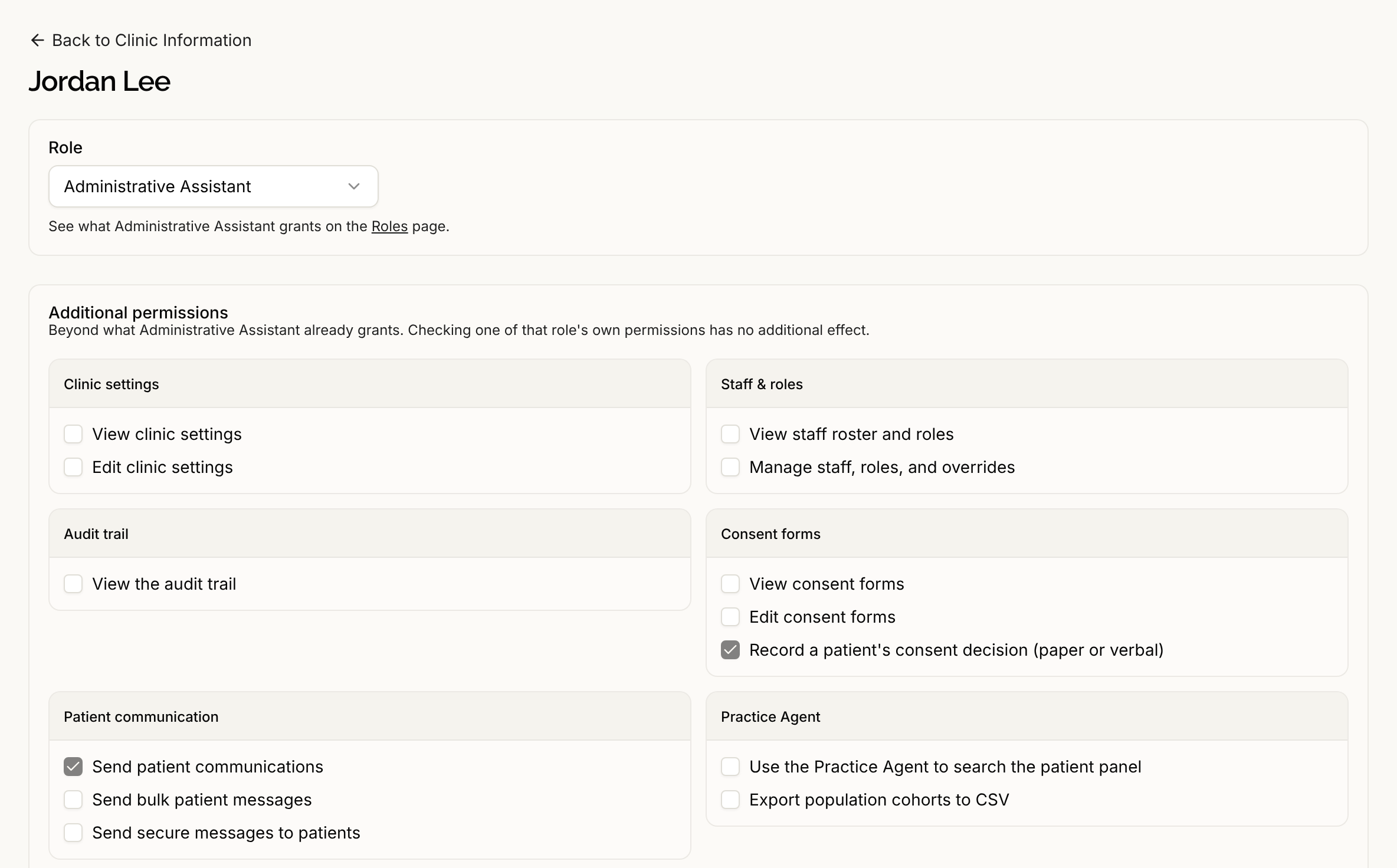
On the same page the Role dropdown changes their access role. In Manage Staff, a +1, +2 and so on badge beside a person's role shows how many extra permissions they hold. Anyone who can view the roster sees it.
Extra permissions only add. You cannot take away something a role grants for one person. To do that, give them a different role.
Guardrails
- Your clinic always keeps an administrator. Serelora refuses a change that would leave nobody able to manage staff. Changing the only administrator's role, removing them, or taking away their extra permission for managing staff answers This is the clinic's only administrator. Give someone else administrator access first. Taking staff management away from the only role that grants it answers This is the only role at the clinic that grants staff management. Give another role or member that permission first.
- Two people editing at once. If someone else changed a person's extra permissions while you had the page open, Serelora refuses your save and says This member's permissions were changed by someone else. Reload the page and review the permissions before saving. Reload, check the current list, and apply your changes again.
See Roles and Permissions for what the standard roles include. See Permission Reference for what each permission lets someone do, and The Duplicate Claims Worklist for the one permission no role holds by default.