Search documentation
Find a documentation page by the words on it.
Documentation
Orders Overview
Orders are how your clinic records what it asks for on a patient's behalf: labs, imaging, medications, procedures and referrals. You work with them on the Orders tab of the patient's chart.
This feature is controlled by the Orders feature flag. If you do not see it in your clinic, contact Serelora at support@serelora.com and ask for it to be turned on.
What the Orders tab shows
Each order is one row. The columns are Type, Order, Status, Priority, Intent, Authored and Transmission. Select a row to open its details: when it was authored and signed, its requisition, its code, dosing or specimen details, any note, and its transmission history.
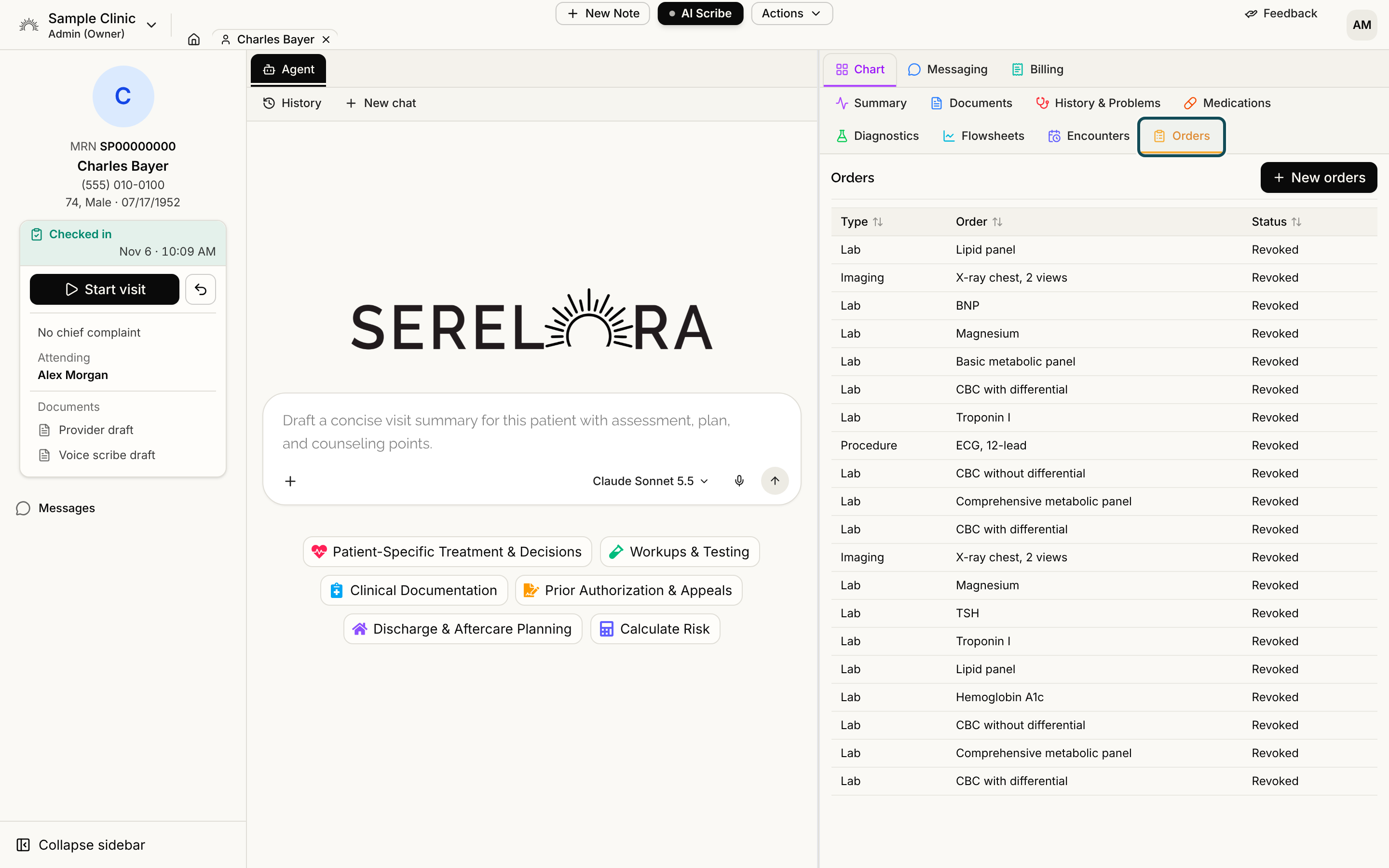
The type is Lab, Imaging, Medication, Procedure or Referral. An order that was typed in rather than picked from the catalog carries an Uncatalogued badge. The tab lists the 100 most recent orders and tells you when older ones are not shown.
Draft, signed and withdrawn
- Draft. The order is saved but not signed. Its Status is Draft and its Intent is Proposal.
- Signed. The order is a real order. Its Intent is Order and its Status is Active.
- Awaiting co-signature. A physician assistant proposed it and a physician or admin still has to sign it. See Co-Signing Orders.
- Withdrawn. A signed order that was taken back shows Revoked, Cancelled or Stopped. There is no way to unsign an order, so the signature stays on record.
What happens when you sign
Signing records the order in the patient's chart. Serelora does not send it to a pharmacy, lab or imaging center. The Transmission column shows a status such as Acknowledged, and the order's details say recorded only. Both mean Serelora logged the order, not that anyone outside your clinic received it. Keep sending orders to pharmacies and labs by your usual route. Electronic sending is not available yet.
Serelora checks that each order is complete before it lets you sign. It does not check insurance coverage, prior authorization or whether an order is clinically appropriate.
Who can do what
Everyone who can open a patient's chart can see the Orders tab. What each role can do depends on its order permissions.
| Role | View orders | Place and sign | Propose for co-signature | Co-sign |
|---|---|---|---|---|
| Admin | Yes | Yes | No | Yes |
| Physician | Yes | Yes | No | Yes |
| Physician Assistant | Yes | No | Yes | No |
| Medical Assistant | Yes | No | No | No |
| Office Manager | Yes | No | No | No |
| Administrative Assistant | Yes | No | No | No |
Buttons you cannot use do not appear, rather than showing greyed out. If one is missing, see Missing Order Buttons.