Search documentation
Find a documentation page by the words on it.
Documentation
Mass Messages by Email and Text
A mass message sends each patient you choose their own link to complete intake, with a note you write, by email or by text. Use it to invite a whole panel, or a chosen group, to register and fill in their intake before a visit.
This feature is controlled by the Patient messaging feature flag. If you do not see it in your clinic, contact Serelora at support@serelora.com and ask for it to be turned on.
It always carries the intake link and cannot send a free-form announcement. Custom email appears in the message types but is marked "Coming soon".
By default only an Admin can send one. Email starts on for the clinic, and Text messages (SMS) starts off until Serelora turns it on. See the Messaging Overview.
Step 1: Open Mass message
Select Messaging in the sidebar, then the Mass message tab, then the New message sub-tab. The form has four steps, one open at a time. Your draft survives a look at Sent, but not a page reload.
Step 2: Choose Send by
Pick Email or Text message. Only the channels your clinic has turned on are offered. If only one is on, this step is already answered.
Step 3: Pick the recipients
Search by name, MRN, phone number or email, or use the filter chips. Select the patients, or select Select all ready. You can send to up to 20,000 patients in one campaign.
A patient who cannot be sent to on this channel is shown with a disabled checkbox and the reason:
- For email: No email, Completed intake, Opted out or Bounced.
- For a text: No phone, Completed intake or Opted out of texts.
A patient who has a portal account but has not finished intake is ready. They receive a link to sign in and continue instead of a new registration link.
When at least one patient is ready, select Continue.
Step 4: Choose the message type and write it
Choose Intake invitation.
- Email: add an optional Subject of up to 150 characters. If you leave it blank, the subject is "Complete your intake with your care team". Write the Message, up to 2,000 characters.
- Text: write the Message, up to 143 characters. Each text also names your clinic, includes the patient's link and ends with "Reply STOP to opt out.", and the whole text is capped at 320 characters. The counter beside the box counts your words only. Review and send stays disabled until the message fits.
Select Preview to see exactly what each patient receives.
Step 5: Review and send
Select Review and send. A dialog opens on the message itself, followed by a summary of the channel, the number of patients and, for email, the subject. Select the Send to button, which shows the patient count, to send.
Serelora sends in the background. You see "Your message is on its way. You can follow it under Sent." Large lists can take a few hours.
Follow it under Sent
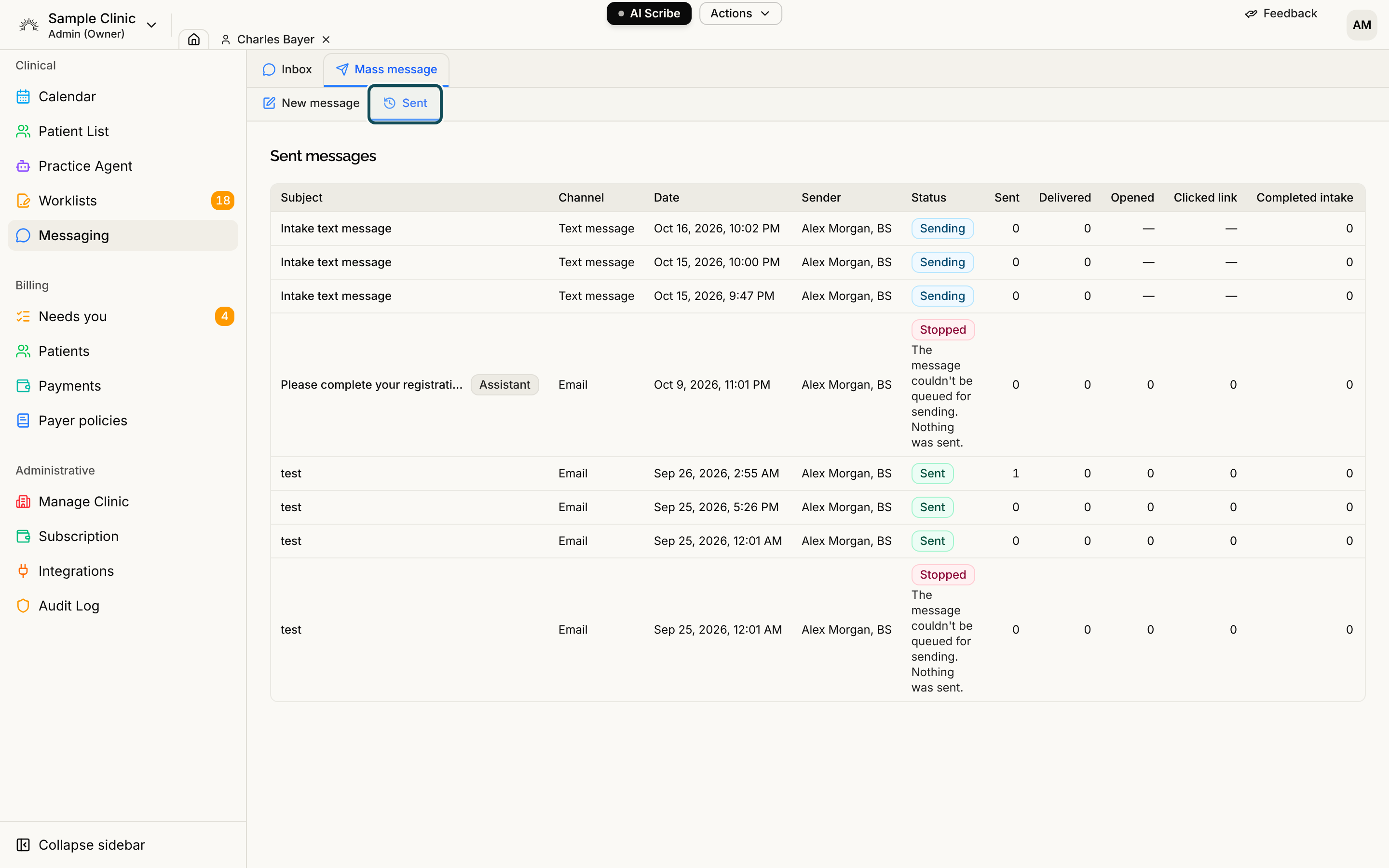
The Sent sub-tab lists every campaign with its counts, such as Sent, Delivered, Skipped and Failed. Open a campaign to see each recipient with their status, the reason and what the provider reported back. The page updates by itself while a campaign is sending. A text campaign shows no opens, clicks or complaints, and its failed-delivery count reads Not delivered.
Patients are checked again as each message goes out. Anyone who completed intake, opted out, or whose address bounced earlier is shown as Skipped with the reason. See Mass Message Patient Skipped or Failed and Mass Message Stopped or Waiting.
Good to know
- No unsubscribe link. Emails carry none. A registration-email opt-out the patient already set is still honoured, and an address that bounced or was marked as spam is skipped. See Opt-Outs and Consent for Texts.
- Not sure it went? If the page says "We couldn't confirm this message was sent. Check the Sent tab before trying again.", check Sent before sending again, so patients are not messaged twice.
- Practice Agent campaigns. The Practice Agent can propose a campaign. You approve it in a dialog, and it shows an Assistant badge under Sent.
Sending email from your own Gmail
If Serelora has turned on Mass message: send email from the sender's Gmail for your clinic, an email campaign's send dialog asks Send from, with Your Gmail or Serelora's address. Your Gmail sends a few at a time, up to about 1,500 a day, so a large list takes days and shows Waiting for Gmail while it pauses. Gmail reports no delivery, open or click results. See Sending Email from Your Own Gmail.