Search documentation
Find a documentation page by the words on it.
Documentation
Disconnecting Spruce
This feature is controlled by the Spruce messaging feature flag. If you do not see it in your clinic, contact Serelora at support@serelora.com and ask for it to be turned on.
Spruce is not available to clinics yet. You will only see this card at a clinic where Serelora has turned Spruce on. See Spruce Integration.
Disconnecting removes your Spruce API key from Serelora. Your conversations and patients stay. It does not cancel the key at Spruce.
What you need
- The Admin role.
- A connected Spruce account.
Step 1: Find the Disconnect card
On the Setup sub-tab of the Spruce tab, scroll to the Disconnect card. It says "Remove this clinic's stored Spruce credential. Your conversations stay unchanged. The credential itself remains valid in Spruce until you revoke it there."
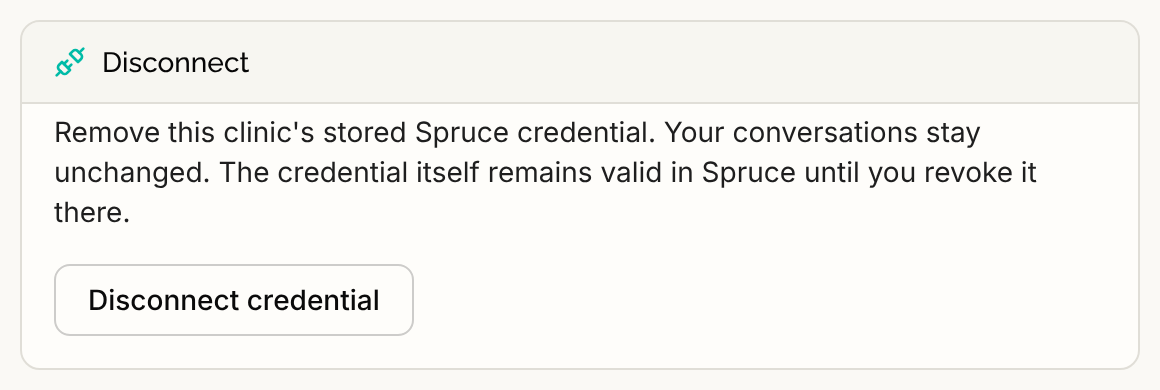
Step 2: Select Disconnect credential, then confirm
Select Disconnect credential. The card asks you to confirm. Select Confirm disconnect, or Cancel to keep the connection. Nothing is removed until you confirm.
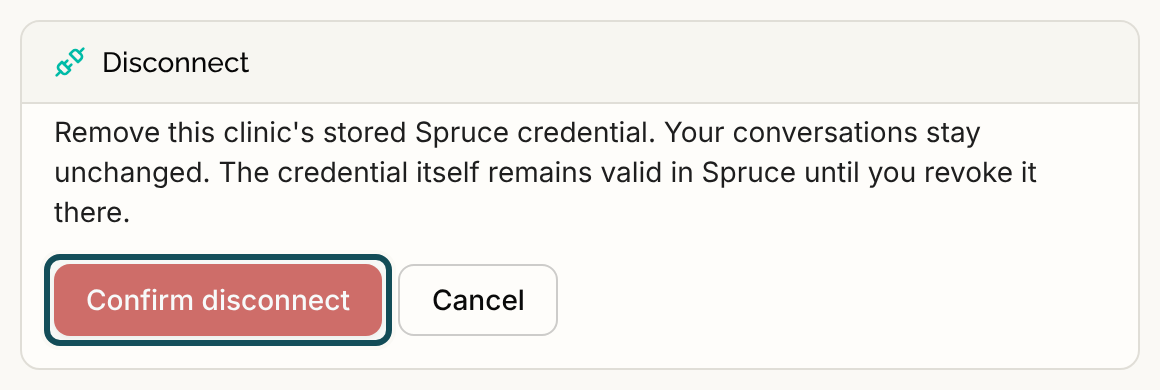
Step 3: Cancel the key in Spruce
Serelora does not cancel the key at Spruce. Cancel it there yourself, through Spruce, so nobody can use it any more.
What happens
- Removed: the stored API key and your saved endpoint choices.
- Stopped: receiving events. Events that were waiting are cancelled, including held conversations from unsaved senders. Nothing new is imported, and replies cannot be sent.
- Kept: every patient, link and message already in Serelora, and your teammate mappings. The mappings do nothing until you reconnect.
- Recorded: the disconnect is recorded in the audit log.
The Clinic connection card then shows Disconnected and the key box again.
Spruce endpoint cleanup
Serelora also removes the endpoint it registered at Spruce, but that needs a working key. If it could not, the Event receiving card says "Spruce endpoint cleanup is still needed." and "Reconnect a credential for the same Spruce organization to retry cleanup, or remove the endpoint in Spruce." Do one of those.
Reconnecting later
Enter a key again with Connect. It has to be for the same Spruce organization. A different organization is refused. After reconnecting, set up endpoints, event receiving and live sync again. See Spruce Account Connection.
If it does not work
- "These settings have changed. Reload this page before trying again." Select Reload connection.
- "The result could not be confirmed. Reload the connection before trying again." Check the card before trying again.