Search documentation
Find a documentation page by the words on it.
Documentation
Verifying Your Email
After you create an account with your email, Serelora sends you an activation link. Opening it proves the mailbox is yours and lets you choose a password. The same screen is used when a clinic administrator adds you to their clinic.
Step 1: Open the link in your email
The Check Your Email screen shows the address the link was sent to. The email's button reads Verify Email & Set Password when you registered yourself, or Set Password & Sign In when a clinic added you. If you do not see it, check your spam or junk folder.
The link from a self-registration works for 24 hours. The link from a clinic invitation works for 7 days.
Step 2: Choose a password
On Set Your Password, type a password in Password and again in Confirm Password. A checklist shows what is still missing. A password must:
- be 14 to 128 characters long
- include a capital letter, a lowercase letter, a number and a symbol
- match in both fields
Serelora also refuses a password that appears on a list of commonly used passwords and shows Password is too common. Choose a less common password.
Select Set Password & Verify Email. You are signed in and taken to Serelora. A newly registered provider goes to Set up your clinic (see Creating Your Clinic).
If your account is waiting for a clinic administrator to approve it, Serelora shows Password Set with a note that you can sign in once an administrator approves it. See Joining with Your Workspace Domain.
If the email did not arrive
There are three ways to get a new link. Each new link replaces the old one, and the old link stops working.
- From the confirmation screen. Select Resend activation email. Serelora counts down before the button is available again.
- From sign in. On the sign-in screen, under the form, select Get a new link next to Didn't get your activation email?. Enter your address in Email address, then select Send new link.
- From an expired link. Opening an old link shows This link has expired with a Send a new link button. Select it, and Serelora sends a new link to the address the old one went to.
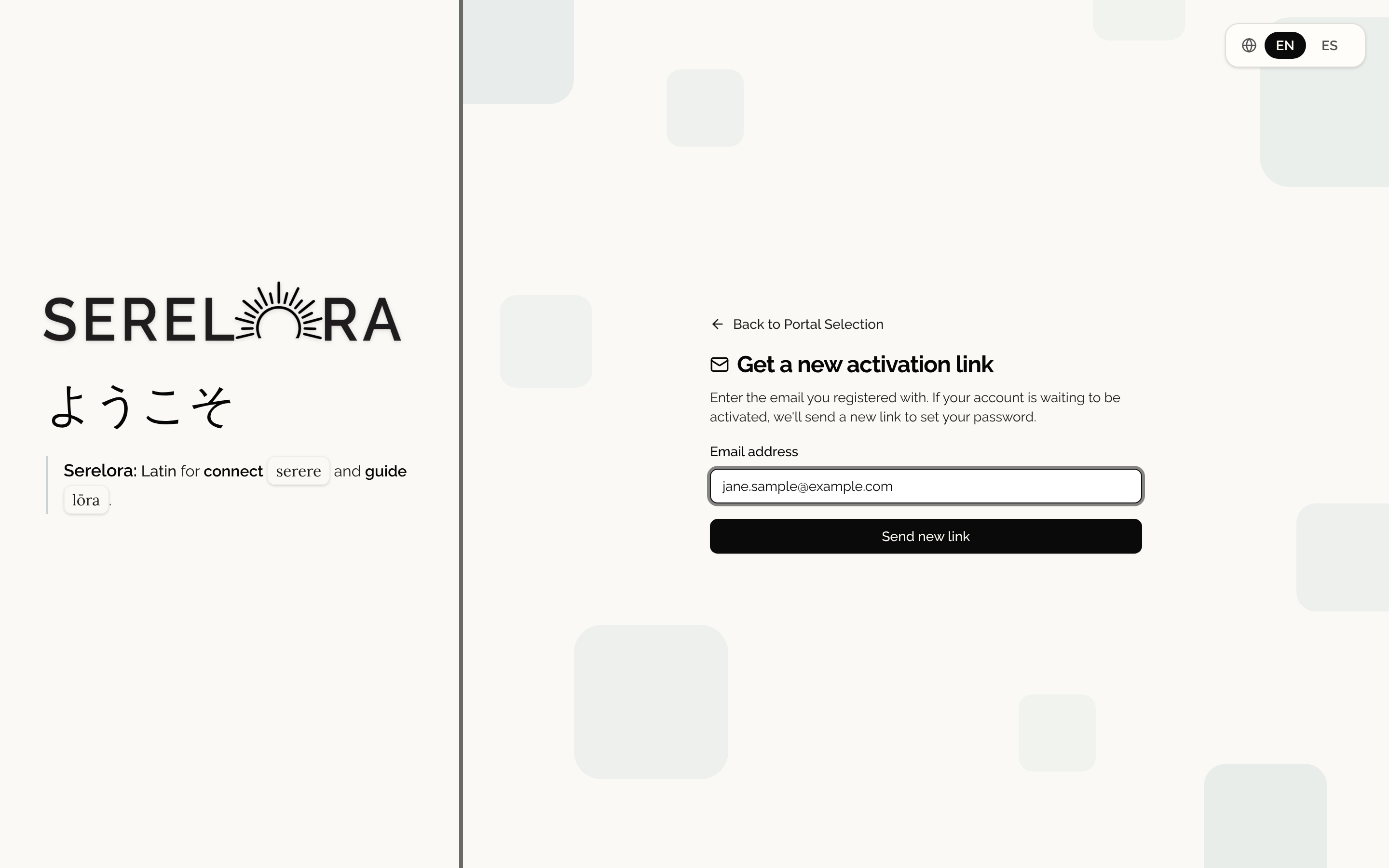
When you ask by email address, Serelora always answers the same way, so it does not reveal whether an address has an account: If that email is waiting to be activated, we've sent a new link. It expires in 24 hours, and any earlier link no longer works.
To protect your inbox, Serelora allows one new link per minute and five per hour for each address. If you ask too soon, wait for the countdown and try again.
If the link says it is no longer valid
This link is no longer valid means the link was already used or a newer link was sent. If you already set your password, select Sign in. If not, select Get a new activation link.