Search documentation
Find a documentation page by the words on it.
Documentation
Note Editor Formatting
The note editor works like a small word processor. This page covers the toolbar, lists and sub-lists, the typing shortcuts that start a list, Tab to indent, and tables. It also says what survives when you sign.
The toolbar
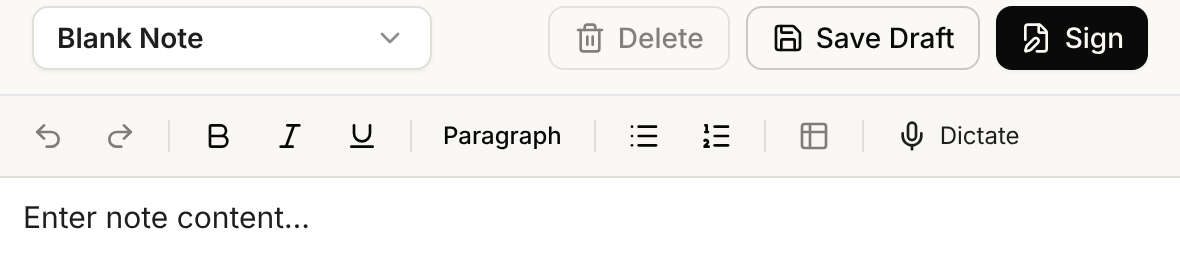
From left to right:
- Undo and redo.
- Bold, Italic and Underline. Select text and a small bar with the same three buttons also appears beside it.
- The block menu, which starts as Paragraph and also offers Heading 1, Heading 2 and Heading 3.
- Bullet list and Numbered list. Select one again to turn the list off.
- Table, which is available only when your cursor is inside a table.
- Dictate, at the right end. See Dictation in Chat and Notes.
Lists and sub-lists
Select a list button, or type a list marker and a space at the start of a line:
| Type | You get |
|---|---|
-, * or + |
A bullet |
1. or 1) |
A numbered list that starts at the number you typed |
a. or c) |
A lettered list that starts at that letter |
i. or iv. |
A numbered list in lowercase Roman numerals, starting at that numeral |
A. or I. |
The same, in capitals |
Press Tab on a list item to move it one level deeper, and Shift+Tab to bring it back. You can nest as deep as you need. A sub-list can be a different kind from its parent, such as a numbered list inside a bullet.
Numbered sub-lists change style by themselves: 1. becomes a. and then i., and the cycle repeats. If you type a marker such as c., that list keeps the style you typed.
A line that starts like a list item will turn into one, even in ordinary writing. A line that begins J. Smith becomes a list item when you type the space. Press undo once to get your typed text back.
Indenting a paragraph
Press Tab at the start of a paragraph to indent it, and Shift+Tab to take the indent away. Tab inside a table cell moves to the next cell instead. Because Tab now indents, press Shift+Tab with nothing left to un-indent to move focus out of the editor.
Tables
Tables most often arrive in a note the chart agent wrote, such as a lab panel or a medication list. Click in a cell to edit it. Use Tab to move between cells. Select Table in the toolbar to:
- Insert row above or Insert row below
- Insert column left or Insert column right
- Delete row, Delete column or Delete table
Cells cannot be merged and cannot have a background color, so a table stays a simple grid in the signed note and the PDF.
What carries into the signed note
Signed notes and the PDF keep headings, bold, italic, bullet and numbered lists, sub-lists, list styles and tables. Two things do not carry:
- Underline. It shows in the editor, but it is not part of the note's saved text, so it does not appear in the signed note or the PDF. Use bold or italic when you need emphasis to last.
- Extra blank lines. Blank lines you add only for spacing do not appear in the signed note.
Next, see Signing a Note.