Search documentation
Find a documentation page by the words on it.
Documentation
Sending an eIntake Registration Link
The eIntake registration link lets a patient set up their portal account and complete their registration and intake forms on their own. You can send it to any patient on your list, not only one you just created.
Step 1: Open Send e-Intake Link
You can start from either place:
- In the patient's chart, select Actions in the header, then Send e-Intake Link.
- From any other page, such as the schedule, select Actions, then Send e-Intake Link. The dialog then starts with a patient search at the top, because no chart is open.
A new patient's Patient created! panel also has Send email and Send text buttons that do the same thing. See Adding a Patient.
Step 2: Choose email or text
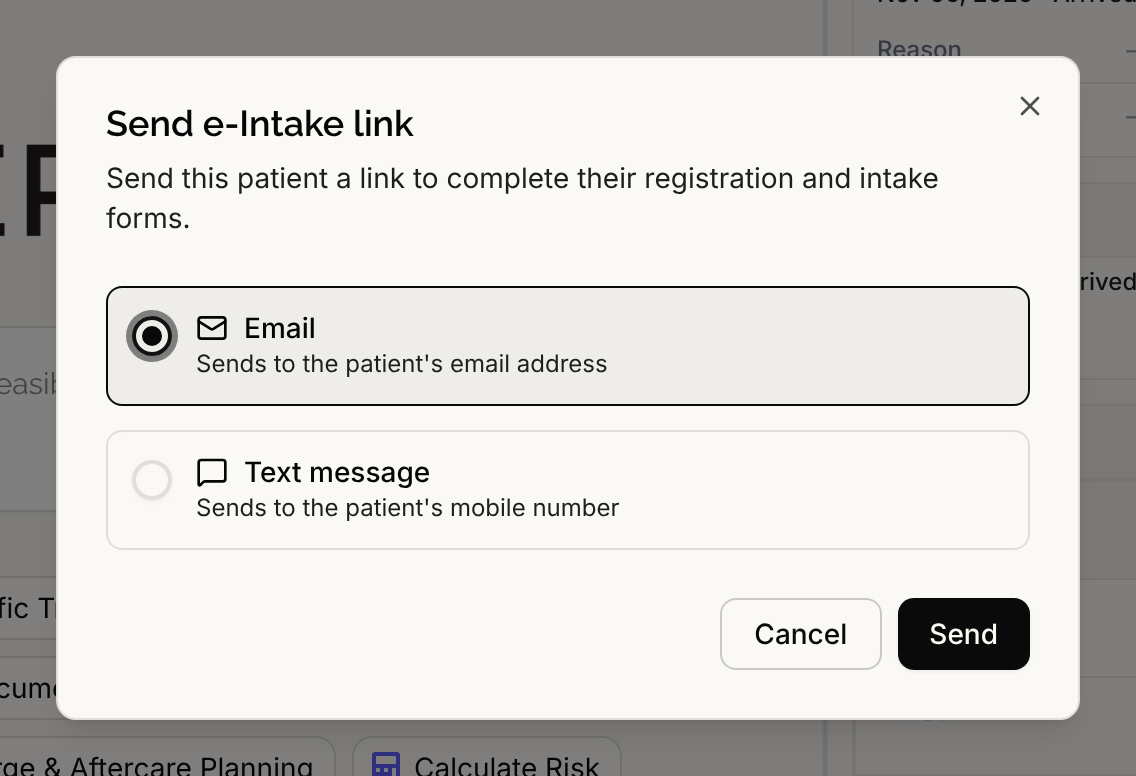
The dialog is titled "Send e-Intake link". If you opened it away from a chart, search for and pick the patient first. Then choose:
- Email, which sends to the patient's email address.
- Text message, which sends to the patient's mobile number.
Step 3: Select Send
Select Send. You see "Intake link sent by email." or "Intake link sent by text message." When you sent from outside a chart, the message names the patient and offers Open chart.
Sending the same patient a link twice is safe. A link that is still valid is reused, so the first message keeps working. If the patient has no link yet, or the old one has expired, Serelora creates a new one that works for 7 days.
If the send is refused
You see a short reason in red. The ones you are most likely to meet:
| What you see | What to do |
|---|---|
| "This patient has no email address to send to." | Add an email in the Patient record tab, or send by text. |
| "This patient has no phone number to send to." or "This patient's phone number is not a valid number." | Fix the phone in the Patient record tab, or send by email. |
| "This patient has opted out of registration emails. Update their communication preferences to send this." (or "texts") | The patient chose not to receive these. See Patient Communication Preferences. |
| "This patient has already registered for the patient portal." | They already have an account. There is nothing to send. |
| "Text message sending for patients isn't set up yet." | Texts are not available yet. Send by email. |
If the patient says the link shows "Invalid or expired link", send a new one.
Who can send
Sending needs the permission to send patient messages. All six standard roles have it: Admin, Physician, Physician Assistant, Medical Assistant, Office Manager and Administrative Assistant. Each send is recorded in the audit log.
To send the link to many patients at once, use Messaging, then Mass message. That is separate from this page and needs its own permission and clinic setup.