Search documentation
Find a documentation page by the words on it.
Documentation
Signing a Note
Signing finalizes a note and makes it part of the record. After you sign, the note cannot be edited. If something needs to change later, you add an addendum. Only people with signing permission can sign. Everyone else on the care team sends the note for co-signature.
Who can sign
With the default roles:
- Admins and Physicians see Sign and can sign.
- Physician Assistants and Medical Assistants cannot sign. They see Submit for Review instead. See Co-Signing Notes.
- Office Managers and Administrative Assistants cannot edit or sign notes.
Your clinic's admin can change what each role is allowed to do, and the buttons follow those settings.
Step 1: Review the note
Open the draft from the Documents tab or from The Sign Notes Worklist. Read the whole note. If it came from the AI Scribe, see Reviewing a Scribe Draft Note.
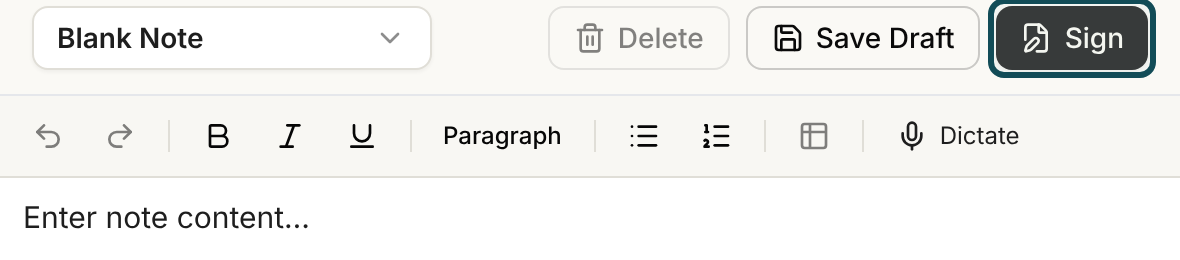
Step 2: Select Sign
If the note still has bracketed placeholders such as [Patient Name], a dialog titled Unfilled placeholders in note lists them and asks "Are you sure you want to sign?" Select Cancel to go back and fill them in, or Sign anyway.
Step 3: Complete the Sign note dialog
The Sign note dialog says, "Enter your signature and the date. After signing, the note will be finalized and cannot be edited."
- Signature: type your full name. Sign and finalize stays dimmed until this has text.
- Date and time: filled in with the current time. The note itself is stamped with the moment you sign.
- Close this visit when I sign: appears if the note is attached to an open visit and your clinic uses visits. It is checked by default when you are allowed to finish visits. If other notes on the visit are still unsigned, it is unchecked and dimmed with a message such as "1 other document on this visit is still unsigned, so it will stay open." A note with no visit shows "This note is not attached to a visit." instead. See Filing Notes under a Visit.
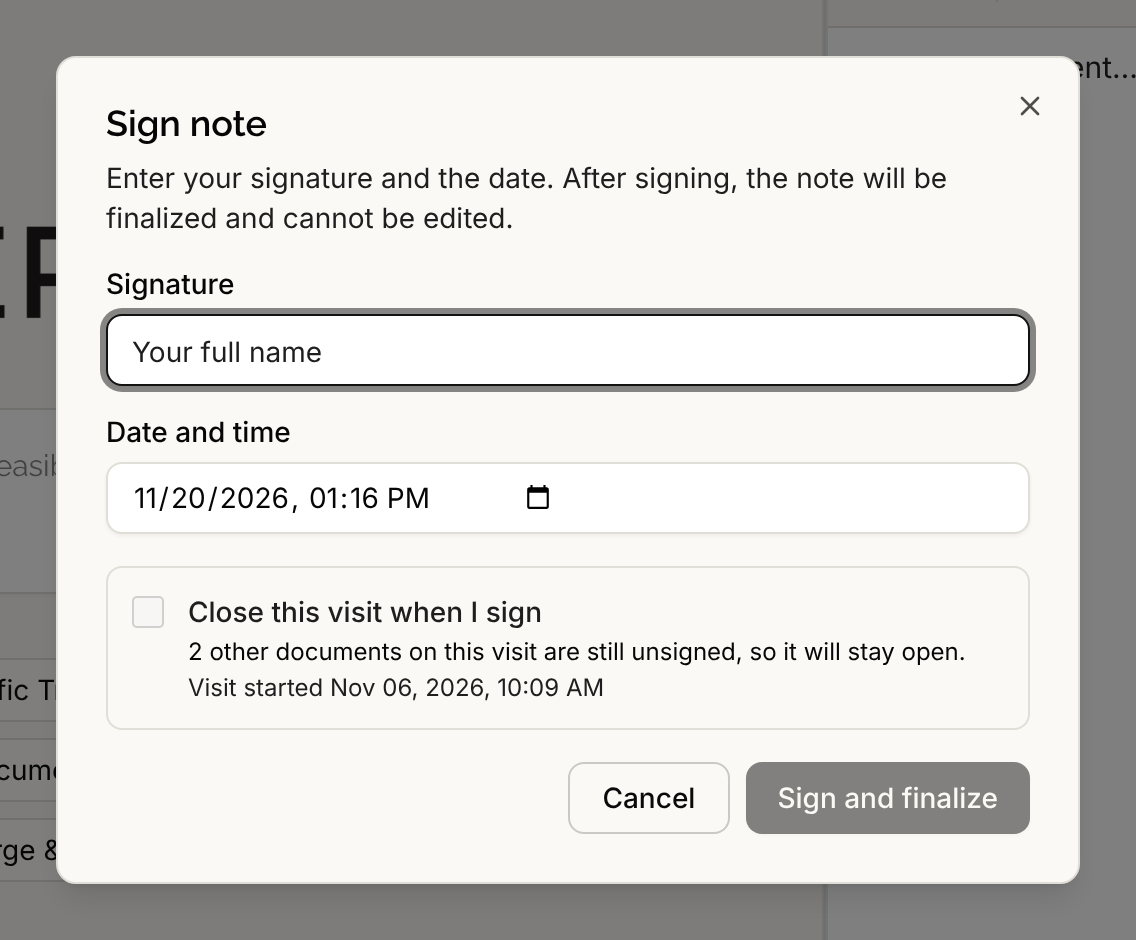
Step 4: Select Sign and finalize
The note locks and opens in its read-only Signed Note view, with Export and Add addendum in the header.
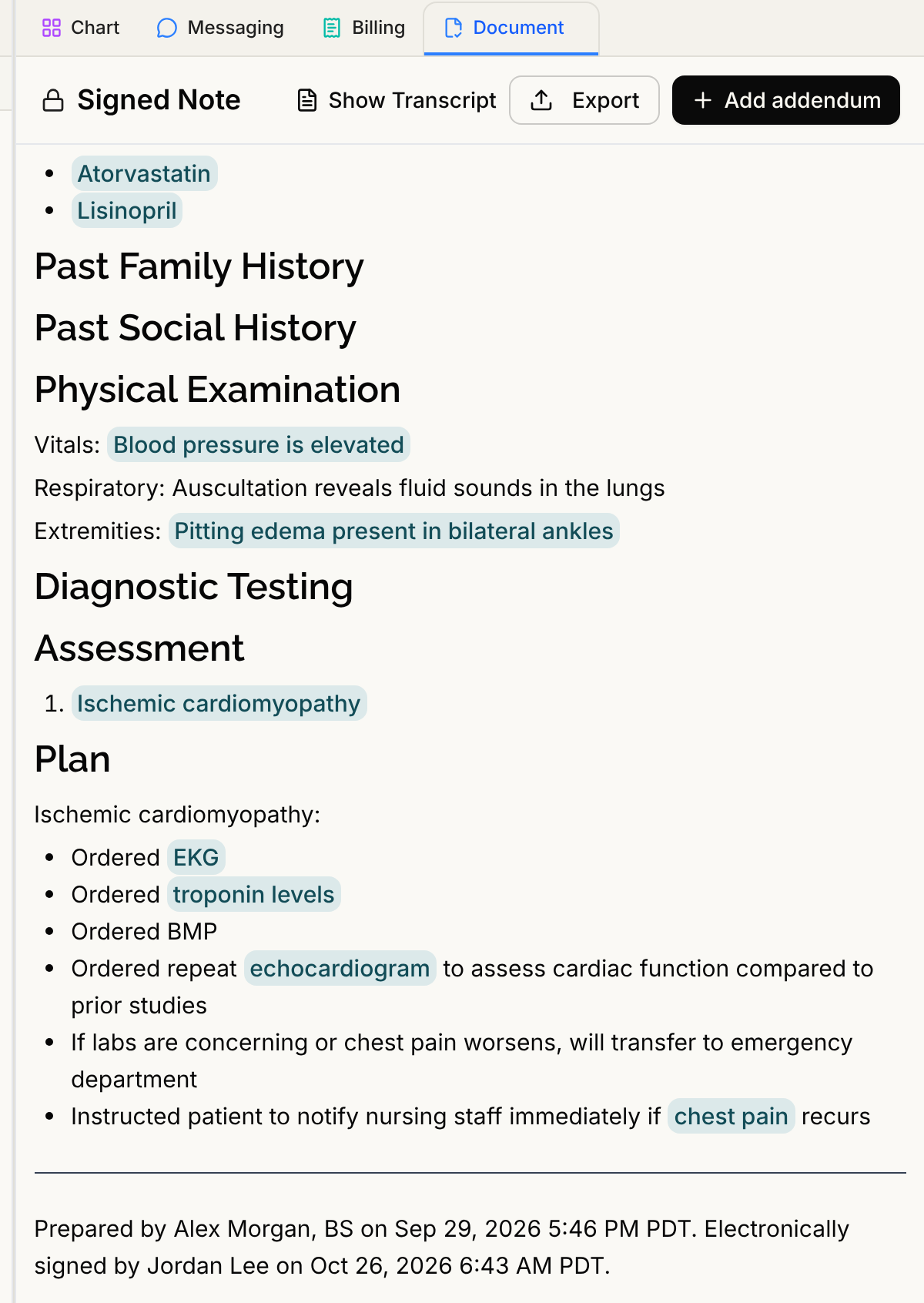
Serelora adds a line at the end of the note: "Electronically signed by" followed by your name from your account, and the date and time of signing in your clinic's time zone. If another person drafted the note, the line before it says "Prepared by" and names them, so the record shows who prepared it and who signed it.
If the visit stayed open because other notes were unsigned, you see "Signed. This visit was not closed because other notes on it are still unsigned." The signature still counts.
Good to know
- Signing cannot be undone. Add an addendum to correct or add to a signed note. See Addenda.
- A signed note has a PDF. For a moment after signing you may see "This note is signed and part of the record. Its attested PDF is still processing and will appear shortly." The signature is complete. See Exporting a Signed Note as PDF.
- If two people change or sign the same note at once, you may see "This note changed while you were working on it. Reopen it and try again." Reopen the note to see the latest version.
- Notes you have not signed stay on your Sign Notes list.
See also RAF/HCC Suggestions in Notes, for clinics that have it turned on.