Search documentation
Find a documentation page by the words on it.
Documentation
Spruce Unmatched Contacts and Held Conversations
This feature is controlled by the Spruce messaging feature flag. If you do not see it in your clinic, contact Serelora at support@serelora.com and ask for it to be turned on.
Spruce is not available to clinics yet. You will only see this tab at a clinic where Serelora has turned Spruce on. See Spruce Integration.
The Unmatched sub-tab collects two kinds of work that Serelora will not decide for you: Spruce contacts that may be duplicates, and messages from people who are not saved as Spruce contacts. Both need an Admin.
What you need
- The Admin role. Without it the held-conversations list says "You need permission to manage this clinic's settings to review held conversations."
- A connected Spruce account. Until then the tab says "Connect a clinic credential in Setup to review contacts." See Spruce Account Connection.
Unmatched contacts
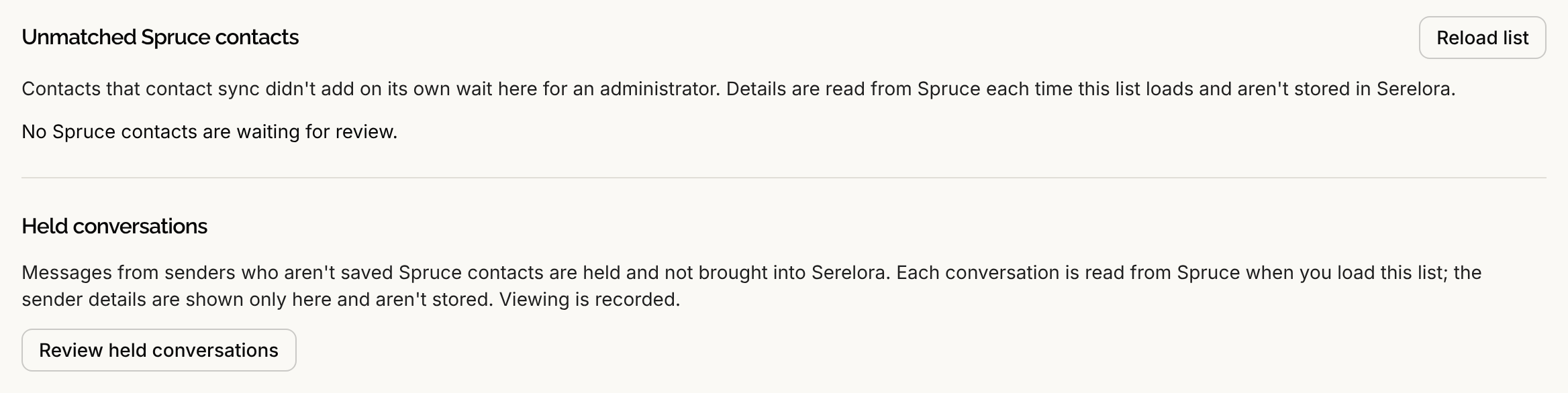
This list holds contacts that contact sync did not add by itself. It says "Details are read from Spruce each time this list loads and aren't stored in Serelora." When nothing needs a decision it reads "No Spruce contacts are waiting for review."
Step 1: Read the list
Each row shows the Contact, Date of birth, Phone, Email, Why it's here and Waiting since. Hover over the Why it's here label for a longer explanation. The reasons are:
- Possible duplicate: this contact may be a patient you already have. Confirm who it is and link it.
- Previously added: this contact was added to Serelora before, but its patient link is gone. Link it to the right patient, or create a patient again.
- Needs correction in Spruce: this contact arrived missing required details. Correct it in Spruce, then use Create patient. It cannot be linked to an existing patient from this list.
If Spruce no longer has the contact, the row says "Spruce no longer has this contact." or "This is no longer a patient contact in Spruce." and has no buttons. Select Reload list to read the list again.
Step 2: Link or create
- Link. Select the link icon on a Possible duplicate or Previously added row. The Link Spruce contact to a patient dialog opens, the same one described in Spruce Contact Import. Choose the patient, confirm it is the same person, and select Link patient. The page then says "Contact linked to the patient."
- Create. Select Create patient. A dialog asks you to create a new patient from the contact and says that Serelora checks again first: if the contact may match an existing patient, is missing required details, or its email already belongs to a patient's sign-in, nothing is created. Select Confirm create patient to go ahead. The page then says "Patient created and linked to the contact."
Serelora never overrides a duplicate. If a create is refused, the page explains why, for example "This contact may match an existing chart or is missing required details, so a new chart can't be created. Link it to a chart instead, or correct it in Spruce."
Held conversations
A message from someone who is not a saved Spruce contact is held. It is not brought into Serelora, and Serelora does not guess which patient it belongs to. The section says "Each conversation is read from Spruce when you load this list; the sender details are shown only here and aren't stored. Viewing is recorded."
Step 1: Load the list
Under Held conversations, select Review held conversations. It reads from Spruce, which can take a moment. Use Refresh to read it again and Hide to put the list away. While Spruce is paused you can still review the list. When nothing is held it reads "No conversations from unsaved senders are waiting."
Step 2: Read each row
Each row shows the Sender, the Channel (Phone, Email, Secure message or Fax), What to do, First received, Last received and Events. If Serelora cannot be sure who sent a conversation, no sender is shown and the row says to open it in Spruce and check. A conversation that has been archived in Spruce says to unarchive it in Spruce, then select Refresh.
Step 3: Bring it in, contact first
Serelora cannot link or assign a held conversation itself. The steps on the page are:
- In Spruce, save the sender as a patient contact, or add them to the patient's existing contact.
- Select Refresh. Once Spruce reports a saved contact, the conversation leaves the list.
- Bring that contact into Serelora from Contacts. See Spruce Contact Import. If contact sync is on, it may appear under Unmatched contacts instead.
- Once the contact is linked to a patient, start that patient's history. See Spruce History Sync.
The buttons Open Contacts and Open Setup take you to those sub-tabs.
What to know
- Serelora does not yet pick up held conversations on its own after you save the sender.
- Held messages are tied to the running receiver. If you stop receiving, replace your API key or disconnect, the held events are cancelled and leave this list for good. Messages that arrive afterwards are held again. See Spruce Event Receiving.
- The list is read-only. Viewing it is recorded in the audit log.
If a list does not load, see Spruce Problems and Messages.