Search documentation
Find a documentation page by the words on it.
Documentation
The Audit Log
The Audit Log is the clinic's record of who did what in Serelora. When someone opens a patient's record, changes it, or changes staff access, Serelora writes an entry. The page describes itself as a HIPAA-compliant access log for all Protected Health Information operations.
Admins and Office Managers can open the Audit Log. Select Audit Log in the sidebar.
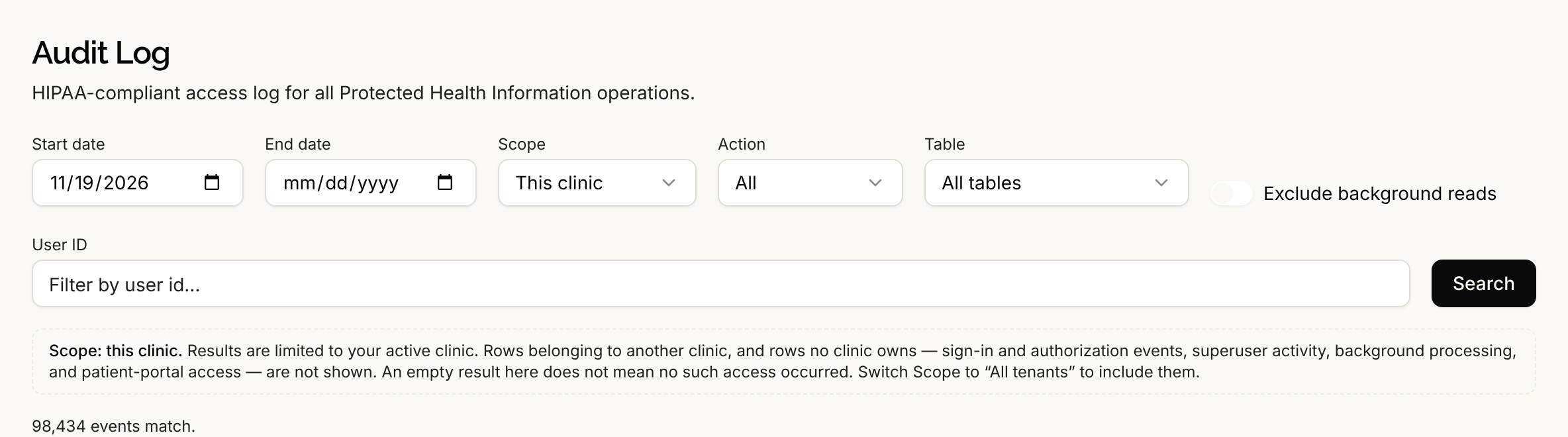
Step 1: Choose what to look at
The page opens with a Start date of yesterday, so you see recent activity first. Set the filters, then select Search:
- Start date and End date. Dates use your browser's time zone, matching the times shown in the table.
- Action. Choose All or one kind of activity, such as
query(a record was read),create,update,deleteoraccess_denied(someone was refused). - Table. Choose All tables or one kind of record.
- Exclude background reads. Hides the frequent, automatic notification checks that Serelora makes on its own, so people's actions are easier to see. Those entries still exist, and you can find them by choosing the Notification table.
- User ID. Show one person's activity. This filter takes the person's user ID, not their name.
Step 2: Read the table
Each row has:
| Column | Meaning |
|---|---|
| Timestamp | When it happened, in your time zone |
| User | The person's name and role, when known |
| Action | What was done, shown as a colored label |
| Table / Record | What kind of record, and a shortened record ID |
| IP address | The address the request came from |
| Request ID | A reference for the request. Select it to copy the full value, which helps when you contact Serelora support. |
Above the table, Serelora shows how many events match your filters. Select Load more at the bottom for the next page.
Step 3: Open the details
Select the arrow at the start of a row to expand it. The Metadata panel shows the event's details, such as what changed.
If the entry is about a patient your clinic cannot open, the details are hidden. Serelora shows Restricted. with a note that you do not have access to this patient's chart. The action, time and other columns stay visible.
What the Audit Log does not show
A line under the filters always says Scope: this clinic. It lists what is left out. The log is limited to your active clinic. Entries that belong to no clinic are not shown, such as sign-in and authorization events, activity by Serelora staff, background processing and patient portal access. An empty result does not mean nothing happened. Only a Serelora platform administrator can review across every clinic.
The page has no filter by patient. To review one person's activity, use User ID with a date range.
Good to know
- Entries are append-only. The Audit Log page has no way to edit or delete one.
- If the page cannot load, it shows Failed to load audit logs with a Retry button.
- Audit Log Actions explains each value in the Action filter.