Search documentation
Find a documentation page by the words on it.
Documentation
Applying Payments to Invoices
Money you take is recorded first and applied second. A payment taken without an invoice, such as a deposit, waits as an unapplied credit. Applying it puts that money against an invoice and lowers the invoice's balance.
This feature is controlled by the Billing feature flag. If you do not see it in your clinic, contact Serelora at support@serelora.com and ask for it to be turned on.
Step 1: Find the unapplied money
You can start from any of these:
- Billing, then Payments, then the Unapplied tab. It lists every unapplied payment in the clinic with a total, and each row shows the patient, the method, and how much is still unapplied.
- A task in Needs You Worklist that says a payment is not applied.
- The patient's Account balance record, under Unapplied payments.
- An open invoice's record, where a button reading Apply followed by the credit amount appears.
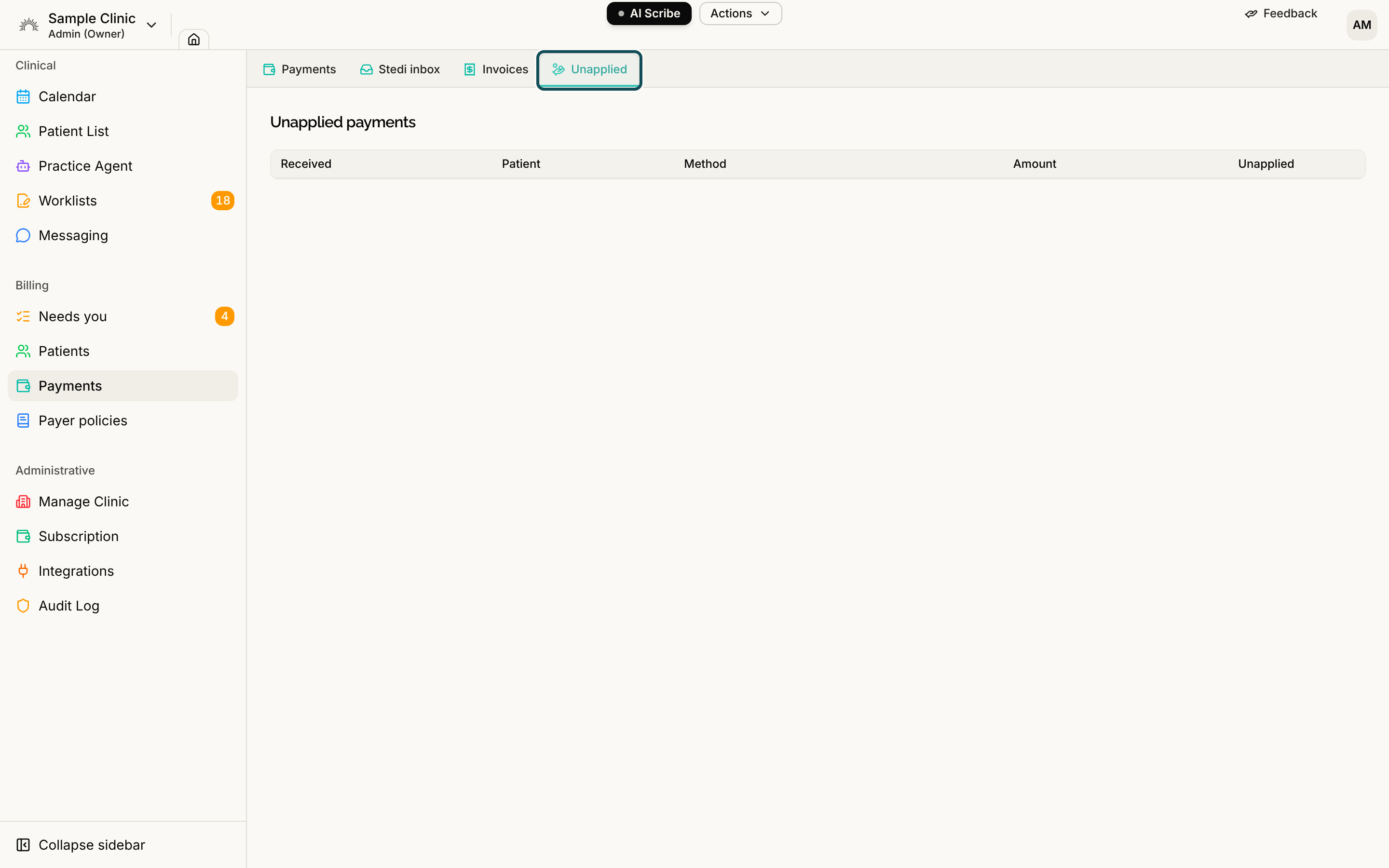
Step 2: Select Apply
Select Apply. The Apply payment dialog shows how much is unapplied and lists the patient's open invoices. Choose the invoice the payment settles.
The whole unapplied amount goes to that one invoice. An invoice that owes less than the payment is listed but cannot be chosen, and the dialog says so. Splitting one payment across several invoices, or applying part of it, is not available yet. Leave the money as credit until an invoice can take all of it, or record the payment from the invoice itself.
Step 3: Select Apply in full
Select Apply in full. A message says "Payment applied". The invoice's balance goes down, and the invoice changes to Paid if nothing is left to pay. If the patient has no open invoice, the payment stays as credit on their account.
Move a payment back to unapplied
If you applied money to the wrong invoice, select Reverse beside the applied line under Unapplied payments on the patient's Account balance record, or select Reverse application on the invoice's record. A dialog asks you to type a Reason, which is required. From the Account balance record the dialog is titled "Move this payment back to unapplied?" and you confirm with Move back to unapplied, or select Keep it applied to leave it. From the invoice you confirm with Reverse.
Nothing is erased. The original line and the reversal both stay on record, and the money returns to the patient's credit so you can apply it again.
Void a payment entered by mistake
A payment you entered by hand, with nothing applied to it, can be voided. Select Void on its row in the Unapplied tab. The dialog titled "Void payment" asks for a Reason. Select Void payment. Voiding keeps the record of the payment and removes it from the patient's credit. Nothing is deleted.
If the payment is already applied, move it back first. A payment taken online through Stripe cannot be voided here.
If an action is refused, see Payment Cannot Be Recorded or Changed.
Who can do this
Admins and Office Managers can apply, reverse and void payments by default. Anyone who can read billing can see the Unapplied list.