Search documentation
Find a documentation page by the words on it.
Documentation
Surgical History and Procedures
Procedures the patient has had are listed in one table, the Surgical History & Procedures section of the History & Problems tab. The table holds both surgical and non-surgical procedures. Serelora keeps track of which are surgical, because that decides what the Summary's Surgical History card shows.
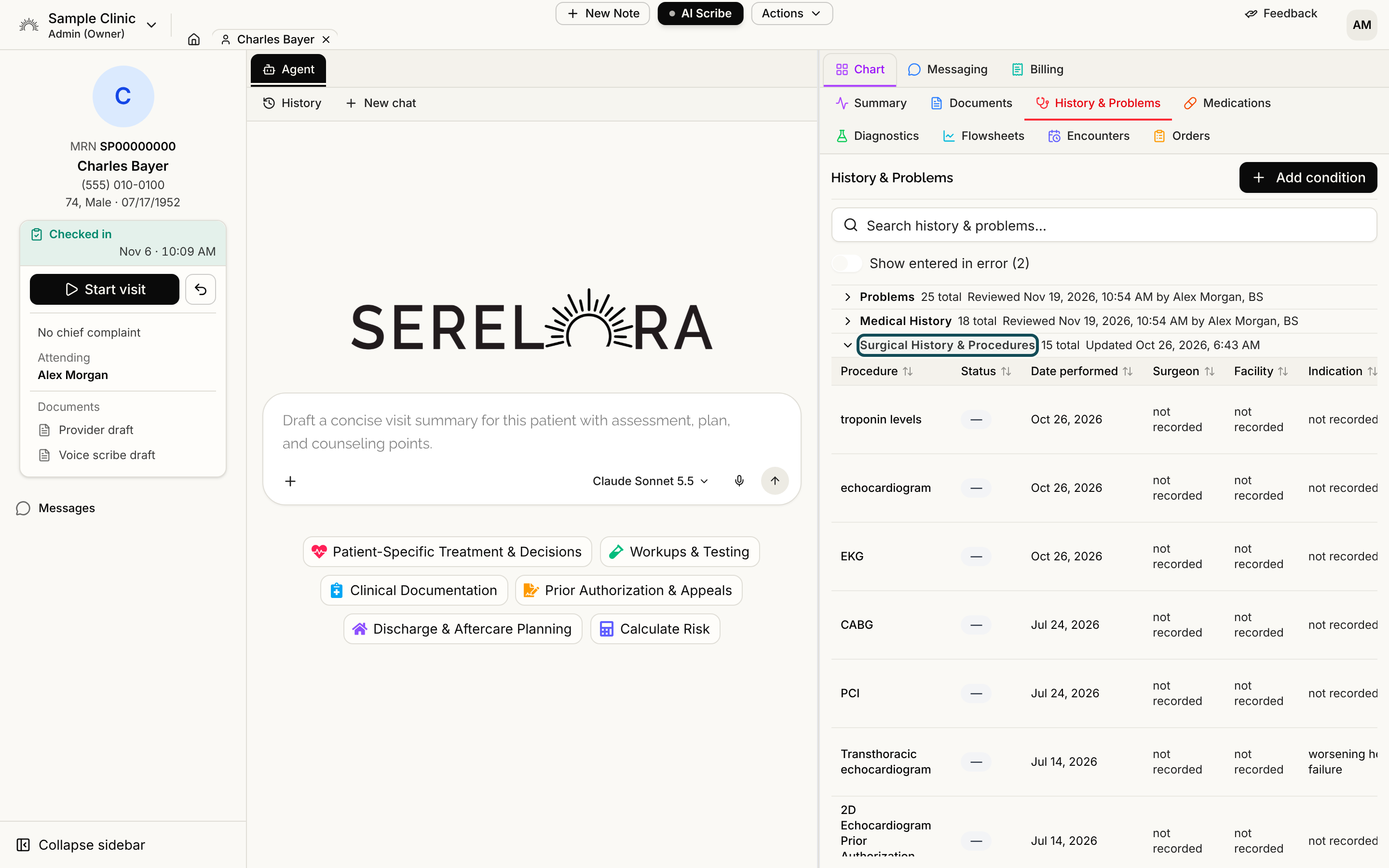
Step 1: Open the section
Open the History & Problems tab and select the header Surgical History & Procedures to expand it. See History and Problems for how the sections work and for the search box above them, which reads Search history & problems…. When the patient has no procedures on file, the section says No surgical history or procedures found.
Step 2: Read the table
| Column | What it shows |
|---|---|
| Procedure | The name. A Patient-reported badge means the patient reported it themselves in their onboarding intake, with no source document behind it. |
| Status | Always a dash. Procedures do not carry a clinical status in the chart. |
| Date performed | When it was done. A date can be a year, a year and month, or a full day. Date not stated means the source gave none, and hovering shows the document date Serelora used. |
| Surgeon, Facility, Indication, Complication | What the source stated. A detail the source did not state reads not recorded, never a dash, so that a missing detail is not mistaken for none. |
| Correction | A button to mark the procedure as surgical or non-surgical (see Step 3). |
Click a column heading to sort by it. Select a row to open its claim detail, where you can see the document it was read from. See Claim Detail and Where a Fact Came From.
Step 3: Mark a procedure as surgical or not
Serelora files each procedure as surgical or not. The imported record or document usually decides, but when it is wrong you can correct it. If you can edit the chart, the Correction column shows Mark as surgical on a non-surgical procedure and Mark as non-surgical on a surgical one. Select it and the change is saved at once.
The setting changes only which list the procedure belongs to on the Summary tab. The row stays in this table either way. The Surgical History card on the Summary tab shows only the procedures marked as surgical, with their name and the date performed, up to eight rows, and says No surgical history. when there are none. View all opens this section.
Step 4: Correct an entry
The Row actions menu at the end of a row offers Edit…, Confirm, Refute (ruled out) and Mark entered in error. Edit… changes the name and the Date performed. The surgeon, facility, indication and complication cannot be edited from this table. A procedure marked entered in error is hidden until you turn on Show entered in error at the top of the tab. See Correcting a Claim.
Where procedures come from
You cannot add a procedure with a button on this tab. Procedures arrive from documents you upload, from C-CDA and FHIR files, from a patient's own answers in the health history interview (see The Health History Interview), and from entries the chart agent proposes and you approve. See Documents and Reviewing Chart Changes the Agent Proposes.
Mark the section as reviewed
Opening the section header records a review for people who can edit the chart, and the header then shows Reviewed with a name and a date. See Last Reviewed.