Search documentation
Find a documentation page by the words on it.
Documentation
AI Scribe Overview
The AI Scribe listens to a visit and drafts the clinical note for you. You press record, talk with the patient as usual, and press stop. A few minutes later the draft is in the patient's chart, waiting for you to read it, fix anything it got wrong and sign it.
What it does
- It records the visit audio from your computer's microphone, or from your phone in the Serelora Provider App.
- The audio goes to AWS HealthScribe, which turns it into a written transcript and a draft note in the template you chose.
- Serelora saves the draft in the patient's chart as an unsigned note. The transcript is saved with it.
- It never signs anything. A draft note stays a draft until a person with permission signs it.

How a visit goes
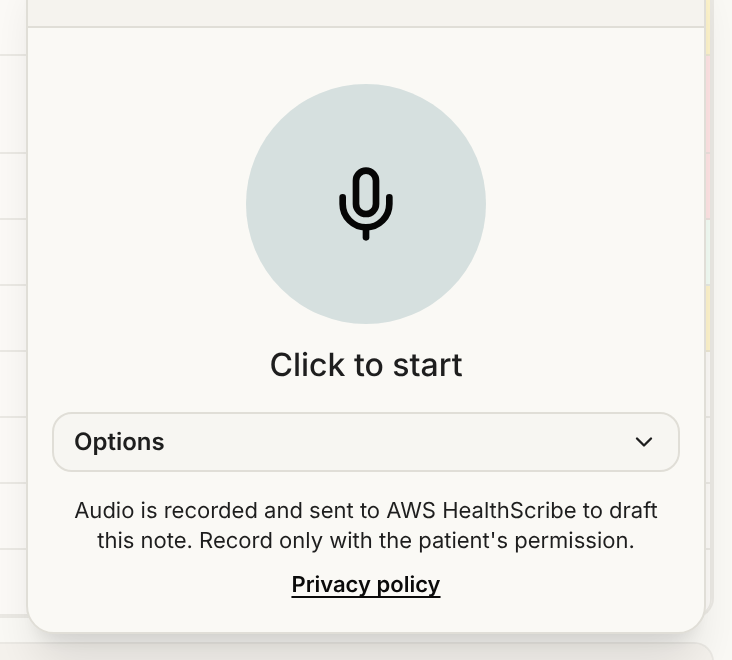
- Agree to the disclosure. The first time you record, Serelora asks you to confirm you have the patient's permission. See AI Disclosure and Recording Consent.
- Choose a note template. Do this before you record. The choice is remembered for next time.
- Record. Start, pause and stop with one large circle. See Recording a Visit on the Web.
- Wait for the draft. A notification says Scribe note is ready, and View note opens it.
- Review and sign. Read the whole note, compare it with the transcript if you want, edit it, then sign. See Reviewing a Scribe Draft Note and Signing a Note.
Note templates
The scribe offers seven templates, and History & Physical is the default:
- History & Physical
- Physical SOAP
- Behavioral SOAP
- DAP
- BIRP
- GIRPP
- SIRP
The template you record with becomes the note's type. In the chart's Documents tab, a scribe note shows Voice scribe draft in the Source column and the template name in the Type column.
Where you can use it
- On the web, select AI Scribe in the top bar. On a patient's chart the note goes to that chart. From any other page you choose the patient after you stop.
- On your phone, use the Scribe tab in the Serelora Provider App. See Recording on the Serelora Provider App.
On the web, AWS HealthScribe is the only scribe provider you can pick.
Good to know
- Read the whole draft before you sign. The scribe drafts from audio and can miss or misstate something.
- A recording that is running is always saved. Stop is the only way to end it, and you can minimize the panel but not close it. If something goes wrong, see Recovering or Discarding an Unsent Recording.
- Most notes take a few minutes. If a note takes much longer, Serelora says so and keeps working on it. The note still appears in the chart when it is ready.