Search documentation
Find a documentation page by the words on it.
Documentation
Onboarding Staff and Assigning Roles
Every person in your clinic holds one access role, and the role decides what they can see and do. Onboarding a new colleague is two decisions: add them, then give them the right role. A new staff member starts as a Physician, so setting the role is not optional for front desk or billing staff.
What you need
Only an Admin can add staff and change roles. Office Managers can see the staff list and the roles, and cannot change them.
Step 1: Add the person
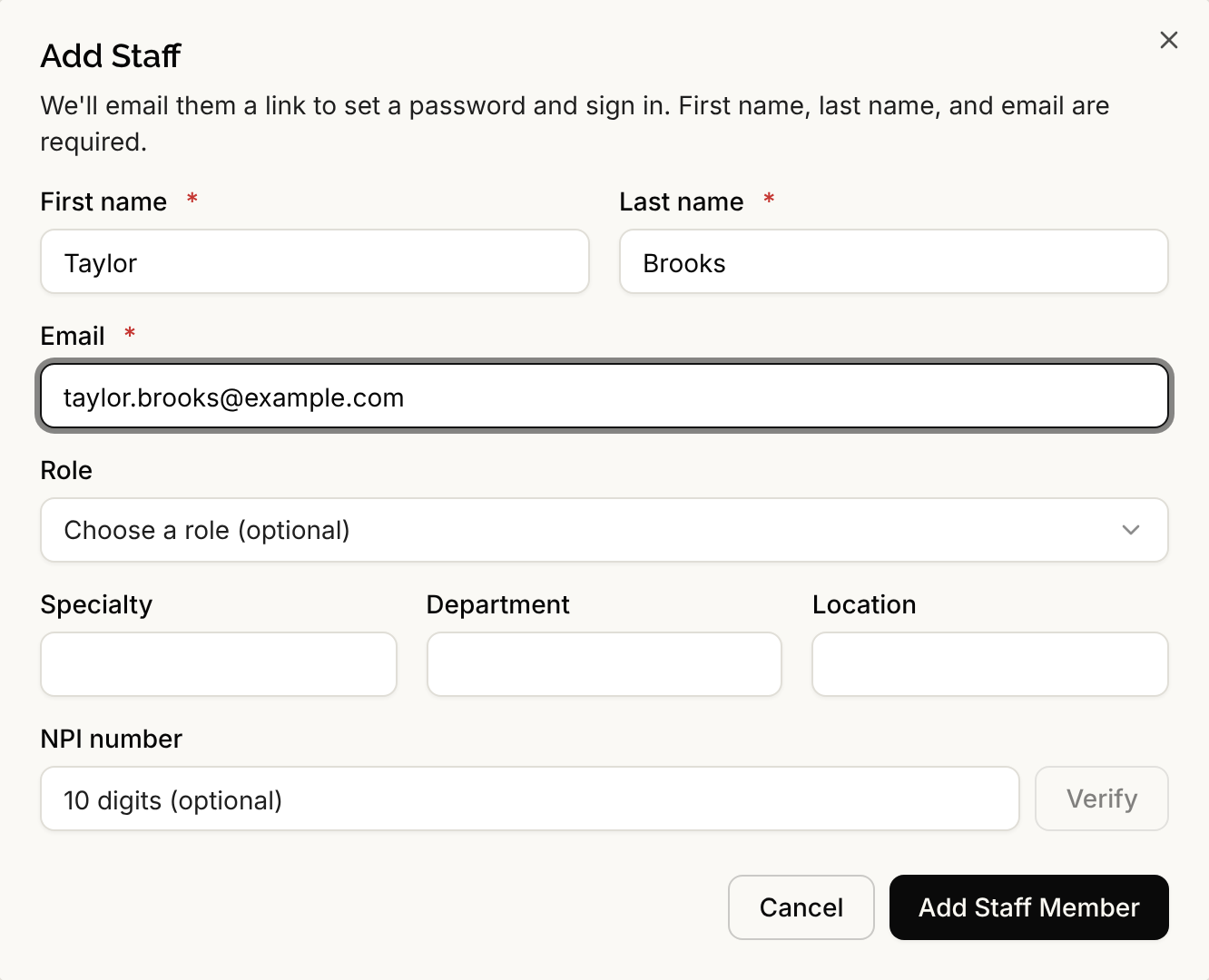
Select Manage Clinic, then Manage Staff, then Add Staff. Enter First name, Last name and Email. For a clinician with an NPI, type it and select Verify, which confirms it with the CMS NPI Registry. Select Add Staff Member. Serelora emails the person a link, valid for 7 days, to set their password. If the address already has a Serelora account, the person is invited and joins when they accept. See Adding Staff.
Step 2: Choose the access role
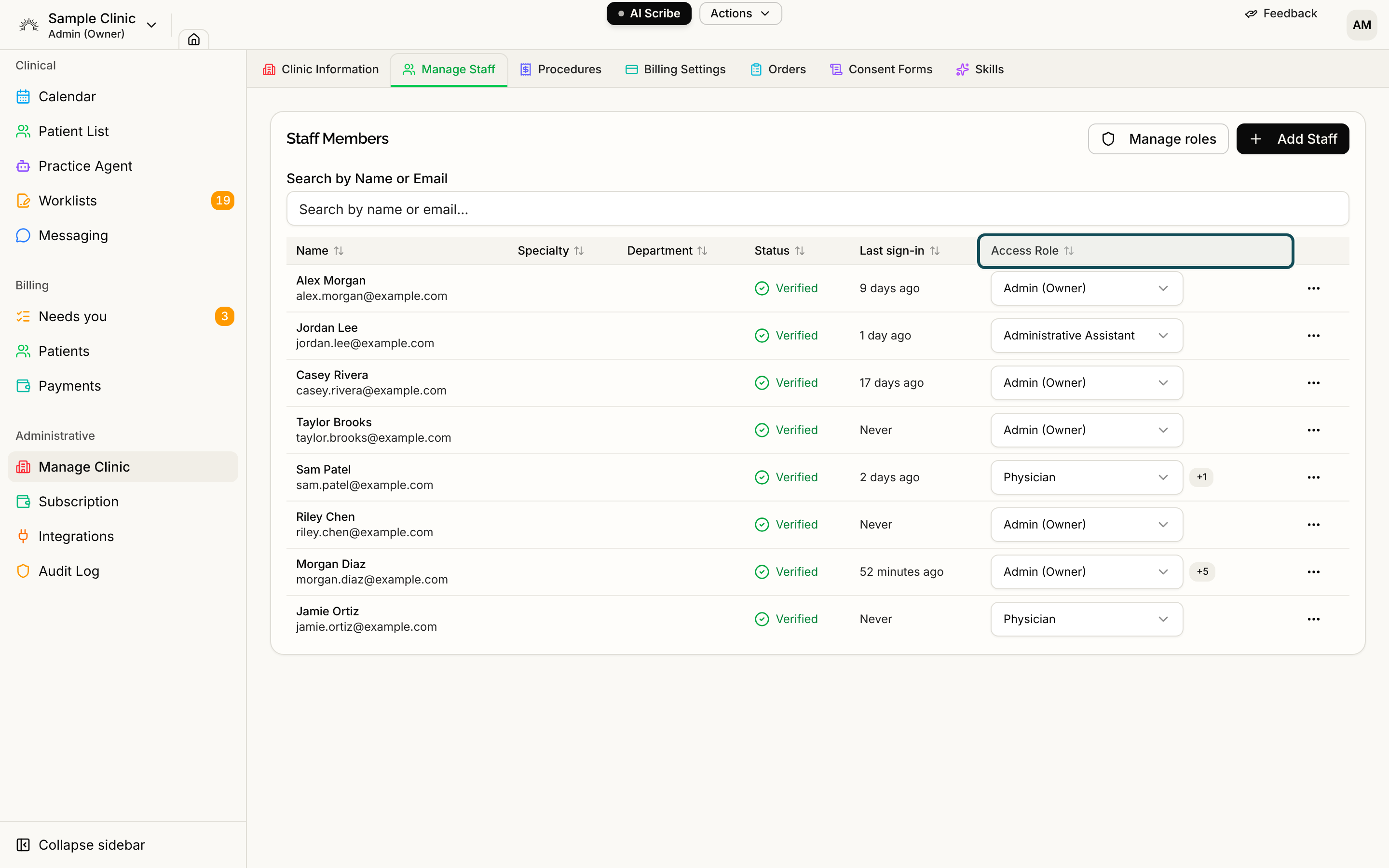
In the Access Role column of the staff table, pick the role. The change saves as soon as you pick it.
| If the person is | Consider |
|---|---|
| The practice owner or administrator | Admin (Owner), the widest access |
| A physician | Physician, who signs notes and can be the attending |
| A physician assistant | Physician Assistant, whose notes are submitted for review |
| A medical assistant | Medical Assistant, who edits the chart and enters vitals but does not send secure messages |
| Billing or business staff | Office Manager, who handles charges, invoices and payments but cannot edit the chart |
| Front desk | Administrative Assistant, who schedules, checks patients in and edits demographics but cannot edit the chart |
The full table of what each role can do is in Roles and Permissions. Do not confuse the access role with the Role job title in a person's profile, which only describes them.
Step 3: Adjust access if a role does not fit
You can change what a role grants for the whole clinic, create a role such as Front Desk Lead, or give one person a few extra permissions. Extra permissions only add. See Custom Roles and Per-User Permissions.
Step 4: Follow up on the invitation
In the staff table, Unverified means the person has not set a password yet. Select Resend to send a new link, and the old one stops working. An invitation to an existing account appears under Pending invitations with its expiry date. See Accepting a Clinic Invitation.
Step 5: Let colleagues join with your work domain (optional)
If your clinic uses Google Workspace, verify your domain and colleagues who sign in with Google join as pending members. You approve each one, and they start as an Administrative Assistant. See Google Workspace Domains and Approving New Providers.
Step 6: Mind the seat count
Each active member is a seat on your Serelora subscription, and a person counts from the moment you add them, even before they set a password. See Your Serelora Subscription and Seats.
What Serelora does not do
- It does not ask for a role when you add someone. The Add Staff dialog has no access role field, so set it right after.
- It does not let you remove a role from one person. Extra permissions only add. To take access away, give the person a different role.
- It does not leave a clinic without an administrator. Serelora refuses a change that would remove the only one.