Search documentation
Find a documentation page by the words on it.
Documentation
Spruce Contact Import
This feature is controlled by the Spruce messaging feature flag. If you do not see it in your clinic, contact Serelora at support@serelora.com and ask for it to be turned on.
Spruce is not available to clinics yet. You will only see this tab at a clinic where Serelora has turned Spruce on. See Spruce Integration.
Contact import reads the patient contacts saved in your Spruce account and lets you decide what happens to each. It can create a new Serelora patient, link a contact to a patient you already have, or leave it alone. It never writes anything back to Spruce.
What you need
- The Admin role.
- A connected Spruce account. Until then the tab says "Connect a clinic credential in Setup to begin." See Spruce Account Connection.
- Spruce must not be paused for your clinic. See Pausing and Resuming Spruce.
Step 1: Scan Spruce
Open the Spruce tab and select Contacts. Before your first scan the tab reads "No Spruce contacts scanned yet" and says "Scan Spruce to list your patient contacts here. Nothing is created or changed until you sync them." Select Scan Spruce contacts.
The scan reads every page of contacts, then compares them with your patients. A line under the heading shows progress, first "Scanning Spruce contacts" and then "Checking for existing patients", until the table appears. Select Rescan Spruce to start a new scan later. If you have more than one scan, the Earlier scans box lists them.
Step 2: Read the table
When the scan is complete, a table lists every contact with a checkbox, the Contact name, Date of birth, Phone, Email, Status and a Link to patient icon. Narrow windows hide some columns. The line above the table counts the contacts and how many other contact types were skipped, for example "8 contacts · 2 other contact types skipped". Spruce contacts that are not patients are skipped.
Each row's Status says what will happen or what happened:
| Status | What it means |
|---|---|
| New patient | Matches no patient. Sync will create one. |
| Possible duplicate | May be a patient you already have. Link it yourself, or sync it if exactly one patient has the same name. |
| Already linked | Already tied to a patient. Nothing to do. |
| Needs correction in Spruce | Missing a name, or the date of birth is not valid. Fix it in Spruce, then rescan. |
| Needs review | Several patients share this name, so nothing was changed. Link it to the right one yourself. |
| Patient created | Sync made a new patient from it. |
| Linked to a patient's name | Sync or you linked it to that patient. |
| Could not sync or Skipped | Hover over the label for the reason. |
A small information icon beside a name means the contact has more phone numbers or emails than Serelora copies. It says what was not copied.
Step 3: Sync the contacts you want
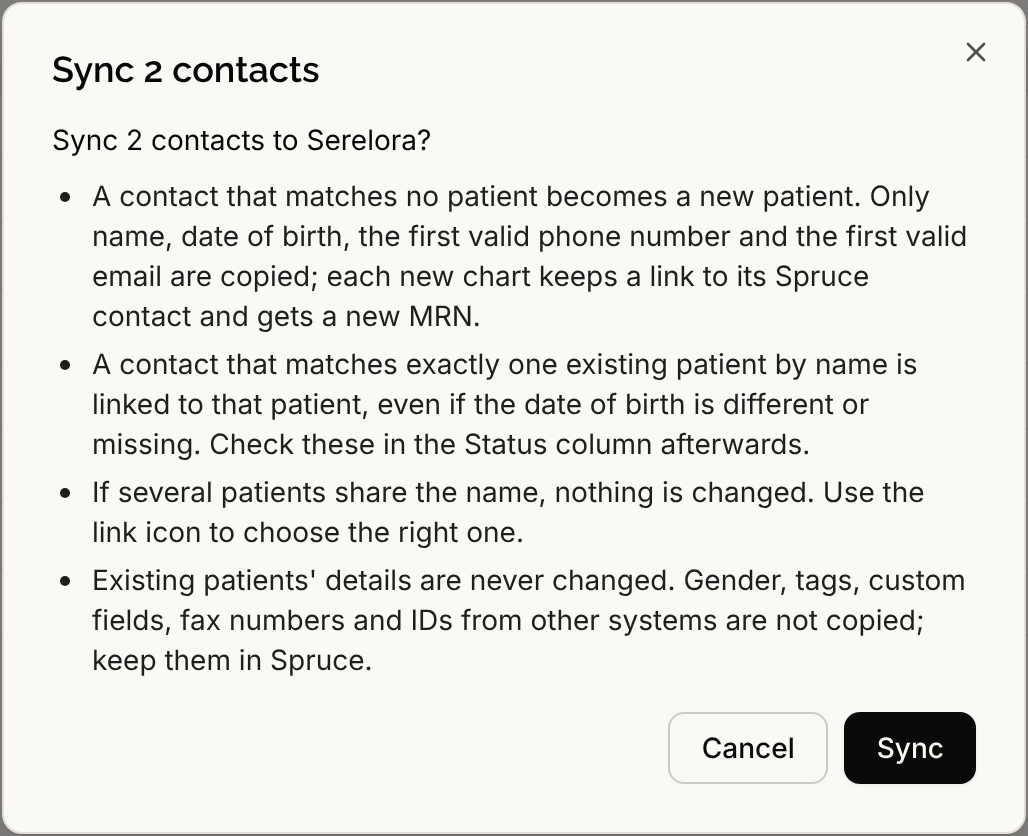
Tick the checkbox on each contact, or tick the box in the table heading to select every contact in the scan, on every page. You can pick up to 500 contacts one by one. Select Sync. A dialog titled "Sync" and the number of contacts opens. It explains:
- A contact that matches no patient becomes a new patient. Only name, date of birth, the first valid phone number and the first valid email are copied. Each new chart keeps a link to its Spruce contact and gets a new MRN.
- A contact that matches exactly one existing patient by name is linked to that patient, even if the date of birth is different or missing. Check these in the Status column afterwards.
- If several patients share the name, nothing is changed. Use the link icon to choose the right one.
- Existing patients' details are never changed. Gender, tags, custom fields, fax numbers and IDs from other systems are not copied. Keep them in Spruce.
Select Sync in the dialog to go ahead, or Cancel. Nothing happens until you confirm.
Link a contact by hand
Select the link icon at the end of a row. A dialog titled Link Spruce contact to a patient shows the contact and a Serelora patient box that starts on the contact's name. If exactly one patient has that name, it is already chosen. Confirm that it is the same person, then select Link patient. If no patient has the name, the dialog offers to create one from the contact instead. Linking never changes the patient's details.
Remove contacts from a scan
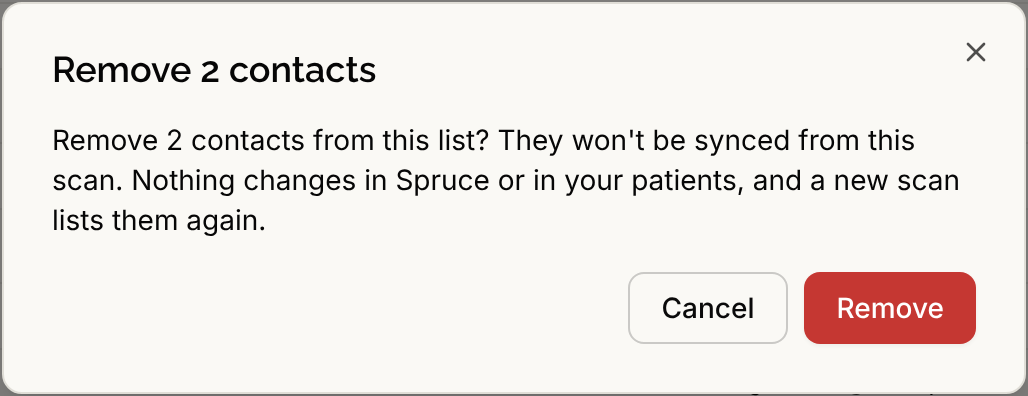
Select contacts and then Remove. The dialog says the contacts will not be synced from this scan, that nothing changes in Spruce or in your patients, and that a new scan lists them again. Select Remove to confirm.
If a scan or sync stops
- "Progress is saved. Resume continues the unfinished work with the same choices." Select Resume.
- Select Cancel on a running scan, then Cancel scan in the dialog titled Cancel this scan, to stop unfinished work. Patients and links already saved remain.
- "The scan stopped before it finished. Patients already created or linked remain. Rescan Spruce to check what is still needed." Select Rescan Spruce.
- "The connection has changed. Rescan Spruce before syncing or linking more contacts." You replaced the key or changed settings, so scan again.
For other messages, see Spruce Problems and Messages.
What comes next
A synced or linked contact is a linked patient, which is what history sync needs. To add new contacts without scanning, see Spruce Contact Sync. Contacts that need a person to decide are listed under Unmatched.