Search documentation
Find a documentation page by the words on it.
Documentation
Practice Agent and Cohorts
The Practice Agent answers questions about your whole patient panel, not one chart. Ask for a group of patients, such as everyone with diabetes and no recent A1c, and it returns a list you can open, save, refresh and export. A saved group is called a cohort.
This feature is controlled by the Practice Agent feature flag. If you do not see it in your clinic, contact Serelora at support@serelora.com and ask for it to be turned on.
Who can use it
The Practice Agent needs the permission to use it, which only the Admin role has by default. A clinic admin can grant it to other roles on the roles page, under Practice Agent. See Custom Roles and Per-User Permissions. Exporting a cohort to a file is a separate permission, also Admin only by default.
Step 1: Open the Practice Agent
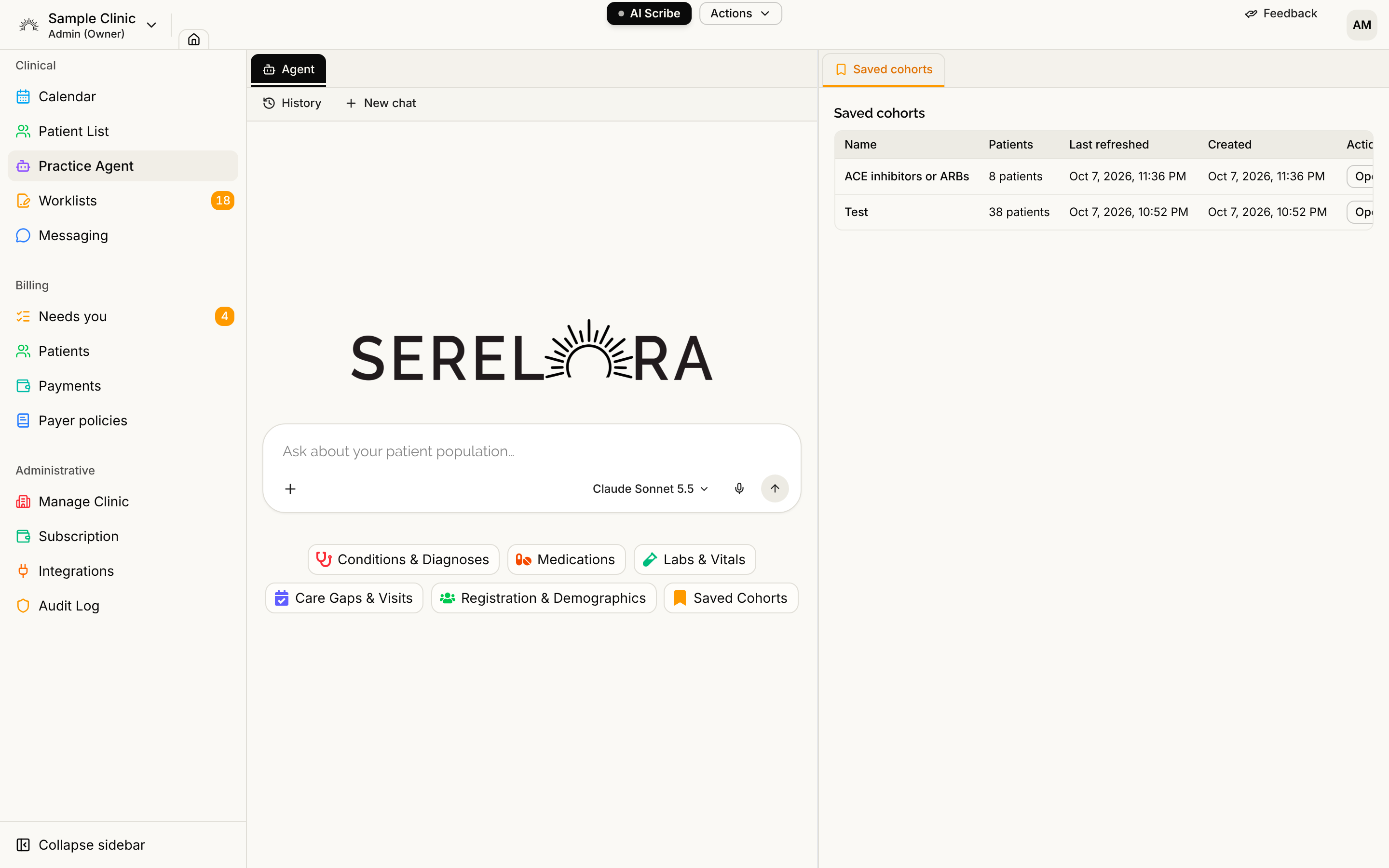
Select Practice Agent in the sidebar, under Patient List. The chat is on the left and your cohorts are on the right, on the Saved cohorts tab.
Step 2: Ask for a group of patients
Pick a suggestion chip or type your own question. The chips are grouped as Conditions & Diagnoses, Medications, Labs & Vitals, Care Gaps & Visits, Registration & Demographics and Saved Cohorts. These work:
Patients with type 2 diabetes whose last A1c was over 9
Patients on a statin with no visit in the last 12 months
Women aged 50–74 with no mammogram in the last 2 years
Patients who have never registered for the portal
The agent shows its progress while it searches, and the result opens in its own tab on the right.
Step 3: Read the results
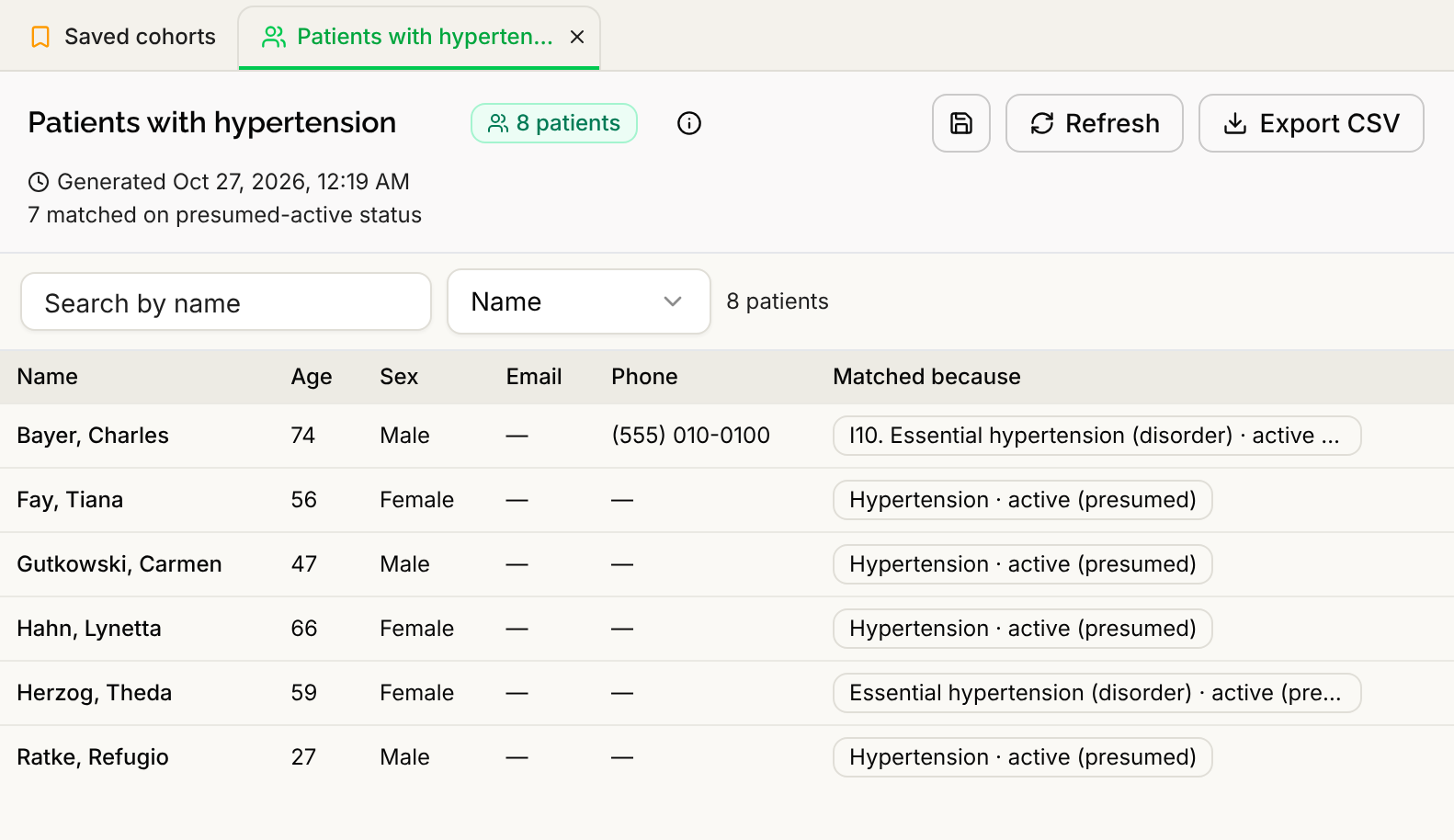
The tab shows the cohort name, the number of patients and when the list was generated. Select Show criteria to see the search in plain English. The table lists each patient's name, age, sex, email, phone, registration status and last visit, and a Matched because column with the evidence. Select an evidence chip to open that entry in the patient's chart. Select a row to open the chart in a new browser tab.
You can keep refining in the chat, for example "Break down this cohort by age and sex".
Step 4: Save, refresh or export
- Save cohort. Until you save, the tab carries the agent's name for the list. Select Save cohort, give it a name and save. You can also click the name to rename it. If you close an unsaved cohort, a prompt offers Cancel, Don't save or Save.
- Refresh. Runs the same search again as a new list, so you see who matches today. It opens in a new tab.
- Export CSV. Select Export CSV to download the list. A warning explains that the file contains patient names, dates of birth, record numbers and contact details, and you must tick "I understand and will handle this file according to my clinic's privacy policies." before Download is available. The button appears only if you have the export permission.
The Saved cohorts tab lists every saved cohort with its Name, Patients, Last refreshed and Created dates, and the actions Open, Rename, Refresh and Delete. Cohorts belong to the person who created them.
How the agent decides
- Conditions and medications count as active unless you ask for resolved or past ones. A medication with no stated status is presumed active, and the agent tells you when a patient is in the list only because of that.
- Entries marked refuted, entered in error or retracted are never counted.
- For results, the agent uses each patient's most recent value and converts units before it compares. A result with no date is never treated as the most recent, and a value such as "pending" that is not a number is skipped and counted as excluded.
- A visit counts at any clinic. The agent looks at everything on each patient's record, including information that came from other clinics.
- A list that nobody saved is removed after thirty days. Saved cohorts are kept.
- If your panel is larger than 20,000 patients, the agent says it cannot search it yet.
Next steps
- See what you can ask: Practice Agent Question Types.
- Rename, refresh, delete and export saved cohorts: Managing Saved Cohorts.
- Invite a cohort to finish intake: Intake Campaigns from a Cohort.
- Have the agent review each chart: Sub-Agents Across a Cohort.
- Turn a cohort into a document: Reports Overview.