Search documentation
Find a documentation page by the words on it.
Documentation
Spruce Conversations in Serelora
This feature is controlled by the Spruce messaging feature flag. If you do not see it in your clinic, contact Serelora at support@serelora.com and ask for it to be turned on.
Spruce is not available to clinics yet. Nothing described here appears until Spruce is turned on for your clinic and a patient's history has been synced. See Spruce Integration.
Once a patient's Spruce history is copied, the conversation appears in Serelora as a Shared conversation. Unlike a normal secure message conversation, which belongs to one provider, a shared conversation belongs to the clinic. Messages that came from Spruce are labelled "via Spruce".
What you need
- The permission to send secure messages, which Admin, Physician and Physician Assistant have by default, and the Secure messaging switch on for your clinic. Without both, the Messaging tab and the inbox do not appear. See Secure Messages with Patients.
- The patient's history synced. See Spruce History Sync.
Step 1: Open the conversation
There are two ways in.
- From the chart. Open the patient's chart and select the Messaging tab. When the patient has a Spruce conversation, a picker offers My conversation and Shared conversation. Choose Shared conversation.
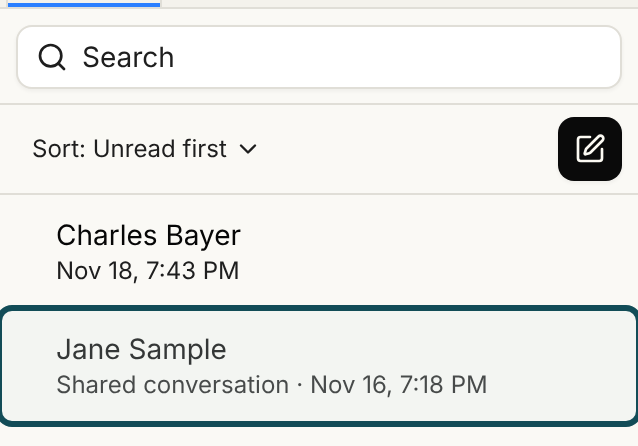
- From the inbox. Select Messaging in the sidebar, then the Inbox tab. Shared conversations are listed with your own, and a shared one is marked Shared conversation when you open it. A shared conversation with no messages yet is not listed.
Step 2: Read the messages
Each message from Spruce shows the sender's name above it and via Spruce beside the time, along with the channel, for example Text, Secure or Email. A sender with no name reads "External sender". A message you sent from Serelora shows via Spruce only once Spruce has confirmed it.
Staff in the clinic who have the permission see the same shared conversation. It has one unread marker for each person, so reading it does not clear it for anyone else.
Edited and removed messages
People can edit or delete a message in Spruce. Serelora shows the latest version, or "Message deleted" or "Message unavailable" in its place. Under such a message, staff see a History button.
Select History to open Message history, which says "Earlier versions kept for staff. The patient sees at most the latest version." Each version is labelled:
- Sent from Serelora: the original text of a reply you sent from Serelora.
- First retained version or Retained version: the first copy Serelora kept.
- Edited: a later version after an edit.
- Removed or Unavailable: the message is gone, or Serelora cannot confirm it.
Select Load more for older versions. Opening the history is recorded in the audit log.
Files
A file that came with a Spruce message appears under it as a chip and can be downloaded. An earlier version's file reads Earlier file, and a reply's original reads Original file. A file from Spruce cannot be filed to the patient's chart from the conversation. There is no File to chart button on it.
Who else sees it
- Other staff with the permission can read the shared conversation, not only the person who set up the integration.
- Patients who use the Serelora patient portal or app can read the conversation there. What they see is the latest version of each message. A reply a patient writes in the portal stays in Serelora and is not sent to Spruce.
What it does not do
- Calls, voicemail, fax, internal notes, assignment tags and scheduled messages are not supported.
- It cannot move a file into the patient's documents.
To answer from Serelora, see Replying to Spruce Conversations from Serelora. For messages you cannot find, check Spruce Unmatched Contacts and Held Conversations.