Search documentation
Find a documentation page by the words on it.
Documentation
E-Prescribing and E-Lab Vendors
Serelora can send a signed lab order to a lab vendor and a signed medication order to an e-prescribing vendor, and take the vendor's answers back into the chart. A clinic Admin connects each vendor on a page of its own under Integrations. This page explains those vendor pages, which work the same way for every vendor, and what is and is not available.
This feature is controlled by the e-Prescribing and e-labs feature flag. If you do not see it in your clinic, contact Serelora at support@serelora.com and ask for it to be turned on.
This integration is not available to clinics yet. Serelora has built the vendor pages, routing, sending and receiving, but no real e-prescribing vendor is connected, and the one real lab vendor, Fullscript, is switched off on the live site. See Fullscript Labs. Orders are still recorded in the chart, and you send them to pharmacies and labs your usual way. To ask about it, contact Serelora at support@serelora.com.
What is on the Integrations tab
| Tile | Group | What it is |
|---|---|---|
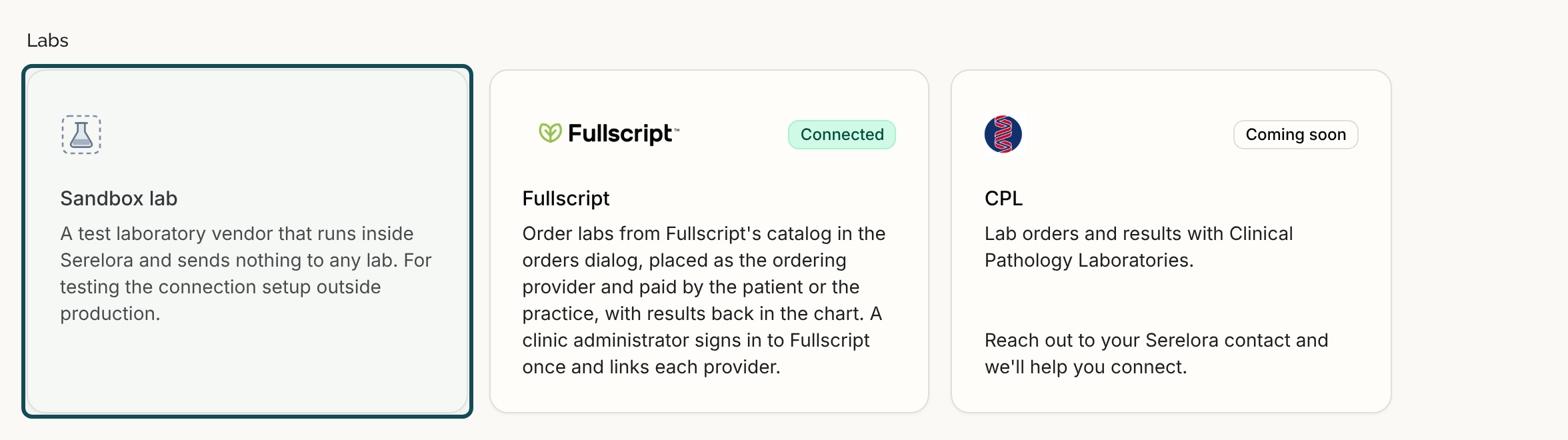
| Fullscript | Labs | A lab ordering service. See Fullscript Labs. |
| CPL | Labs | A placeholder that says Coming soon. See Coming Soon Integrations. |
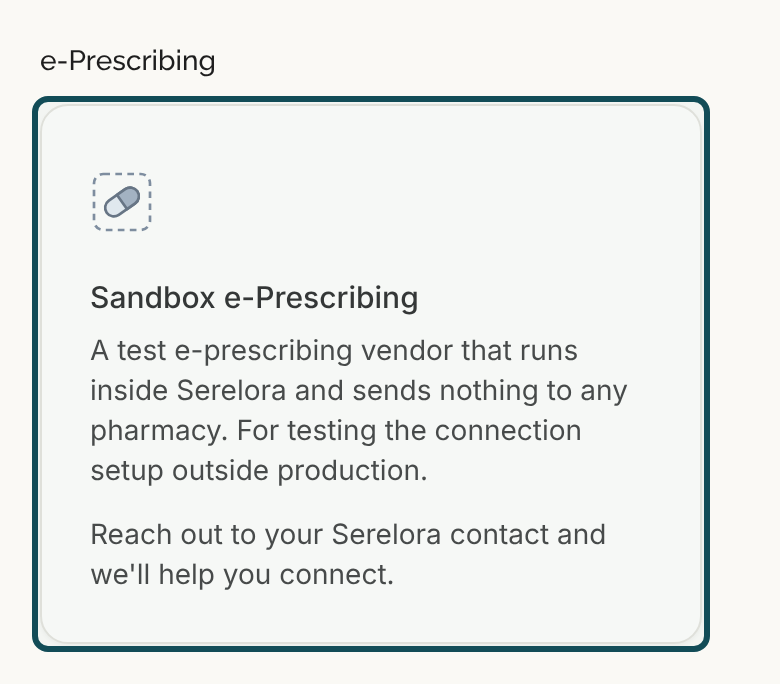
| Sandbox lab and Sandbox e-Prescribing | Labs and e-Prescribing | Test vendors that run inside Serelora and send nothing to any lab or pharmacy. They appear only on test sites and only for Serelora staff, so a clinic never sees them. |
The e-Prescribing group has no real vendor yet.
What you need
- An Admin. Only an Admin, who can edit clinic settings, can open a vendor tab and make changes. Other roles see the tile and their own orders.
- The e-Prescribing and e-labs feature turned on. It has a switch for each kind of vendor, e-Prescribing and e-labs. Pharmacy renewal and change requests, and lab results, are separate switches. Only Serelora can turn them on. A tile that says "Reach out to your Serelora contact and we'll help you connect." means the switch for that kind is off.
- Whatever the vendor asks for. Each vendor takes one of three things: your clinic's account number with the vendor, a credential the vendor gave your clinic, or a sign-in at the vendor's own site. The form shows which.
Step 1: Open the vendor's tab
Select Integrations in the sidebar, then the vendor's tile. It opens as a tab beside the main Integrations tab, with these sub-tabs: Connection, Routing, Prescribers or Providers, Status and Unmatched. The Prescribers or Providers sub-tab appears only for a vendor that needs your providers set up. A lab vendor that takes each order's own provider details has none.

Step 2: Add a connection
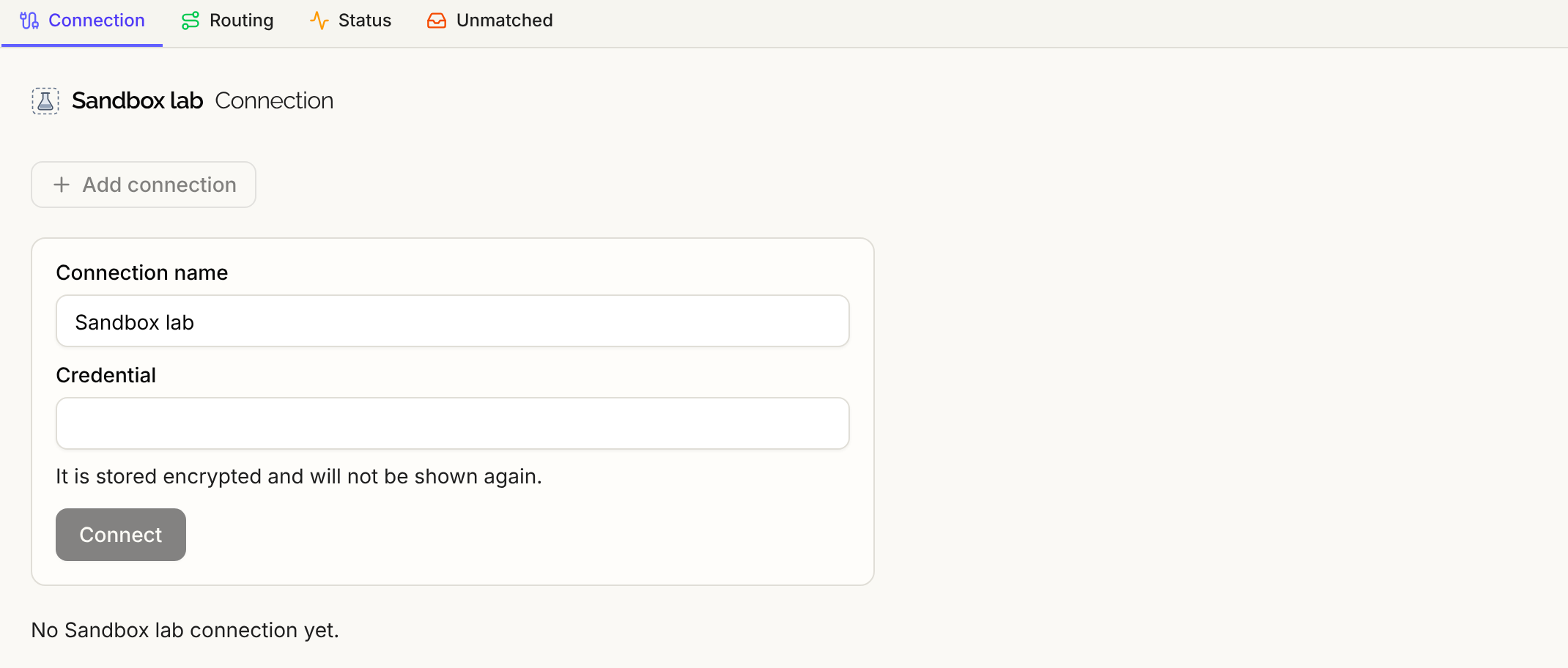
On Connection, select Add connection and fill in the form. The Connection name is always there. The next field depends on the vendor:
- Your account id with (vendor): your clinic's account number at the vendor.
- Credential: a credential from the vendor. Serelora stores it encrypted and does not show it again, so keep your own copy.
- Nothing more: you sign in at the vendor's site in the next step, as with Fullscript.
Select Connect (or Add connection when you sign in later). A clinic can have more than one connection to a vendor.
Step 3: Test the connection
A new connection reads Not tested, and nothing is routed to it. On the connection's card, select Test connection. The card then shows one of these statuses:
| Status | Meaning |
|---|---|
| Not tested | New, or not yet confirmed. Orders do not go here. |
| Active | The vendor accepted the connection. Orders can go here. |
| Working (test) | The vendor's test environment accepted it. Orders can go here, to the test environment. |
| Error | The test failed, for example "The vendor did not accept the credential for this connection." or "We could not reach the vendor. Try again in a few minutes." |
| Suspended | The connection is suspended. Orders do not go here. |
The card also offers Rename and Disconnect, and Replace credential (or Add credential) for a vendor that takes a credential. The vendor's tile reads Connected when a connection can carry orders, and Setup incomplete when a connection exists but cannot.
Step 4: Set up providers, where the vendor needs it
For an e-prescribing vendor, open Prescribers. It lists the clinic members who can prescribe, with an Enrollment status: Not enrolled, Pending, Enrolled, Suspended or Rejected by the vendor. Select Enroll (or Request enrollment, where the vendor finishes enrollment in its own portal) for each one. Orders on the connection are sent only for an enrolled prescriber. A prescriber needs their NPI and name on their account first.
A lab vendor that links each provider to its own record, such as Fullscript, calls the sub-tab Providers. See Fullscript Labs.
Step 5: Choose where orders go
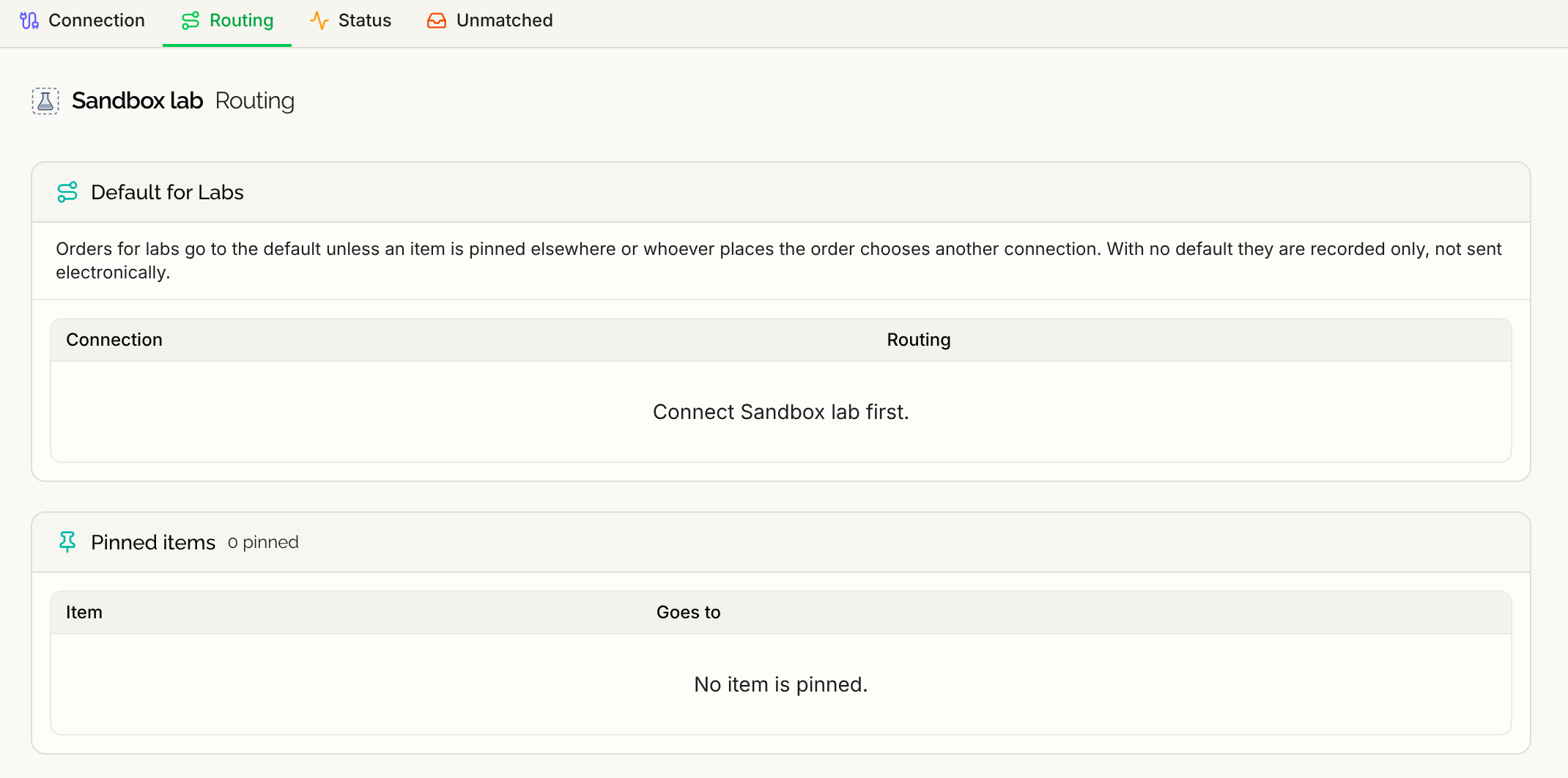
Open Routing. Serelora picks a destination for each signed order in this order:
- The destination someone chose on that order's row.
- A pin: an item you have tied to one connection.
- The clinic's default for that kind of order.
- If none of these apply, the order is recorded only and nothing is sent.
Under Default for (kind), select Make default on the connection you want, or Clear default to stop sending. A second default is refused: "This clinic already has a default connection for that kind of ordering. Clear it first, then set the new one." Under Pinned items, search for a medication or a lab test with Search medications or Search lab tests, choose the connection in Pin to if there is more than one, and select Pin. Remove pin undoes it.
Imaging, procedure and referral orders are never sent through a vendor. They stay recorded in the chart.
What happens to a signed order
The order is signed and recorded first. Sending is a separate step, so a slow vendor never holds up signing. The Transmission column on the order shows its progress, such as Queued, Sending, Sent, Acknowledged, Dispensed, Resulted, Rejected, Failed or Not confirmed. Not confirmed means the vendor may or may not have received it, so Serelora checks with the vendor before sending anything again. If a send fails, someone with permission to sign orders can use Resend on the order.
If an order cannot be sent, the order is still signed and the row says why, for example "Some details needed to send this order electronically are missing, so it was not sent." Serelora never sends an order through a different route than the one chosen.
Status and unmatched messages
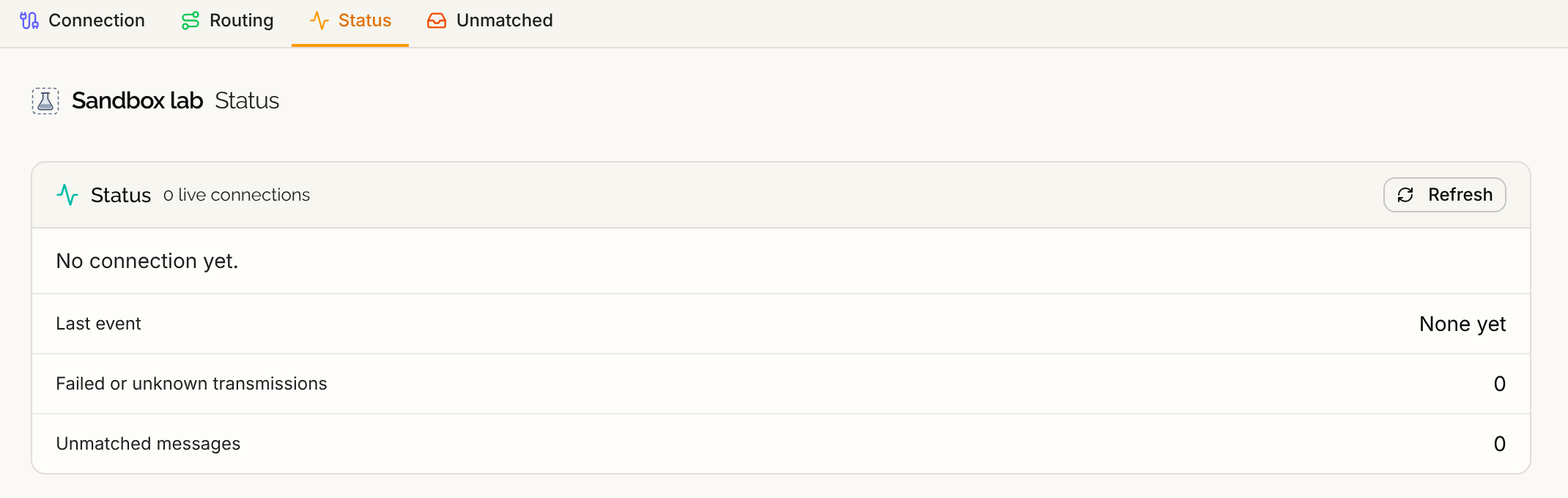
Status shows three figures for the vendor: when its last update arrived, how many orders failed or are not confirmed, and how many messages are waiting.
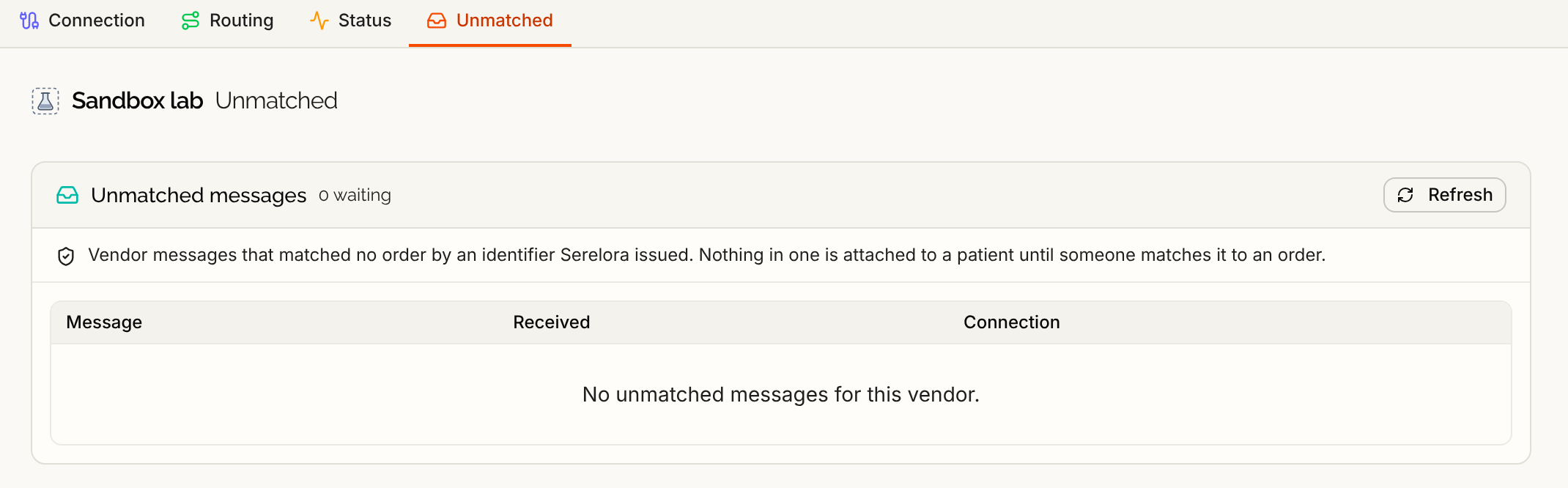
Unmatched lists messages from the vendor that matched no order. Serelora matches a message to an order only by a number Serelora issued, never by a patient's name or birth date. An unmatched message is attached to no patient until someone resolves it. Open a message to see its identifiers, then select Match to order or Reject. Rejecting asks "Reject this message?" and leaves the message attached to nothing.
What data moves
- To a vendor: only what that order needs, such as the patient's identifying details, the medication or test, the quantity or who pays, and the ordering provider. A vendor receives a patient's email only if it needs it to identify the patient.
- From a vendor: status updates, pharmacy or lab answers, and for labs the results.
- Credentials: a credential or sign-in is held by Serelora's connection service, encrypted, and is never shown on a page, in an error or in the audit log.
- Audit log: Serelora records connection tests, disconnects, routing decisions and each view or resolution of an unmatched message, naming the person and never a secret or a result value.
Rename, pause or disconnect
- Rename a connection from its card.
- Disconnect asks you to confirm: "Orders that route to it will not be sent until you choose another destination. The connection stays on record and cannot be reconnected." Add a new connection to connect again. If the disconnected connection was the default, Routing warns you and offers Clear default.
- Pause everything: Serelora can turn electronic ordering off for your clinic. That stops new orders from being sent and deletes nothing. Answers about orders already sent keep arriving.
If it does not work
- "That vendor isn't available in this environment." The vendor is not switched on where you are signed in.
- "This connection was changed by someone else. Reload the page and try again." Reload, then repeat the change.
- "The connection for this order isn't active, so it was not sent. A clinic administrator can check it under Administrative, Integrations." Test the connection, or choose another destination.
- "The prescriber isn't enrolled on this connection, so the order was not sent electronically." Enroll or link the provider.
- "Enter your clinic's account id for this vendor." or "Enter the credential for this vendor." Fill the missing field.
- "Electronic ordering isn't available for this clinic." The e-Prescribing and e-labs feature is off. Contact Serelora.
What is not available
- No e-prescribing vendor is connected. There is no real pharmacy network behind the e-Prescribing group yet.
- Not every medication can be sent. A medication that is not clearly coded and classified is recorded only, and so is a free-text medication.
- Not included: formulary and benefit checks, medication history, and choosing a pharmacy by the patient.
- Orders that never leave Serelora: imaging, procedures and referrals.
- Test vendors send nothing. The Sandbox vendors never reach a pharmacy or lab.