Search documentation
Find a documentation page by the words on it.
Documentation
Patient Billing Records and Financial History
Everything billing knows about one patient is in the Billing tab of their chart. Start with the Summary for the overall picture, then use Records and History when you need detail.
This feature is controlled by the Billing feature flag. If you do not see it in your clinic, contact Serelora at support@serelora.com and ask for it to be turned on.
Step 1: Read the Summary
Open the patient's chart and select Billing. The Summary sub-tab opens first, with a card for each part of the picture:
- Coverage: each insurance on file, with its member ID.
- Invoices: each invoice with its status, due date and the amount due.
- Account balance: what the patient owes in total. Select Details to open the balance record.
- Financial history: the newest five events. Select View all to switch to the History sub-tab.
Select a row on a card to open that record in its own tab. If the patient has no billing yet, the tab says "No billing activity for this patient yet."
Step 2: Browse Records
Select the Records sub-tab. It lists every financial record for the patient, newest first, with a Record column, a Status, a Date and an Amount.
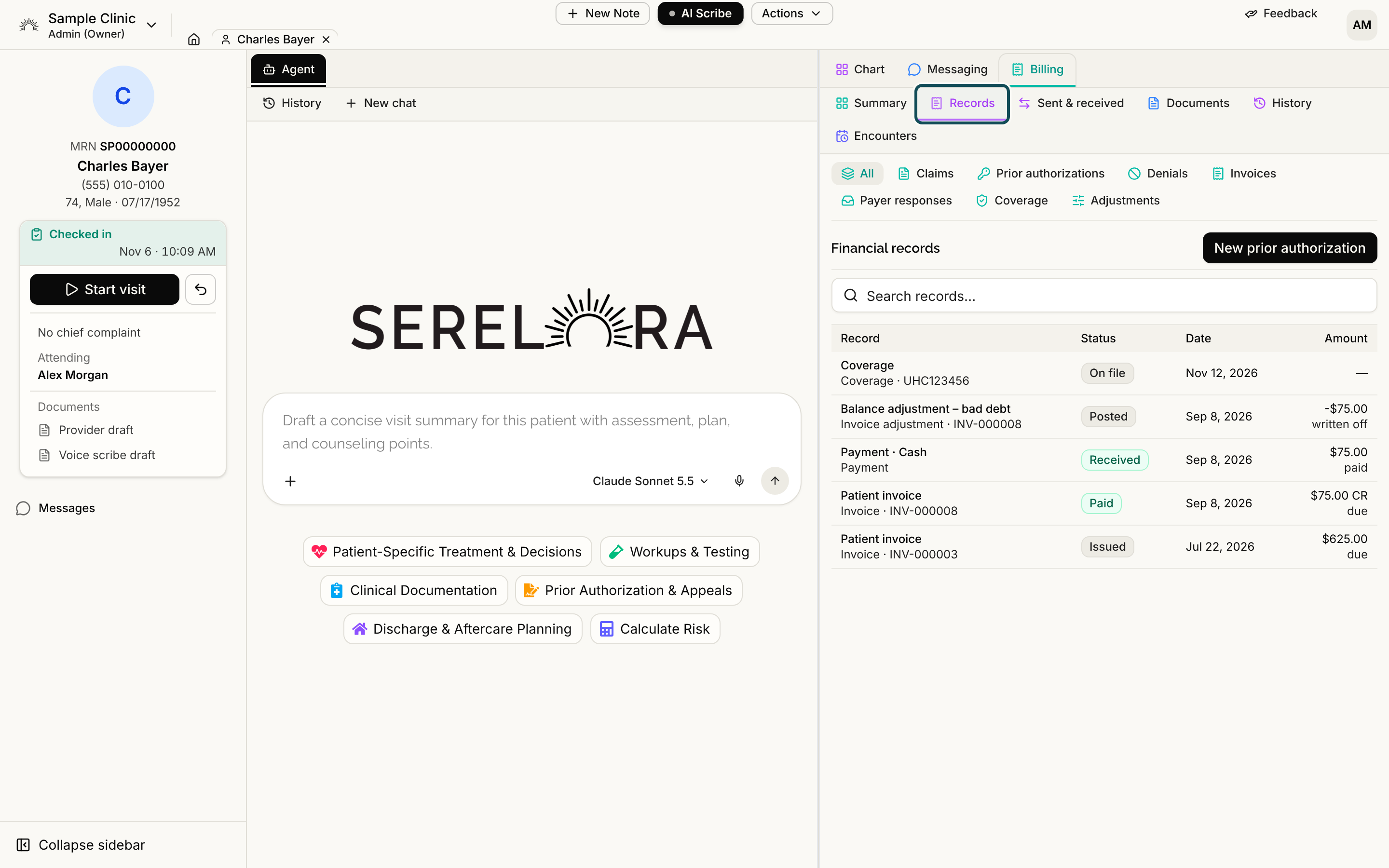
Use the chips above the list to narrow it: All, Invoices, Coverage and Adjustments. Type in Search records… to find a record by what it says. Select Load more for older records. A row opens in its own tab, named for the record, for example the invoice number, so you can keep several open.
If the patient has more records than one list can hold, a note says the list is incomplete and suggests a chip or a search.
Step 3: Read the History
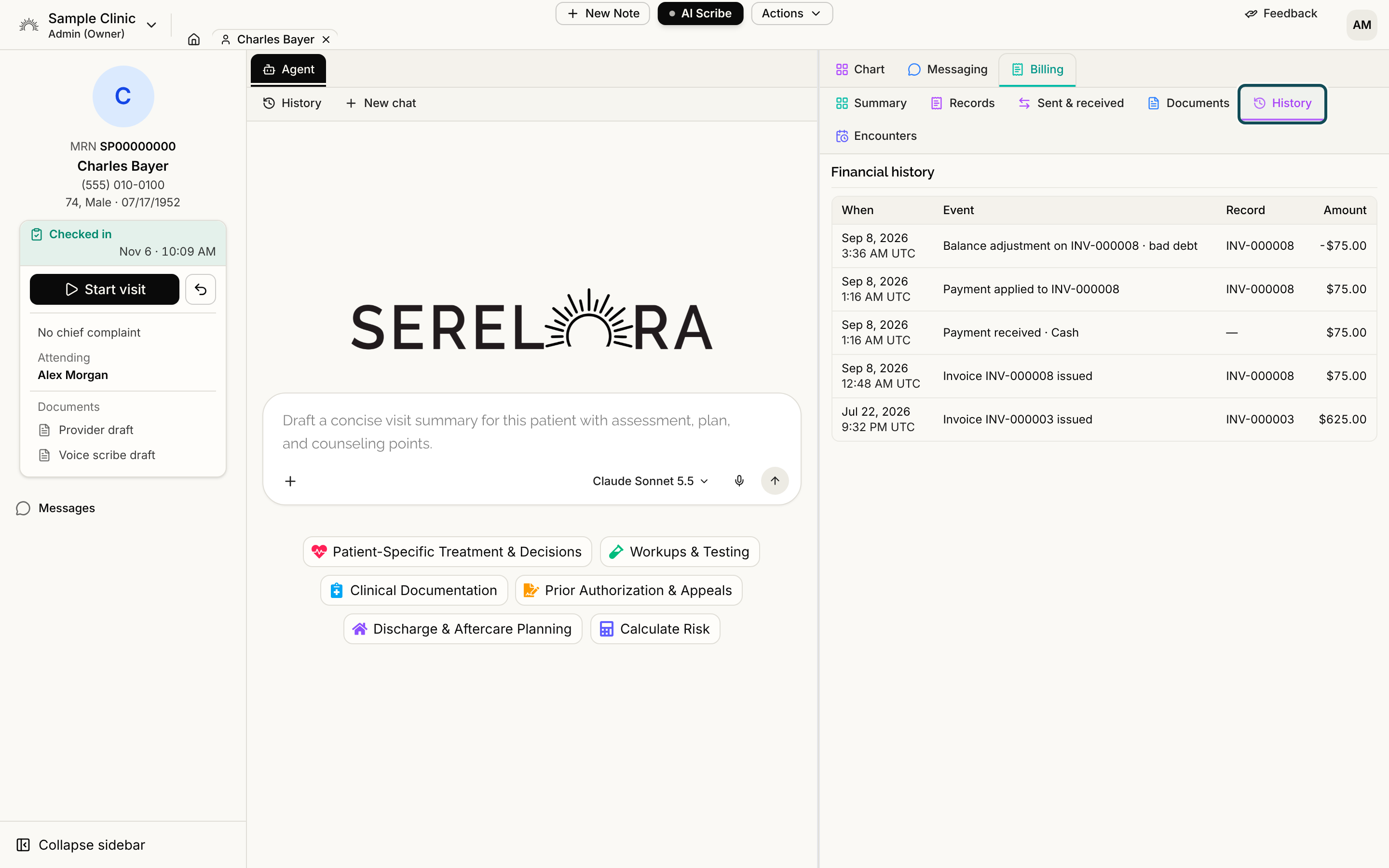
Select the History sub-tab. Financial history lists each event, newest first. An event is something that happened, such as an invoice issued or cancelled, a payment received or applied, or an adjustment recorded.
The columns are When, Event, Record, Amount and By. Select a row to open its record. A reversal is its own row with a negative amount, so you can see both the original and the correction. Select Load more for older events.
Open the account balance
On the Summary, select Details on the Account balance card. The record shows what is open in total, the latest payments and adjustments, and any unapplied payments. From here you can take a payment with no invoice, apply credit, and adjust the balance. See Applying Payments to Invoices and Adjustments and Write-Offs.
Who can see this
Every role can read the Billing tab. Buttons that change money appear only for the roles that can use them, so a Medical Assistant sees the same balances as an Office Manager but without the payment buttons. See Billing Overview.