Search documentation
Find a documentation page by the words on it.
Documentation
Spruce History Sync
This feature is controlled by the Spruce messaging feature flag. If you do not see it in your clinic, contact Serelora at support@serelora.com and ask for it to be turned on.
Spruce is not available to clinics yet. Serelora has so far checked history import only with secure messages in a Spruce test organization. Text and email conversations, large histories and edited or deleted messages have not been tested. See Spruce Integration.
History sync reads a linked patient's existing Spruce conversations and copies the messages and their files into a Shared conversation on the patient's chart. It is started once for each linked patient. To keep the conversation current afterwards, you then turn on live sync.
What you need
- The Admin role.
- A connected Spruce account and event receiving turned on.
- At least one linked patient: a patient tied to a Spruce contact by contact import, contact sync or a hand link.
- Spruce not paused for your clinic. See Pausing and Resuming Spruce.
Step 1: Open the History sync card
On the Setup sub-tab of the Spruce tab, find the History sync card. Before any sync it reads "No history sync jobs for the current credential and settings." If there are linked patients you can start, it says how many, for example "3 linked patients you can start now."
Step 2: Select Start history sync
Select Start history sync. A confirmation asks "Start history sync for" the number of linked patients "you can start now? Their Spruce message history is queued to be read in the background. Patients are started in small batches while this page stays open."
It may add a note that Start can also restart history syncs you started that stopped because Spruce was unavailable, returned an unexpected page of messages, could not provide some message files or was not verified yet. It does not restart syncs that other Admins started.
Select Confirm start, or Cancel.
Step 3: Keep the page open
While it starts patients, the card says "Starting history sync… Keep this page open; leaving or hiding it stops starting more." When it finishes, it reports "History sync was queued for" a number of linked patients. If it says "Every linked patient you can start now has a history sync job. This doesn't mean their history has been imported yet.", every patient is queued and the messages are copied in the background. If it stopped early, it says how many are still waiting. Select Start history sync again to continue.
Step 4: Read the progress
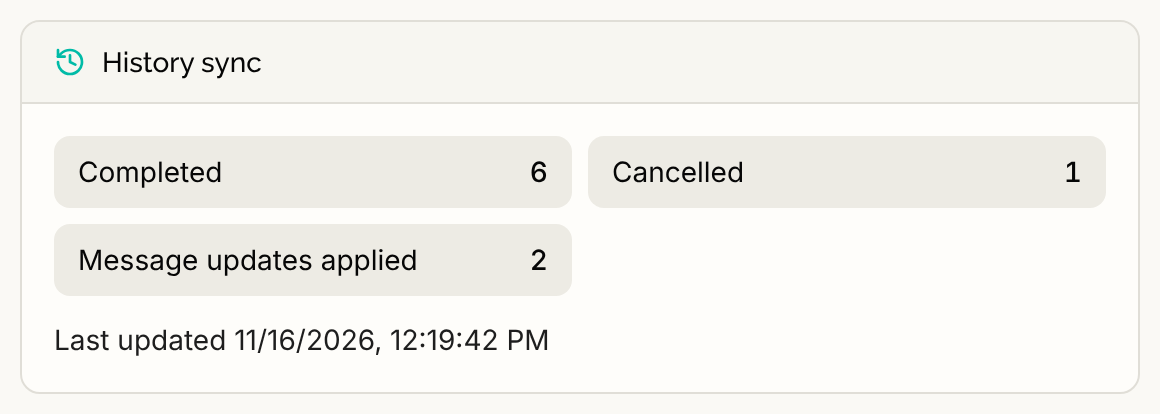
The card counts each patient's job:
| Count | What it means |
|---|---|
| Waiting | Queued, not started yet. |
| In progress | Being read now. |
| Interrupted | Was in progress, but has stopped reporting progress. |
| Stopped | Could not continue. The reason is listed under the counts. |
| Completed | Finished. |
| Cancelled | Cancelled before it finished. |
| Message updates applied | New messages, edits, deletions and unavailable states that were applied. |
A Last updated time shows when the counts last changed. There is no button to pause or cancel a history sync.
Why a sync stopped
The card lists a reason for each stopped job:
- "Waiting for a verified Spruce source". Serelora has not yet verified it can read complete, accurate history from Spruce, so it waits.
- "Spruce was unavailable". Start again later.
- "Spruce returned an unexpected page of messages". Start again later.
- "Some messages conflict with existing records". The card splits these into messages Spruce could not confirm yet, held for review, and a message that did not match its existing record in Serelora. A mismatch does not fix itself unless the message is corrected in Spruce.
- "Some message files could not be retrieved from Spruce".
- "Stopped for another reason".
When Start is not offered
Instead of the button, the card says one of these:
- "Starting history sync is waiting for a verified Spruce source."
- "History sync can't be started while Spruce is paused for this clinic."
- "History sync can't be started until this page can check whether Spruce is paused for this clinic. Reload the connection to try again."
No button also means nothing is left to start. If an error appears instead, see Spruce Problems and Messages.
What it does not do
History sync does not copy conversations for patients who are not linked, and it does not bring held conversations in. It does not turn on live sync. Files stay in the conversation. They are not added to the patient's documents.