Search documentation
Find a documentation page by the words on it.
Documentation
Generating PDF Reports
Ask an agent for a report and it gathers the data, builds the PDF and opens it in a tab. You read it, ask for changes if needed, and download it. This page covers the steps for any report. For what to ask for, see Reports Overview.
Step 1: Open the right agent
- For a report about one patient, open the patient's chart from Patient List and use the Agent tab.
- For a report about a group of patients or the practice, open Practice Agent and build the cohort first, as in Practice Agent and Cohorts.
Step 2: Ask for the report
Say that you want a report, and what it is for.
Make me a health-check summary PDF.
The agent first reads what it needs. In a chart that can mean searching the chart or running a risk calculation. In the Practice Agent it uses the counts and breakdowns from your cohort. You see these steps in the activity block. If it needs something from you, such as which cohort to use, it asks.
Step 3: Open the report
When the PDF is ready the agent confirms it, for example "Generated Health Check Summary (2 pages)", and says you can open it from the activity panel. The report also opens in a tab. In a chart it opens beside the chat. In the Practice Agent it opens in the panel on the right. The tab is titled with the report's title.
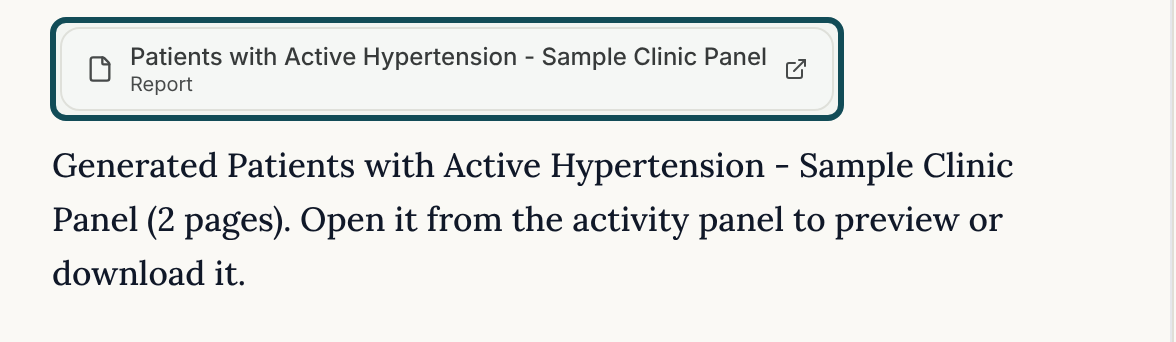
If the report cannot be produced, for example because the report builder is busy or took too long, the agent tells you and you can ask again.
Step 4: Review and ask for changes
Read the report in the tab. A report cannot be edited by hand. To change it, tell the agent what to change in the chat, and it generates a new report, which opens in its own tab.
Make it one page and put the risk results first.
Check every figure against the chart before you share a report. The agent builds a patient report from what it has read for you, and a practice report only from counts it has retrieved in the conversation.
Step 5: Download it
Select Download in the tab header to save the PDF to your computer. The file is named after the report's title.
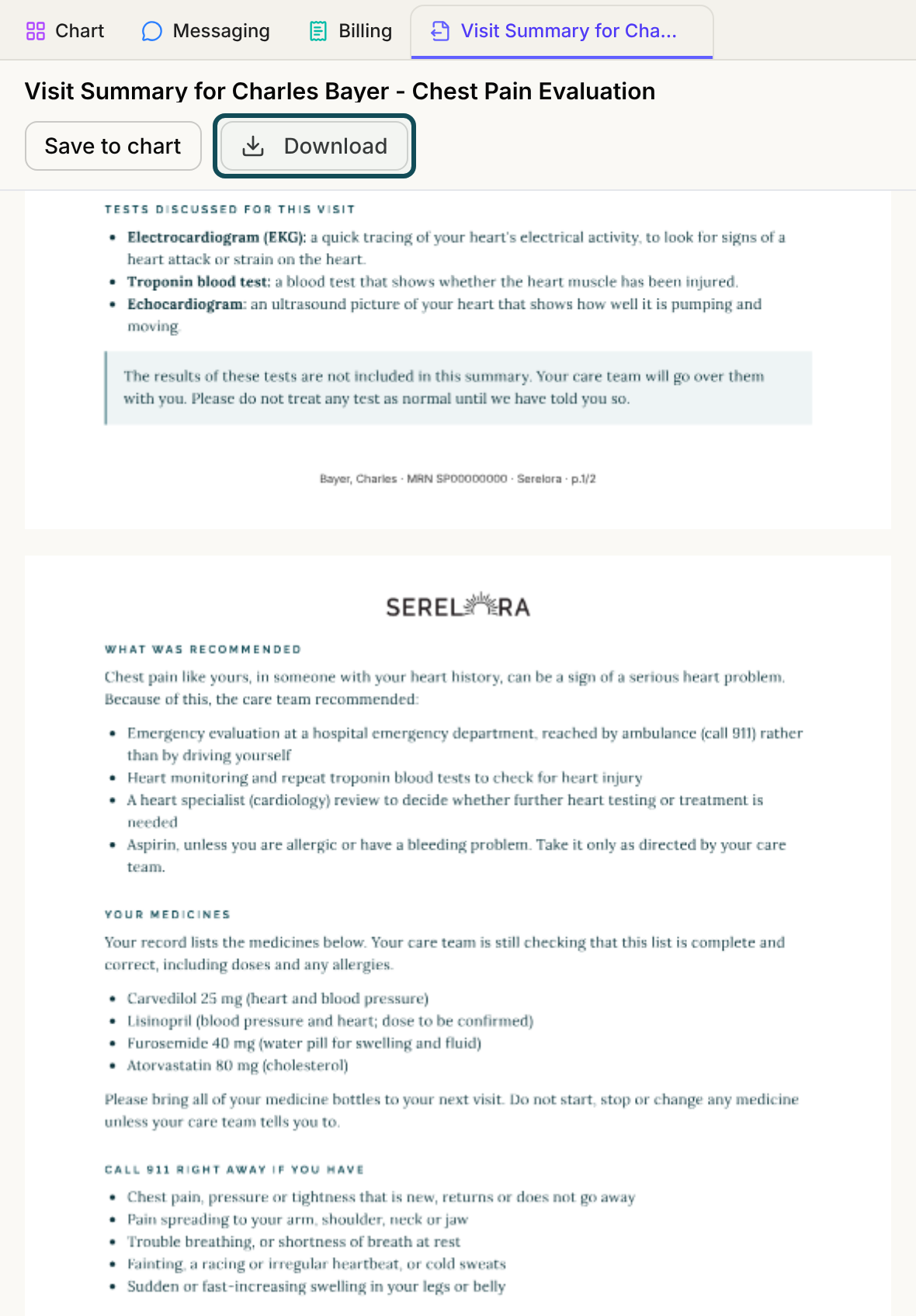
In a patient report, Save to chart also appears if you can edit the chart. For a practice report, Download appears only if you have the export permission, which is Admin only by default. To keep a patient report as a chart document or send it, see Saving a Report to the Chart and Sending a Report.
Find it again later
A report is kept after you close its tab. Go back to the chat that created it and select the report's chip in the activity panel to open it again. Reports are not listed in a library, so the chat is the way back to them.
Good to know
- A report is a read-only PDF. It is not a note, and it is not added to the chart unless you save it.
- Reports are private to the person who created them until saved or sent.
- The agent builds a report only when you ask for one. It does not turn a normal answer into a report on its own.