Search documentation
Find a documentation page by the words on it.
Documentation
HIPAA Tasks for a Practice Owner
Serelora is HIPAA-compliant and SOC 2-aligned, and it gives you tools for the parts of protecting patient information that you do inside the product. This page lists those tasks. A practice's privacy and security program also includes policies, training and risk assessment that happen outside Serelora, and this page does not replace them.
What you need
Most of these tasks need the Admin role. Office Managers can read the Audit Log and see each person's access role. See Roles and Permissions.
Step 1: Keep your Business Associate Agreement
You sign Serelora's Business Associate Agreement on screen when you create your clinic. To get your copy, open Manage Clinic, find the Business Associate Agreement card on Clinic Information and select Download signed copy. When Serelora publishes a new version, an Admin sees a banner and signs it with Review and sign. See Signing the BAA.
Step 2: Give each person the access their job needs
Every person holds one access role per clinic. Every role can view the schedule, patient demographics, the chart and billing, so choose roles with that in mind. The Audit Log, the Roles page and the consent forms are limited to Admins and Office Managers. See Onboarding Staff and Assigning Roles and Custom Roles and Per-User Permissions.
Step 3: Review the Audit Log
Select Audit Log in the sidebar. Set a Start date and End date, and filter by Action (for example query for a record being read, or access_denied), by Table or by User ID. Each row shows who did what and when. Select the arrow on a row to see its Metadata. Entries cannot be edited or deleted from the page. See The Audit Log.
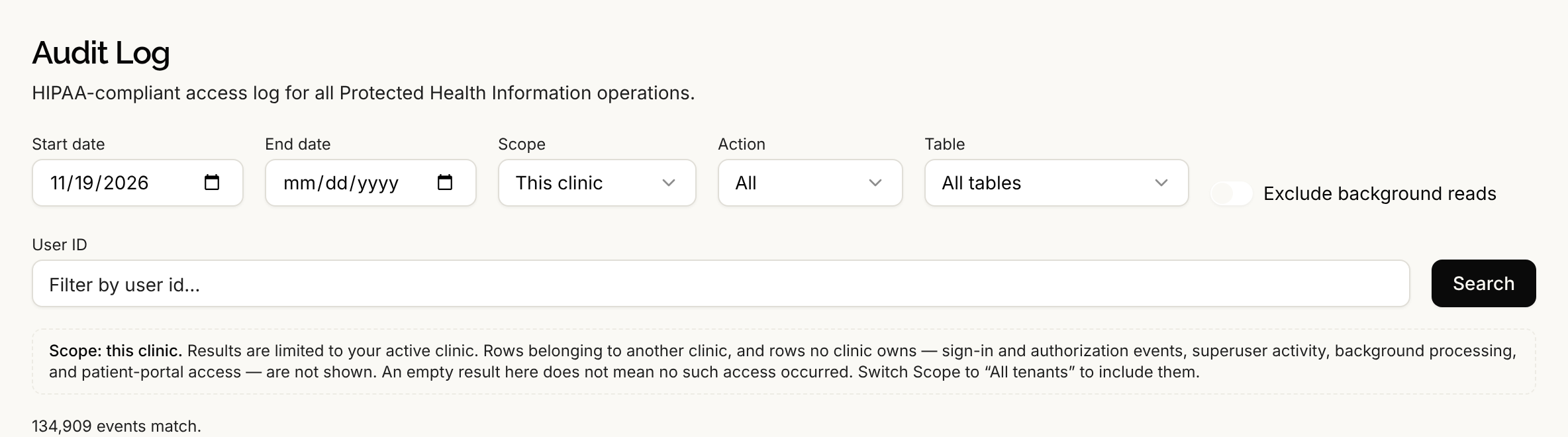
The log covers your active clinic only. Sign-in events, activity by Serelora staff, background processing and patient portal access are not in it, so an empty result does not mean nothing happened.
Step 4: Run an access review
Open Manage Clinic, then Manage Staff. Check each person's Access Role, whether they are Verified, and any +1 style badge showing extra permissions. Open Manage roles to see how many active members hold each role. Look at Pending invitations for invitations nobody accepted. Do this on whatever schedule your own policies set.
Step 5: Remove a departed employee
In Manage Staff, select the actions button on their row, then Remove from clinic, then Remove. They lose access to your clinic's patients and records. Their account and other clinics are not affected. You cannot remove yourself, and you cannot remove the only administrator. See Removing Staff.
Serelora does not remove people automatically when they leave. If you used a verified Google Workspace domain for joining, see Google Workspace Domains.
Step 6: Keep consent forms and notices current
A new clinic starts with seven consent forms, including a HIPAA Privacy Notice. Review them and replace any with your own. See Consent Forms. The AI Scribe asks the person recording to confirm they have the patient's permission, see AI Disclosure and Recording Consent.
Step 7: Handle exported files with care
Downloading a practice list as a CSV shows a warning that the file holds names, dates of birth and contact details, and you must acknowledge it before the download. See Practice Agent and Cohorts. Each report download is recorded in the Audit Log.
What Serelora does not do
- It does not replace your privacy and security program. Policies, training and risk assessment are yours.
- It does not deactivate a person's account. Removing someone ends their access to your clinic only. Deactivating an account is done by Serelora, so email support@serelora.com if you need it.
- It does not show activity across clinics. The Audit Log is limited to the clinic you are working in.