Search documentation
Find a documentation page by the words on it.
Documentation
Favorites and the Clinic List
The order catalog is long. Favorites and the clinic list keep the orders you use most at the top of New orders, so you do not have to search for them each time. Results always appear in the same sequence: your favorites first, then your clinic's list, then the rest of the catalog.
This feature is controlled by the Orders feature flag. If you do not see it in your clinic, contact Serelora at support@serelora.com and ask for it to be turned on.
Star your own favorites
You do not need any special setup for this. In New orders, select the star beside an order to add it to My Favorites. Select it again to remove it. You can star an order set the same way.
Favorites belong to you and to the clinic you are working in. If you work at two clinics, each has its own list, and nobody else sees yours. Only an Admin or a Physician can open New orders, so only they have favorites to star.
Set the clinic list
The clinic list is shared. Everyone who places orders at the clinic sees it as the Clinic list group in the search, after their own favorites.
Step 1: Open the Preference list
Select Manage Clinic in the sidebar, then the Orders tab, then Preference list. Everyone who can see orders can read the list. Only an Admin or a Physician can change it.
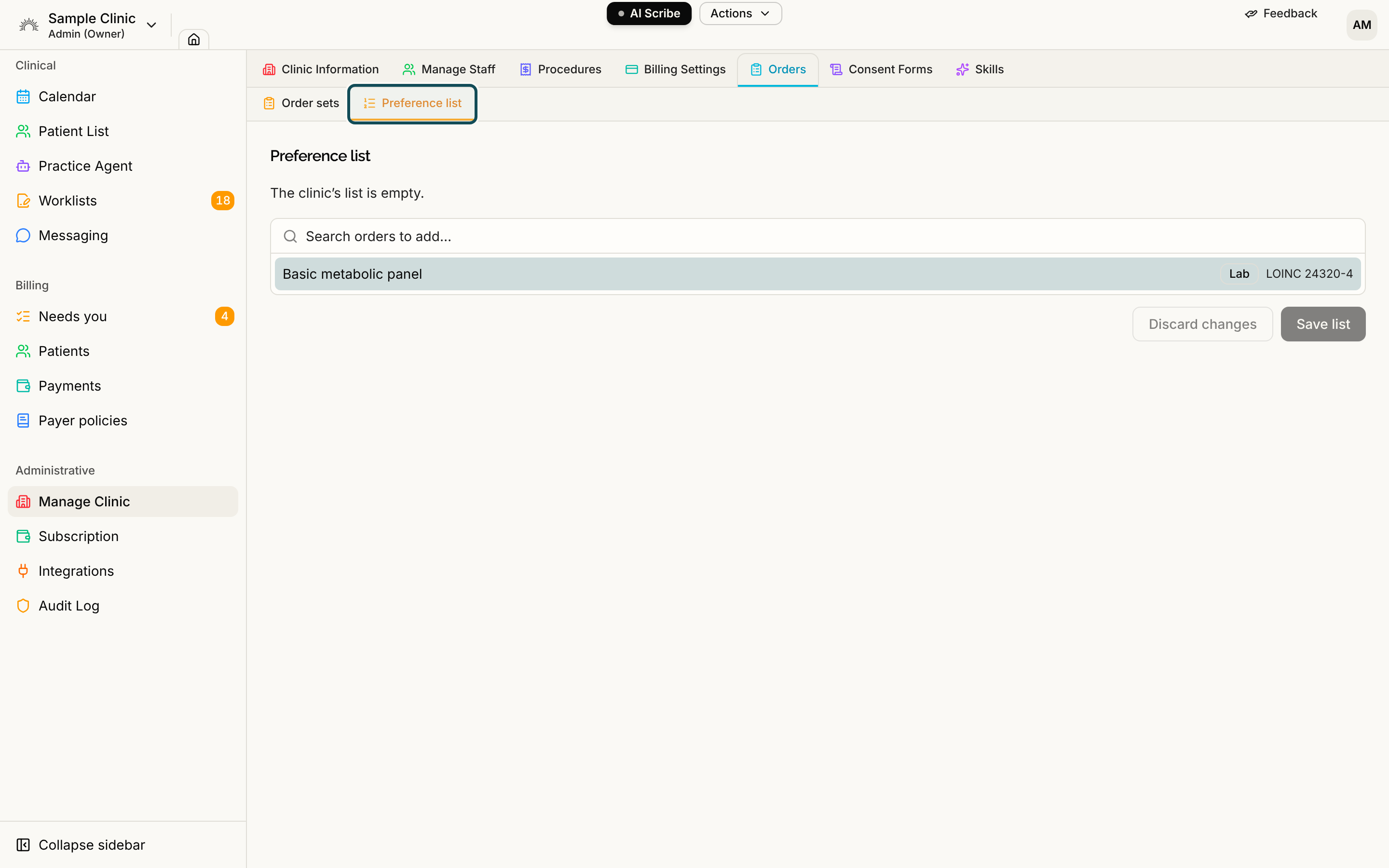
Step 2: Add, order and remove
Type in Search orders to add… and select an order to add it to the end of the list. Drag rows to reorder them, and select the X on a row to remove it. The list holds up to 100 orders.
Step 3: Save the list
Select Save list. You see "Clinic list saved". Select Discard changes to go back to the saved list.
A few things can stop a save:
- An order that was retired from the catalog still shows in the list with a Retired badge. Serelora says "Remove the retired orders to save the list." until you remove it.
- If someone else saved the list after you opened it, your save is refused and the message asks you to reload the page and review the list before saving. This stops one person's changes from overwriting another's.
Order sets
Order sets have their own list, covered in Order Sets. To make a set appear before anyone types, mark it as a default there.