Search documentation
Find a documentation page by the words on it.
Documentation
Notifications and Badges
Serelora tells you when something needs you in three ways: notifications in the bottom right corner, numbers beside sidebar entries, and banners across the top of the page. This page lists each one and what to do with it.
Notifications in the bottom right corner
A notification is a small card that stays until you close it. It does not disappear on a timer, and it is still there if you reload the page or sign in on another device. Serelora checks for new ones every few seconds, slowing to about once a minute when nothing has been happening, so a new one can take up to about a minute to appear.
| What you see | What it means | What to do |
|---|---|---|
| Scribe note is generating… | The AI Scribe is writing the note from a recording. It names the patient. | Select Open chart to go to the patient. |
| Scribe note is ready | The draft is ready to review. | Select View note. See Reviewing a Scribe Draft Note. |
| Scribe note failed | The draft could not be made. | There is no button. See AI Scribe Microphone Problems if it keeps happening. |
| A note is waiting for your co-signature | A colleague submitted a note for review. Everyone at the clinic whose role can sign notes is told, so anyone of them can pick it up. | Select View note. See Co-Signing Notes. |
| Your note was returned for changes | A reviewer sent your note back. The card shows the reviewer's reason. | Select View note, make the changes and submit again. |
| Your note has been co-signed | Your note is now signed and part of the record. | Nothing. Close the card. |
| An order is waiting for your co-signature | A colleague proposed an order that needs a signature. Everyone at the clinic whose role can place orders is told. | Select View order, which opens the patient's chart. See Co-Signing Orders. |
| Your order proposal was returned for changes | The card shows the reason. | Select View order. |
| Your order has been co-signed | Your order is now signed. | Nothing. Close the card. |
| A status you set was updated | New information in an uploaded document changed a clinical status you set earlier for this patient. | Select View document to see what changed. |
| Code action finished, Code action failed or Code action cancelled | A chart-wide code action you started on a patient's chart has ended. When it was cancelled, codes already written were kept. | See Generating Codes for Claims. |
Closing a notification
Select the x on a card to close it. Closing is permanent: Serelora records it for your account, so the card does not come back on the next check, after a reload, or on the Serelora Provider app.
Selecting the card's button, such as View note, opens the item and closes the card once the page has opened. If a prompt about unsaved changes appears first and you cancel, the card stays.
Notifications are personal. A note you recorded on the phone app shows up here for you, and a colleague's scribe note does not.
Some long tasks, such as merging many duplicate claims, show their progress in the same corner.
Numbers beside sidebar entries
A number beside a sidebar entry is a count of things waiting. It refreshes about every thirty seconds, and slows to about every two minutes when the count has stopped changing.
- Worklists shows a number for unsigned notes. It appears for people whose role can sign notes or submit them for review. See The Sign Notes Worklist.
- Needs you, in the Billing group, shows the number of billing tasks that are yours. See Needs You Worklist.
- Messaging shows, in blue, how many of your own conversations have a patient message you have not read. It reads 99+ past ninety-nine. See Secure Messages with Patients.
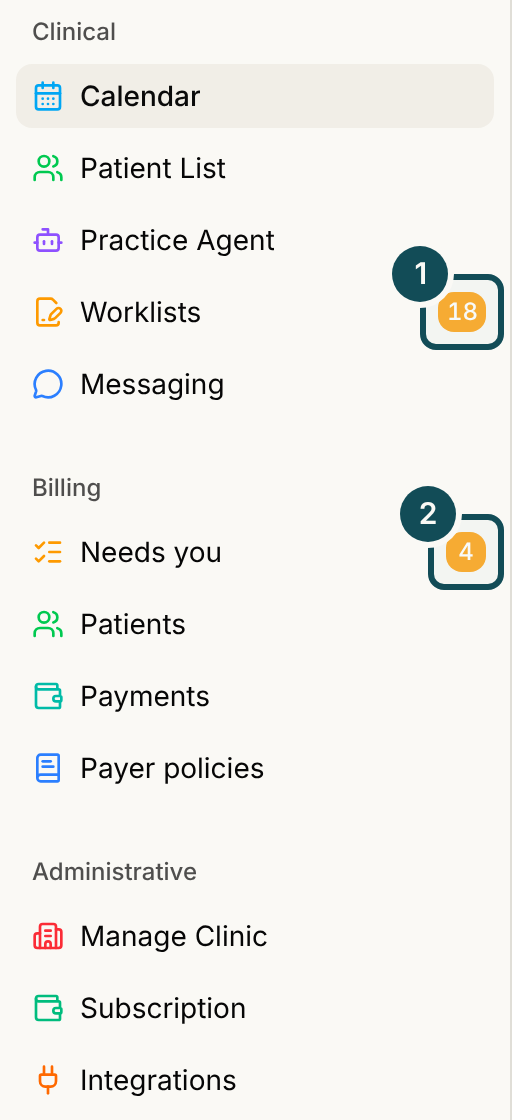
A number only appears when it is more than zero.
Banners and reminders
A banner across the top of the page stays until the thing it describes is done.
- A new Business Associate Agreement. Administrators see A new version of Serelora's Business Associate Agreement is in effect. Review and sign it for your clinic. See Signing the BAA.
- Subscription reminders. During a free trial, administrators see a reminder with a Subscribe button. When a trial has expired, a payment is past due or the subscription was canceled, everyone sees a reminder. See Your Serelora Subscription and Seats.
Choosing what you see
Settings has no notification options, so every notification above appears for the person it is meant for. For notifications on the phone, see The Scribe Tab.