Search documentation
Find a documentation page by the words on it.
Documentation
Downloading an Invoice PDF
An invoice PDF is a printable copy of an invoice, with every line, payment and adjustment on it. You can hand it to the patient, attach it to an email, or keep it with your records.
This feature is controlled by the Billing feature flag. If you do not see it in your clinic, contact Serelora at support@serelora.com and ask for it to be turned on.
Step 1: Open the invoice
Open the patient's chart and select Billing. Reach the invoice from the visit under Encounters, or from Records with the Invoices chip. See Invoices.
Step 2: Select Download PDF
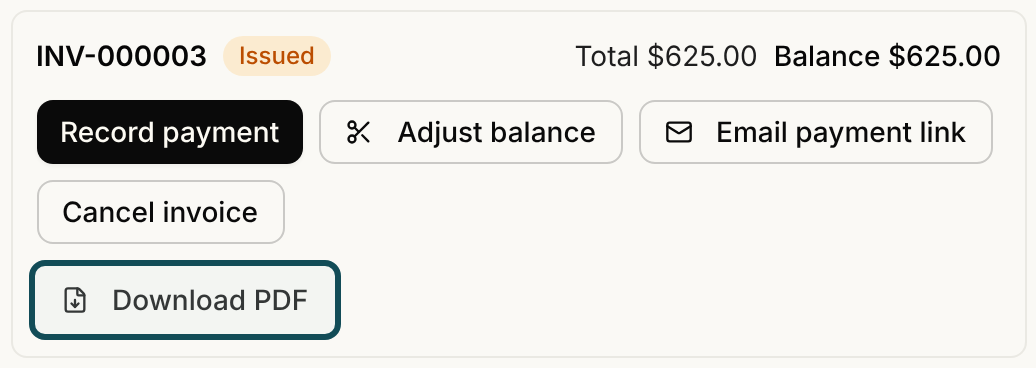
Select Download PDF on the invoice card. Your browser saves a PDF named after the invoice number.
The button appears on invoices that are Issued or Paid. It is not offered on a cancelled invoice.
What the PDF shows
- The clinic: its name, address, phone and email, taken from your clinic information.
- The invoice: the number, the status, the issue date and, when the invoice has one, the due date. Older invoices that were issued before due dates existed show no due date rather than a made-up one.
- Billed to: the patient's name.
- A table of charges: each line with its Code, Description, Qty, Unit price and Total. A line whose total you overrode shows the overridden amount.
- The totals: a subtotal and any line discounts, then the Total, followed by each adjustment and each payment with its date, and the remaining Amount due.
Because adjustments and payments are listed, the amount due at the bottom agrees with the lines above it. If an invoice was overpaid or written down past what was paid, the amount due shows zero and a separate line shows the credit. The PDF does not say that any money will be returned.
Share it with the patient
The PDF is a copy of the invoice as it stands today. If you record a payment or an adjustment afterwards, download it again. You can attach it to an email you write yourself. If you can send secure messages, you can also attach it to one.
Patients do not have to wait for you. In the patient portal, each invoice on the Billing page has its own Download PDF button. See Patient Billing in the Portal.
A note on privacy
An invoice PDF contains a patient's name and what they were charged for, so treat it as patient information. Serelora records each download for audit purposes.
Who can do this
Anyone who can read billing can download an invoice PDF, which is every role by default. Your clinic needs billing turned on.