Search documentation
Find a documentation page by the words on it.
Documentation
Medications
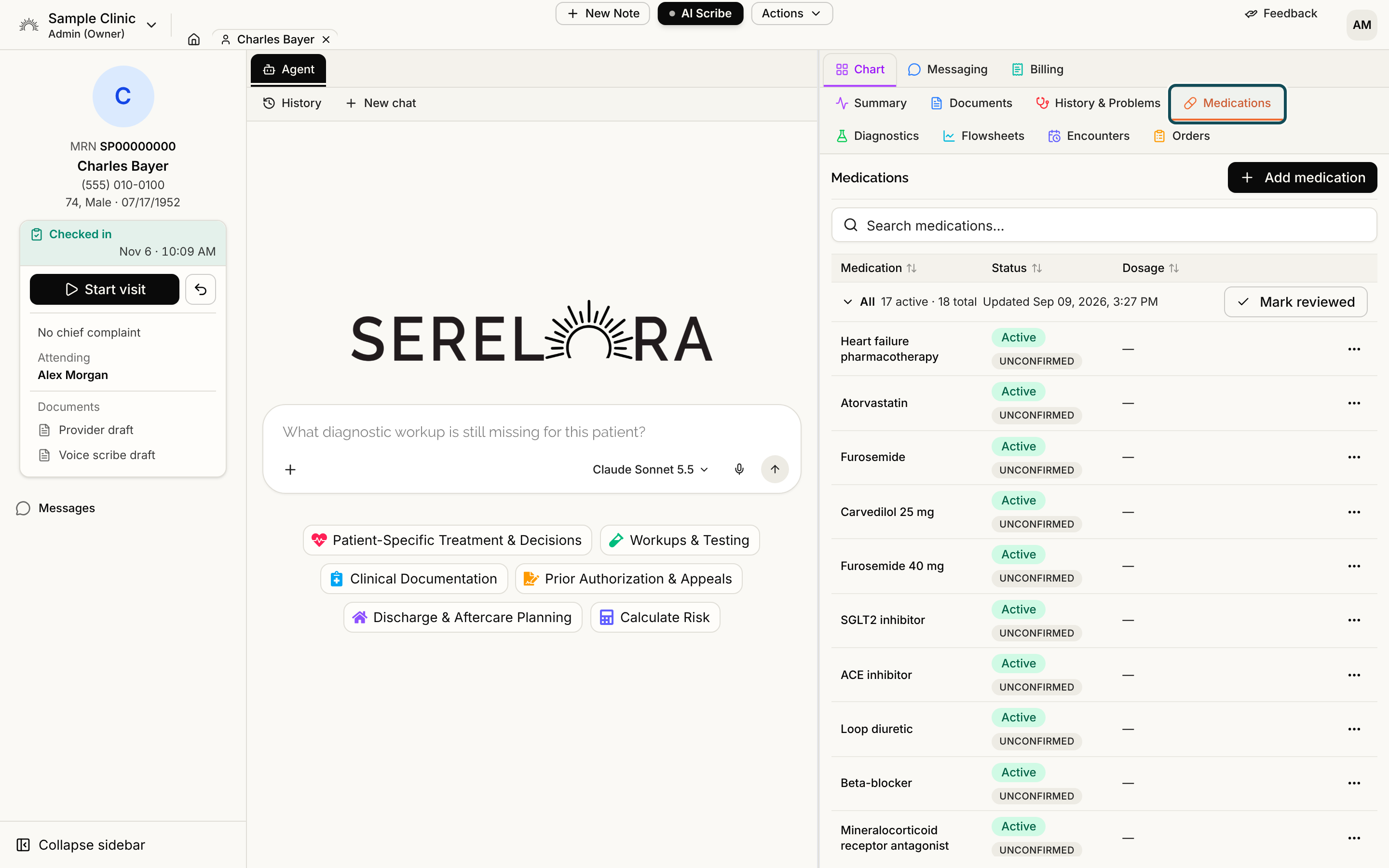
The Medications tab lists what the patient takes, one row per medication. Entries come from documents you upload, from health record files, and from medications you add by hand. Each row links back to where it came from.
Step 1: Open the tab
Open the patient's chart and select Medications in the row of chart tabs. The title is Medications, and above the table is a search box that reads Search medications…. Type to narrow the rows. The matching text is highlighted, and the search looks at the medication name, its status, its dosage, the sig, the prescriber and the pharmacy.
If you can edit the chart, Add medication is at the top right. See Adding a Condition or Medication. If the patient has no medications on file, the table says No medications found.
Step 2: Read the table
| Column | What it shows |
|---|---|
| Medication | The name, and under it any detail the source stated (see Step 3). |
| Status | Two pills. The first is the clinical status, such as Active or Resolved. The second is the verification status, such as Unconfirmed or Confirmed. |
| Dosage | The dose and frequency, with the sig beneath it when the source gave one. |
| Prescribed Date | When the medication was prescribed. A date can be a year, a year and month, or a full day. When the source stated no date, the cell says Date not stated, and hovering shows the document date Serelora used. A dash means there is no date at all. |
| Last Confirmed | The date someone last confirmed the entry, or a dash. |
A header row above the medications shows a count, such as 2 active · 3 total. Rows are ordered so that active, confirmed medications come first, then active but unconfirmed ones, then inactive or resolved ones. A medication that was ruled out or marked entered in error is struck through and sorts to the bottom. Unlike History and Problems, this tab does not hide entries marked in error.
On a narrow pane, Last Confirmed drops away first, then Prescribed Date. Click a column heading to sort by it. The first click sorts ascending, the second descending, and the third returns to the default order. The two status pills are explained in the Glossary.
Step 3: Read the detail under a medication
Records that come from a C-CDA file, and some other documents, carry more than a name and a dose. Serelora shows what the source states and leaves out what it does not:
- Ordered, not confirmed taken is a badge beside the name. It means the source recorded an order for the medication, not a statement that the patient takes it. Confirm it with the patient before relying on it.
- A sig, the directions as written, appears under the dosage.
- A line under the name can read Prescriber, Last Rx with a date, and Pharmacy.
- A value that was read from the document's narrative table instead of its coded entry carries the words from narrative after it.
Select a row to open the claim detail. A Medication detail card there lists what the source stated, such as the dose, route, frequency, whether it is taken as needed, the indication, refills and days supply, and the pharmacy. Records from before this detail was captured do not have it. See Source Details on a Claim.
Step 4: Confirm or correct a medication
If you can edit the chart, the Status pills and the Row actions menu at the end of a row work as they do on every chart table. Select the first pill to change the clinical status, the second to confirm or rule the entry out, or open Row actions and choose Edit… to change the name, the Dose / frequency or the Prescribed date. See Correcting a Claim.
If the same medication appears twice, for example from two documents, merge the entries rather than editing them. See Manage Claims.
Step 5: Mark the list as reviewed
When you have gone over the whole list and it is right, select Mark reviewed in the header row. A message says Section marked reviewed. The header then shows Reviewed with your name, the date and the time, until a new entry arrives. See Last Reviewed.
On the Summary tab
The Medications card on the Summary tab shows only the medications that are currently active, as two columns: the medication and its dosage. It shows up to eight rows. A medication that is inactive or resolved is on this tab but not on the card, so open this tab to see the full list. If none are active, the card says No active medications. View all opens this tab. See The Summary Tab.
What this tab does not do
The list is a record of what the patient takes. Adding or editing a medication here does not write a prescription and sends nothing to a pharmacy. To order a medication, see Placing an Order.