Search documentation
Find a documentation page by the words on it.
Documentation
Family History
Family history lists conditions that run in the patient's family. Each entry can say which relative it is about, so you can tell "diabetes in the mother" from "diabetes in a sister".
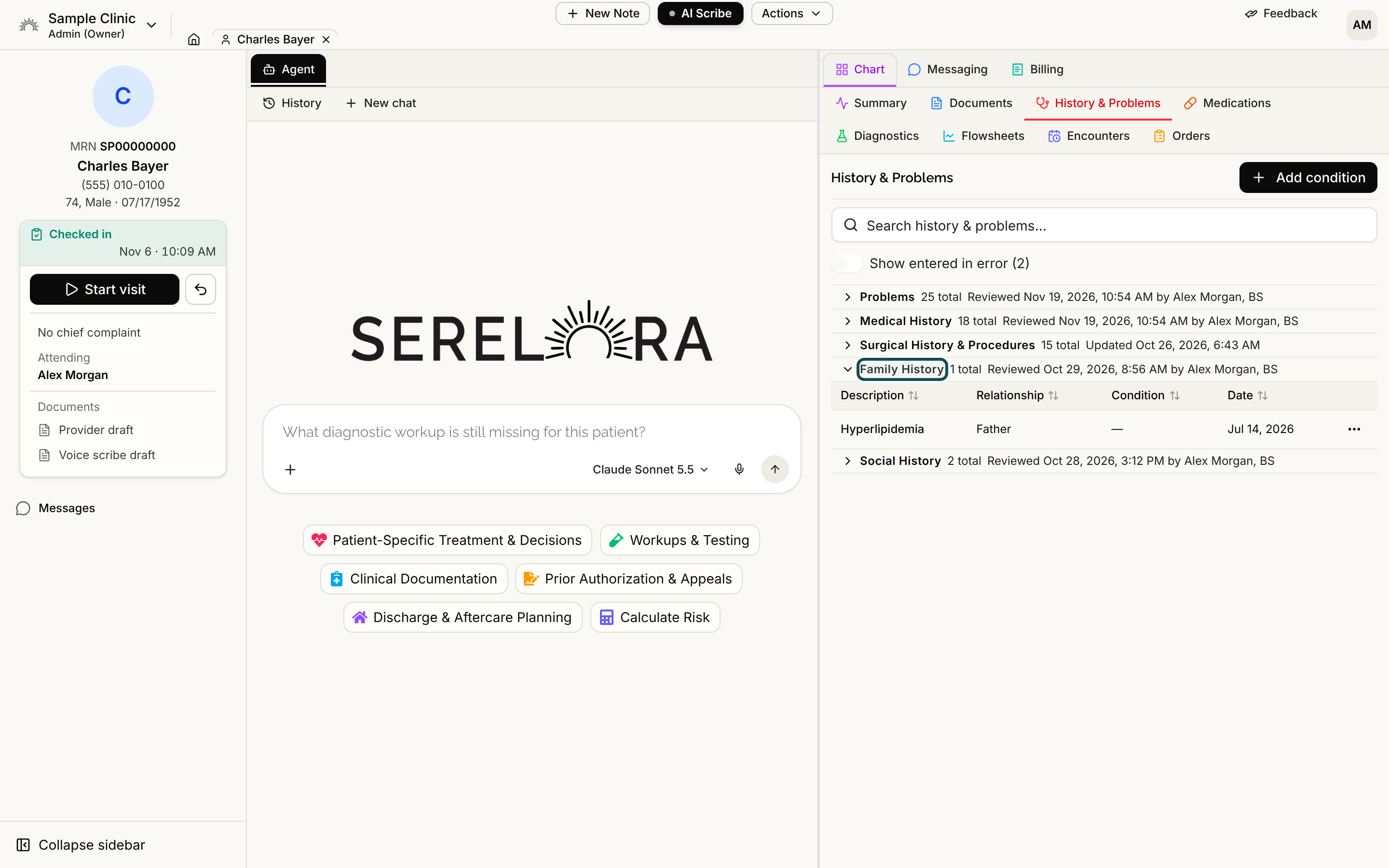
Where to find it
Open History & Problems and expand Family History. The table has these columns: Description, Relationship, Condition and Date. An entry whose relative is not set shows a dash under Relationship.
There is no Add button for family history. Entries come from documents and health record files. See Documents.
Step 1: Open the Edit dialog
If you can edit the chart (Admin, Physician, Physician Assistant or Medical Assistant by default), select Row actions at the end of the row and choose Edit….
Step 2: Choose the relationship
In the Edit dialog, open Relationship and choose one of these: Mother, Father, Sister, Brother, Daughter, Son, Grandmother, Grandfather, Maternal aunt, Paternal aunt, Maternal uncle, Paternal uncle or Half-sibling. Choose Unspecified to clear it.
You can also change it from the entry's claim detail. Open the entry and use the Relationship row in the Details card, which is a dropdown. See Claim Detail and Where a Fact Came From.
Step 3: Save
Select Save in the dialog. The table updates. If someone else changed the same entry while you were editing, Serelora refuses your change rather than overwriting theirs. Reopen the entry and try again.
What to know
- A relationship is only the type of relative. Serelora does not store a relative's name or link to another patient's chart.
- Serelora never guesses a relationship from the wording of an entry. When a health record file states the relative using a code from the list above, it is filled in for you. Otherwise it stays unset until someone sets it.
- Two entries that are about different, known relatives are never treated as duplicates, even if the condition is the same. An entry with no relative set can still be merged into one that has one. See Manage Claims.