Search documentation
Find a documentation page by the words on it.
Documentation
DEA Registrations
Serelora can store your DEA registrations with your profile. You add one for each state, with the schedules it covers. Serelora keeps them as profile information.
What Serelora does with it
Serelora stores the registration and shows the number masked, so only the first two characters and the last four are visible. It checks that the number is well formed, including its check digit. It cannot check the number with the DEA, so a saved registration does not prove that the number is current.
Registrations are for your records. Serelora does not use them to allow or block anything today, and they do not change what you can do in the product.
Step 1: Open your professional settings
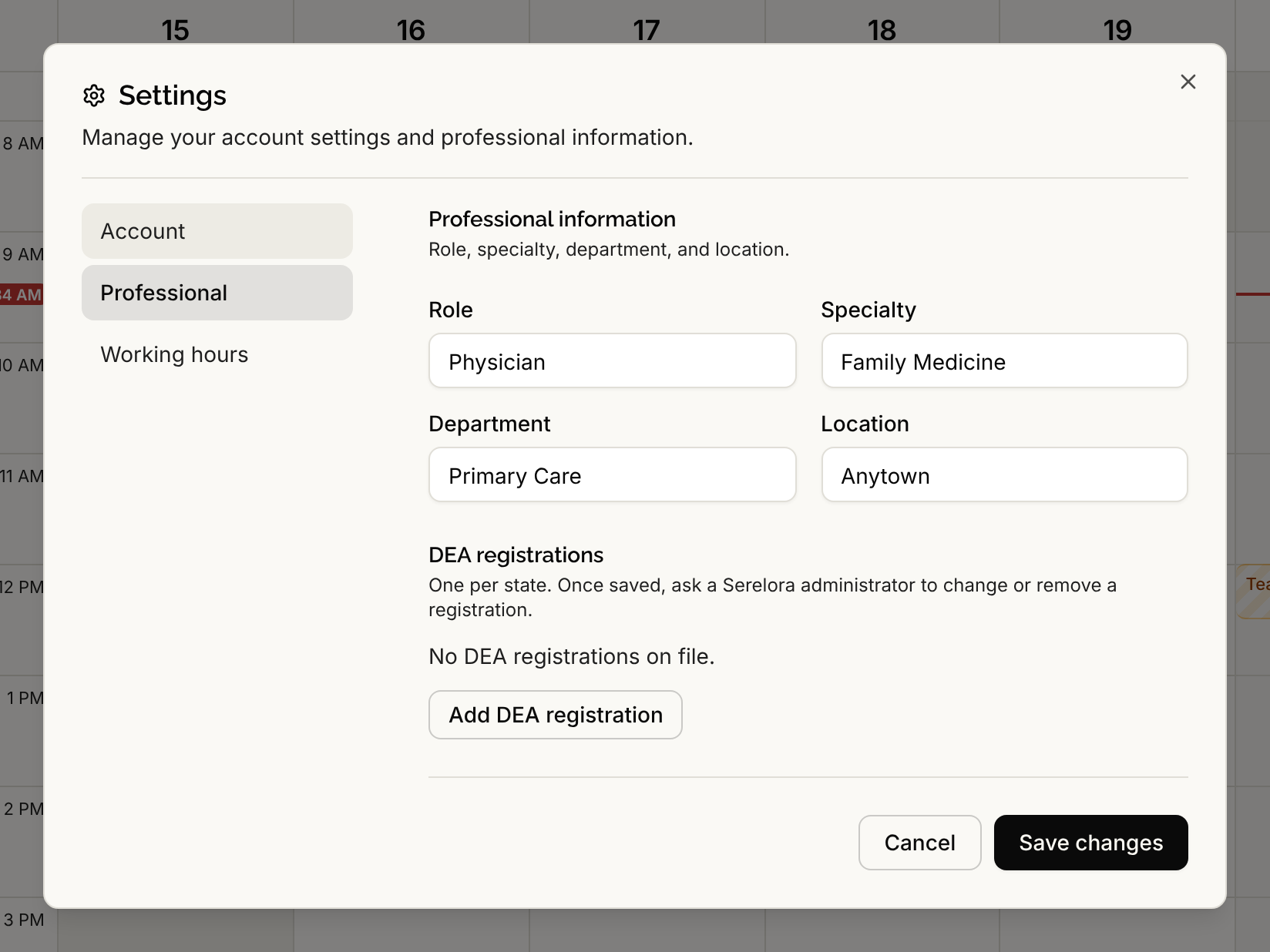
Select your avatar at the top right of the header, then Settings, then the Professional tab. Scroll to DEA registrations.
Step 2: Add a registration
Select Add DEA registration and fill in:
- DEA number.
- State.
- The schedules the registration covers. Tick at least one of Schedule II, Schedule II non-narcotic, Schedule III, Schedule III non-narcotic, Schedule IV and Schedule V.
- Expiration date (optional).
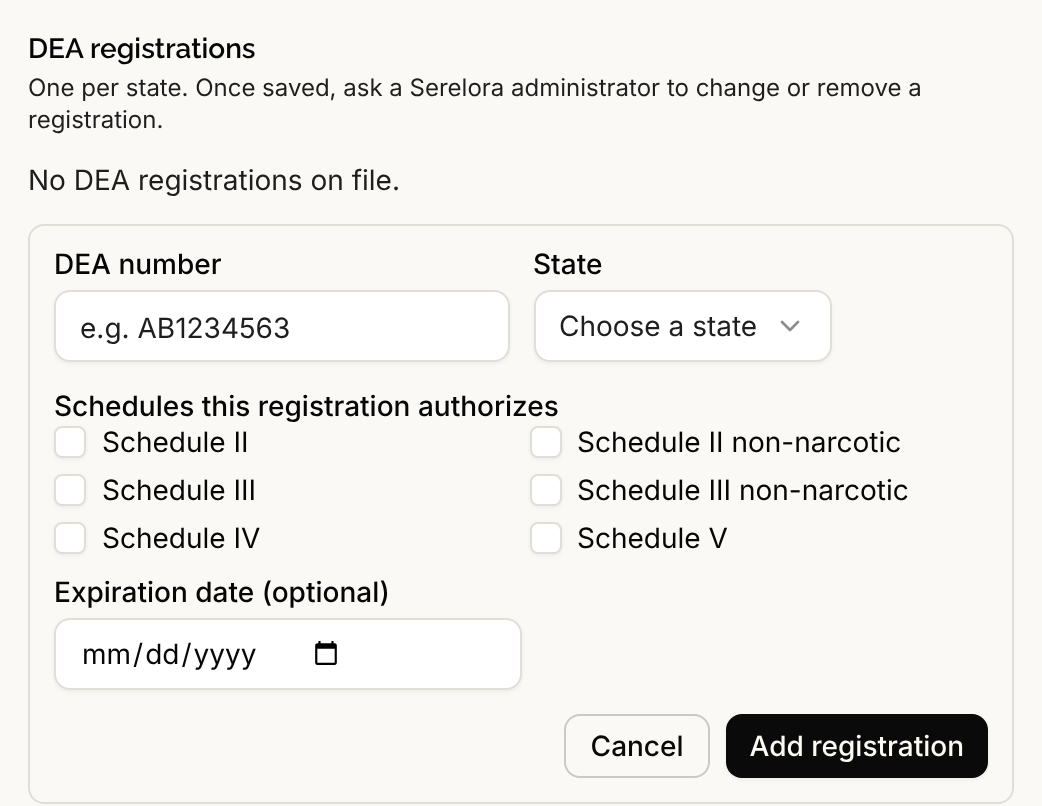
Select Add registration. Each registration saves on its own, not with the Save changes button of the rest of the dialog.
What Serelora checks
- The number must be two letters and seven digits with a valid check digit. If it is not, Serelora says We couldn't confirm that DEA number, and does not call it invalid.
- The second letter of the number must match the first letter of your family name on file. This is a quick check that you are entering your own number. If it does not match, Serelora asks you to contact an administrator.
- You can hold one registration per state, and a number can belong to only one account.
Change or remove a registration
You can add registrations but not edit or delete them. A saved registration reads One per state. Once saved, ask a Serelora administrator to change or remove a registration. To correct one, for example after a renewal, email support@serelora.com.