Search documentation
Find a documentation page by the words on it.
Documentation
Fullscript Labs
Fullscript is a lab ordering service. Connecting it lets your clinic order labs from Fullscript's catalog from a patient's chart, placed as the provider who signs the order, with the patient or your clinic paying, and with results coming back into Serelora. A clinic Admin signs in to Fullscript once and then links each provider to their own Fullscript practitioner record.
This feature is controlled by the e-Prescribing and e-labs feature flag. If you do not see it in your clinic, contact Serelora at support@serelora.com and ask for it to be turned on.
This integration is not available to clinics yet. Serelora has built it, and it runs against Fullscript's sandbox on a test site, but it is switched off on the live site until Serelora has verified it with Fullscript. If you are interested, contact Serelora at support@serelora.com.
What you need
- An Admin. Only an Admin, who can edit clinic settings, can open the Fullscript tab and make changes. Other roles see the tile and the lab orders, not the setup.
- Electronic ordering turned on for your clinic. The e-Prescribing and e-labs feature has an e-labs switch, and Fullscript needs it. Bringing results back into the chart needs Lab results turned on as well. Only Serelora can turn these on. Placing orders also needs Orders, see Orders and Labs.
- A Fullscript account for your clinic, with the clinic's providers set up there as practitioners. You sign in with the Fullscript login your clinic uses.
- Providers who can sign orders. By default that is Admins and Physicians. A Physician Assistant can propose an order for co-signature, and the order is then placed as the provider who co-signs it.
- An email address on each patient's record. Fullscript identifies a patient by email address, so an order for a patient without one is not sent.
Step 1: Open the Fullscript tab
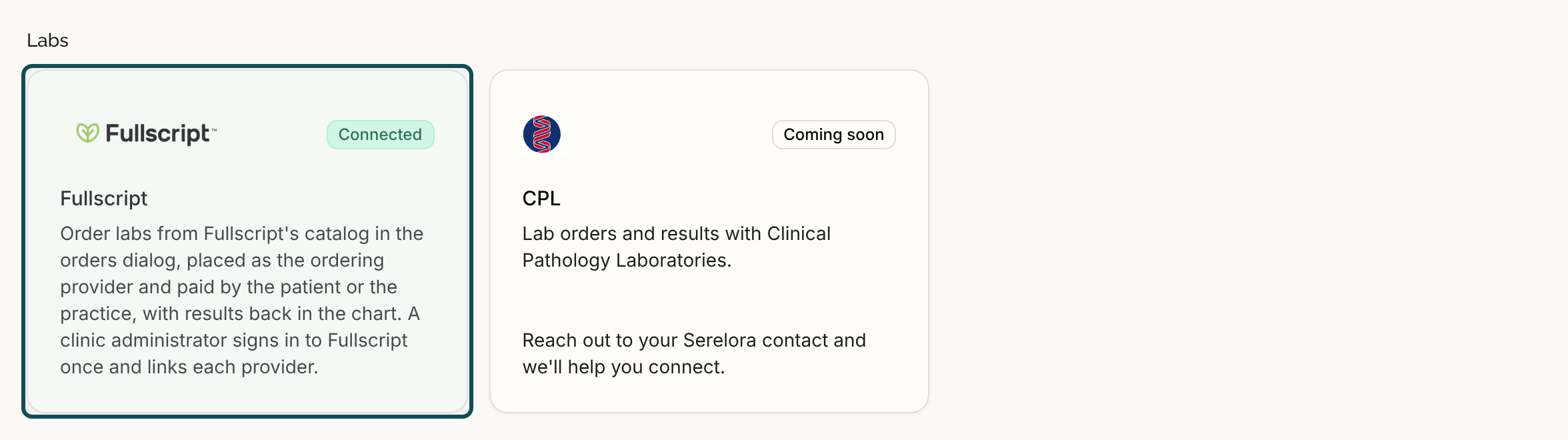
Select Integrations in the sidebar, then the Fullscript tile in the Labs group. It opens as a tab with five sub-tabs: Connection, Routing, Providers, Status and Unmatched. See The Integrations Tab.
If the tile says "Reach out to your Serelora contact and we'll help you connect.", e-labs are not turned on for your clinic. If selecting it opens nothing, you are not an Admin, or e-labs are off.
Step 2: Add a connection
On Connection, select Add connection. Fullscript asks for a name only: the Connection name box starts as "Fullscript". Change it if your clinic has more than one connection, then select Add connection. The page says "Added. Choose Connect with Fullscript to sign in, then test the connection."
The new connection's card reads Not tested, and Fullscript sign-in reads Not signed in yet.
Step 3: Sign in to Fullscript
Select Connect with Fullscript on the card. It changes to "Opening Fullscript sign-in..." and takes you to Fullscript. Sign in and approve the connection there. Serelora never sees your Fullscript password.
When you return, the Connection tab says "Signed in to Fullscript. Choose Test connection to make the connection active." and the card shows Fullscript sign-in as Signed in with the Account id of your clinic at Fullscript. If you cancel at Fullscript, nothing is connected and you can start again.
Step 4: Test the connection
Select Test connection. The card shows one of these:
- Active with "The connection works."
- Working (test) with "The sandbox connection works." This means you are connected to Fullscript's test environment, not a real account.
- Error with a short reason, such as "The vendor did not accept the credential for this connection." Select Reconnect and sign in again.
Nothing is sent to Fullscript until the status is Active or Working (test).
Step 5: Link each provider
Fullscript places every order as the person who signs it, so each ordering provider must be linked to their own Fullscript practitioner record. Open Providers. It lists the practitioners in your Fullscript account.
- On a practitioner who is active and not linked yet, choose the Serelora provider in the Serelora provider box.
- Read the line "Link (practitioner) to (provider)? Fullscript confirms it before orders are placed as them."
- Select Save.
Serelora says Linked, "Waiting for confirmation", or that Fullscript did not confirm the link. Nothing is matched by name or email, and Serelora never links anyone for you. A provider can be linked to one record, and a confirmed link cannot be changed from this page. Use Search to find a name and Show more for further practitioners. A provider who is not linked cannot send lab orders to Fullscript.
Step 6: Make Fullscript the default for labs
Open Routing. Under Default for Labs, select Make default on the Fullscript connection. Lab orders go to the default connection unless someone chooses another. With no default, lab orders are recorded only and not sent electronically. See Order Fulfillment Vendors for how routing works.
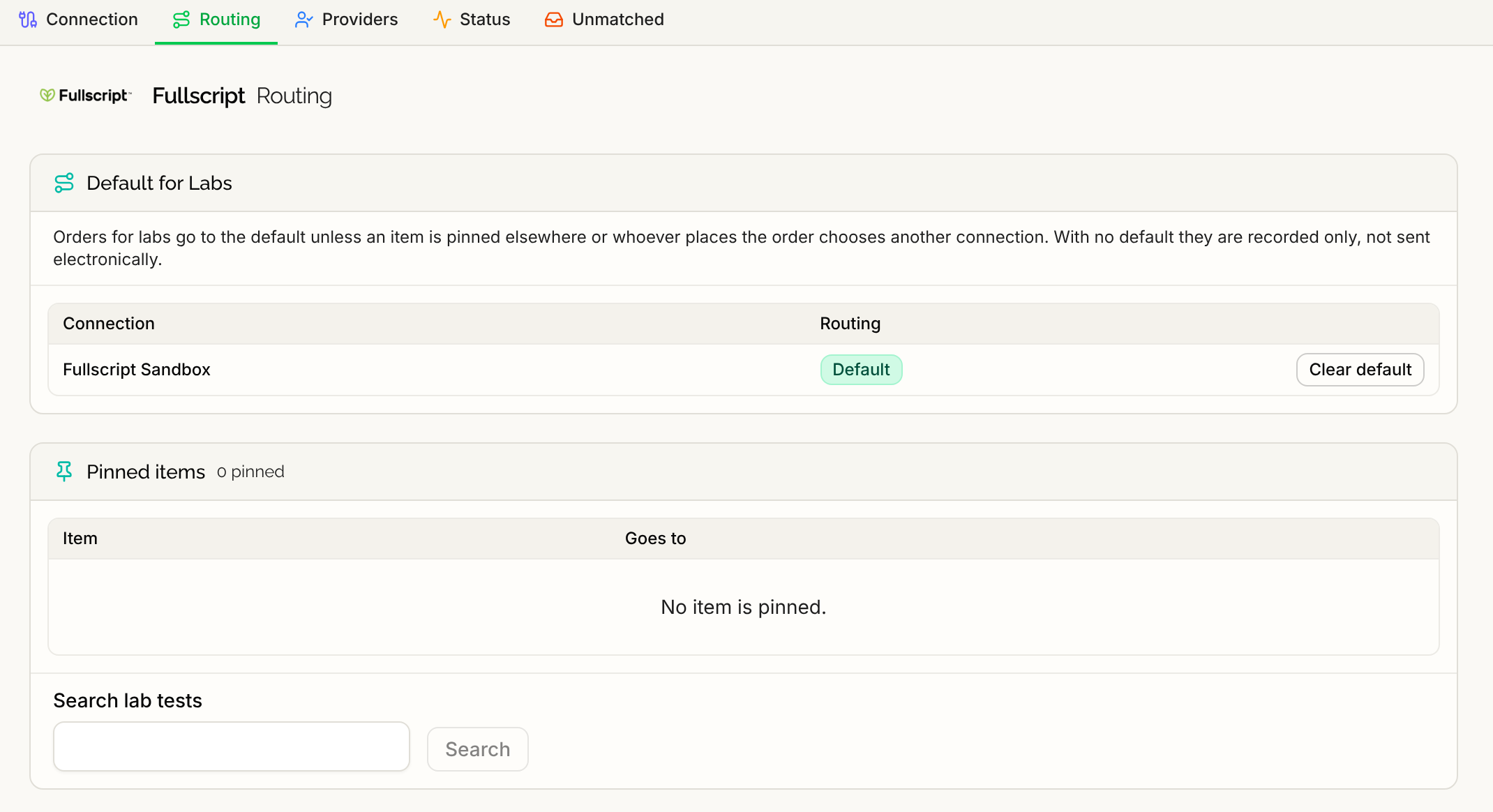
When it is done, the Fullscript tile reads Connected, the connection reads Active (or Working (test) on a test site), and each ordering provider reads Linked.
Order a lab
- Open the patient's chart, go to Orders and search for the test. Fullscript's tests appear in the same search as every other order, named with the test and its lab company. A clinic with a connected Fullscript is offered Fullscript's tests for labs, and a lab that is not in the catalog cannot be ordered.
- Choose Bill to. Fullscript offers two choices and no insurance:
- Patient pays (Fullscript checkout): Fullscript emails the patient to pay and choose where to have the sample drawn. This is the starting choice.
- Practice pays: after signing, use Pay in Fullscript on the order to pay. Fullscript then sends the patient their instructions. You need to be signed in to Fullscript when it opens.
- Sign the order. It is placed in Fullscript as the signing provider. See Placing an Order.
After signing, the Transmission column shows the order's progress, such as Queued, Sent, Acknowledged and Resulted. Not confirmed means Fullscript may or may not have received it, and Serelora checks before anything is sent again.
Results
When Lab results is on, a finished result comes back as the report Fullscript provides, and structured results when Fullscript supplies them. Open Worklists, then Results to review, to see new reports under To review. View report opens the document, View values in Labs goes to the chart's Labs view, and Mark reviewed records that someone looked. See Labs and Diagnostics.
Status and unmatched messages
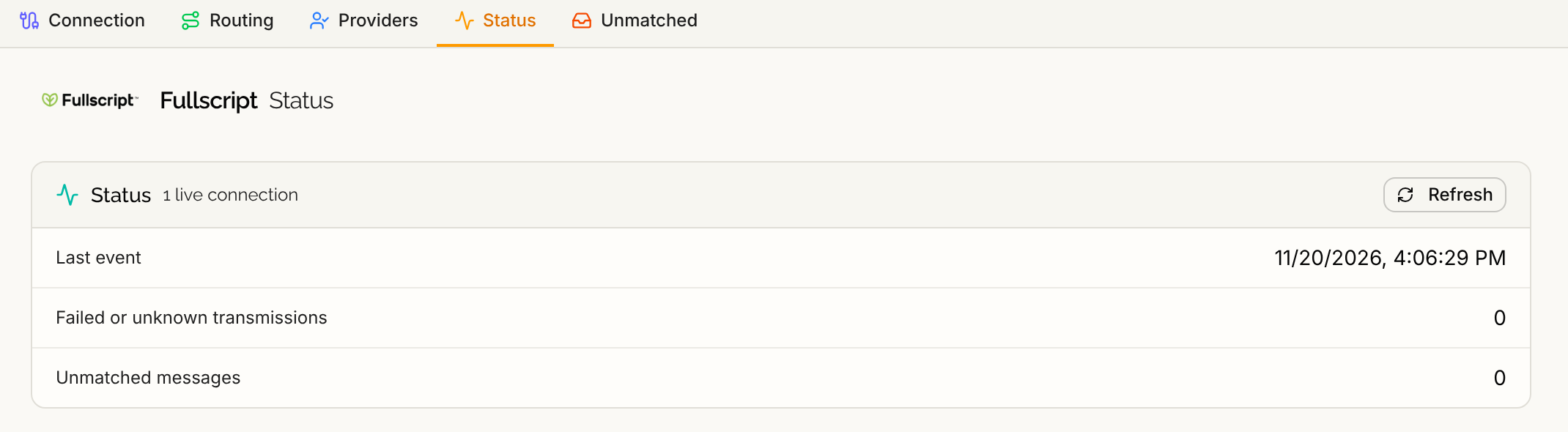
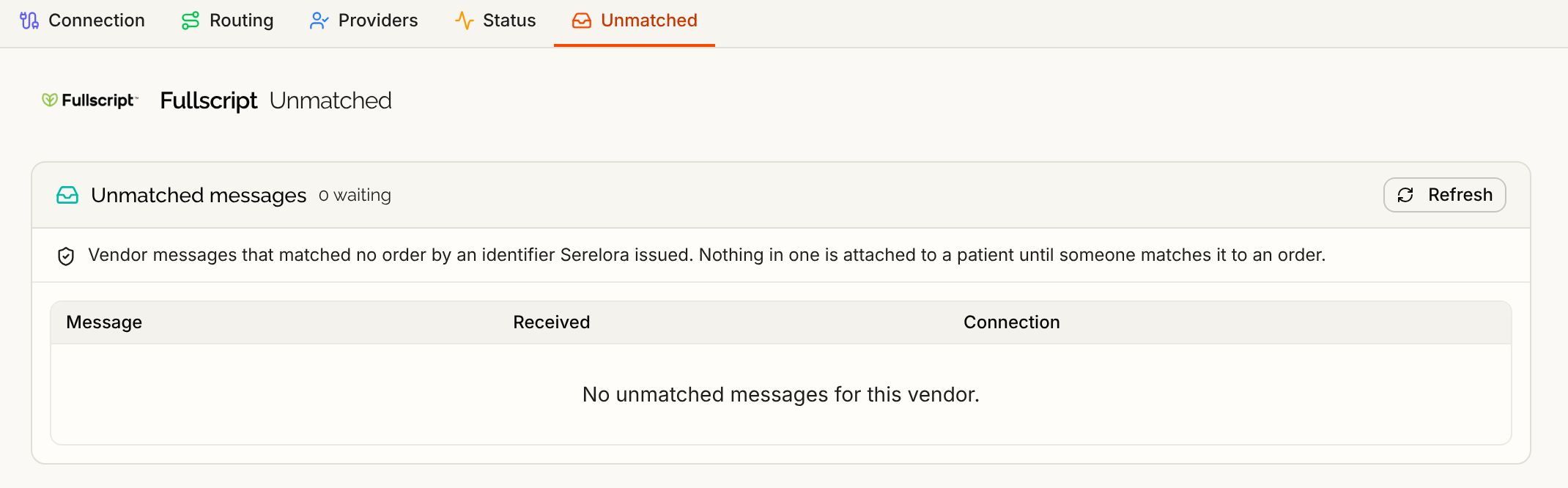
Status shows three figures for the connection: when Fullscript last sent an update, how many orders failed or are not confirmed, and how many messages are waiting. Unmatched lists messages from Fullscript that matched no order. Nothing in one is attached to a patient until someone matches it to an order or rejects it.
What data moves
- To Fullscript: the patient's name, date of birth, sex, mobile number and email address, so Fullscript can find or create the patient by email, plus the tests, who pays and the ordering provider's linked record.
- From Fullscript: the order's status, the payment link for a practice-pays order, and results.
- Audit log: Serelora records connection tests, sign-ins, routing decisions and each time someone views or resolves an unmatched message. No Fullscript token, secret or result value is in the record.
- Not sent: insurance details and the rest of the chart.
Rename, reconnect or disconnect
- Rename: select Rename, change the Connection name and select Save name.
- Reconnect: once you have signed in, the sign-in button reads Reconnect. Use it if Fullscript stops accepting the sign-in.
- Disconnect: select Disconnect, read "Orders that route to it will not be sent until you choose another destination. The connection stays on record and cannot be reconnected.", and select Confirm disconnect. To connect again, add a new connection. If it was the default, Routing says so and offers Clear default.
Serelora can also turn off electronic ordering for your clinic. That stops new orders from being sent, and keeps what was already sent.
If it does not work
- "That sign-in link expired or was already used. Start the connection again." Select Connect with Fullscript again.
- "The sign-in was cancelled at the vendor, so nothing was connected." Start again and approve at Fullscript.
- "The vendor did not complete the sign-in. Try again in a few minutes." Wait, then try again.
- "The connection changed while you were signing in, so nothing was stored. Start again." Someone else changed the connection. Reload and start again.
- "We couldn't store the connection. Try again, and contact support if it keeps happening." Try again, then contact Serelora.
- "This vendor isn't set up on our side yet. Contact support." Serelora has not finished configuring Fullscript where you are signed in. Contact Serelora.
- "Your account can no longer manage this clinic's connections." Your role changed while you were signing in. Ask an Admin.
- "This connection was changed by someone else. Reload the page and try again." Reload the page.
- "That vendor isn't available in this environment." Fullscript is not switched on where you are signed in.
- "This lab needs the patient's email address, and none is on file, so the order was not sent electronically." Add the email to the patient's record, then send the order again.
- "The prescriber isn't enrolled on this connection, so the order was not sent electronically." Link the signing provider on Providers.
- "This lab connection can't bill the way this order says, so it was not sent electronically." Choose Patient pays (Fullscript checkout) or Practice pays.
For sign-in problems that show a Reference, give it to Serelora at support@serelora.com.
What it does not do
- It does not bill insurance. Fullscript takes payment from the patient or the practice.
- It does not send medications. It is for labs only.
- It does not cancel a lab once Fullscript has it.
- It does not link providers on its own or change a confirmed link.