Search documentation
Find a documentation page by the words on it.
Documentation
Billing Overview
Billing in Serelora follows one path. A visit gets charges, the charges go on an invoice, and payments are recorded against the invoice until its balance reaches zero. You work on one patient at a time in the chart's Billing tab, and across all patients from the Billing group in the sidebar.
This feature is controlled by the Billing feature flag. If you do not see it in your clinic, contact Serelora at support@serelora.com and ask for it to be turned on.
Billing works together with visits (Encounters), because every charge belongs to a visit.
The Billing group in the sidebar
The Billing group has three pages:
- Needs you is a worklist of billing tasks, such as a finished visit with no charges. A number beside it counts the tasks that are yours. See Needs You Worklist.
- Patients lists every patient with billing activity, with a summary of what is owed across the clinic. See Open Balances and Unpaid Invoices.
- Payments lists payments received, the clinic's invoices, and money not yet applied to an invoice.
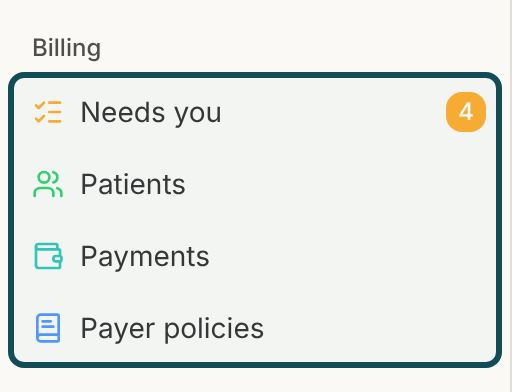
By default the group is offered to Admins, Physicians, Office Managers and Administrative Assistants, the roles that can add charges or issue invoices. Physician Assistants and Medical Assistants do not see it. A clinic admin can change what each role may do, so your clinic may differ.
The Billing tab in a patient's chart
Open a patient's chart and select Billing. It sits beside the Chart and Messaging tabs and cannot be closed. It has four sub-tabs:
- Summary shows cards for the patient's coverage, invoices, account balance and recent financial history.
- Records lists every financial record for the patient, newest first.
- History shows each financial event, such as an invoice issued or a payment received.
- Encounters lists the patient's visits. A visit opens its charges, where you add charges and issue invoices.
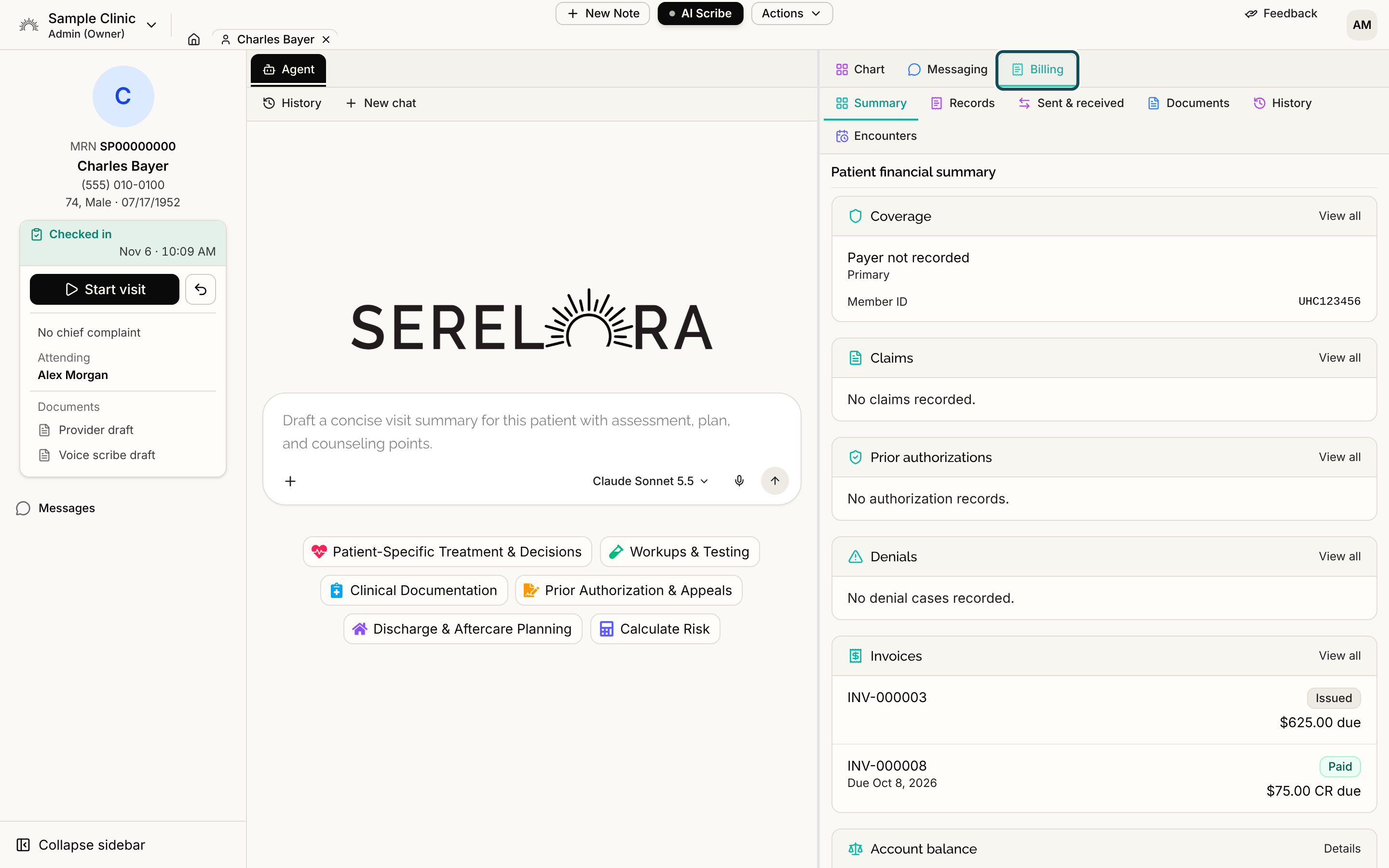
Every role can read the Billing tab. A button that changes money appears only for a role that is allowed to use it. See Patient Billing Records and Financial History.
How money moves
- Add charges to the visit.
- Issue an invoice for those charges.
- Record a payment taken at the desk, or send a payment link so the patient pays online. Online payments need Stripe connected.
- Apply payments to invoices when money was taken before an invoice existed.
- Adjust or write off a balance when the clinic changes what the patient owes.
An invoice's balance is its total, plus or minus any adjustments, minus the payments applied to it. You can also do the first four steps by asking the chart agent, see Billing with the Chart Agent.
Who can do what
These are the default roles.
- Add, edit and remove charges: Admin, Physician, Office Manager and Administrative Assistant.
- Issue and cancel invoices, record and apply payments, adjust balances, email payment links and connect Stripe: Admin and Office Manager.
- Mark a visit finished: Admin and Physician.
- Change the procedure list and the payment terms: Admin and Office Manager. See Procedure Catalog.
If a page or button is missing, or you see "You don't have permission to do that." or "This feature isn't enabled for your clinic.", see Billing Pages Not Showing.
What this section does not cover yet
Insurance billing, such as claims and payments from payers, is not covered in this section yet. For a list of what billing does not do today, see Billing Limits.