Search documentation
Find a documentation page by the words on it.
Documentation
Undoing a Check-In
Undo check-in removes a visit that should not exist. The visit is not erased. It stays on record as a voided visit, and the check-in is recorded in the clinic's audit trail. You can undo a visit that is Checked in or In encounter. A finished visit cannot be undone.
This feature is controlled by the Encounters feature flag. If you do not see it in your clinic, contact Serelora at support@serelora.com and ask for it to be turned on.
Step 1: Open Undo check-in
- Patient chart. In the Current visit card, select Undo check-in. It is an icon button beside Start visit or Finish visit, and a full-width button when the card offers no other step.
- Encounters tab. Open the menu at the end of the visit's row and select Undo check-in. See The Encounters Tab.
Step 2: Choose why
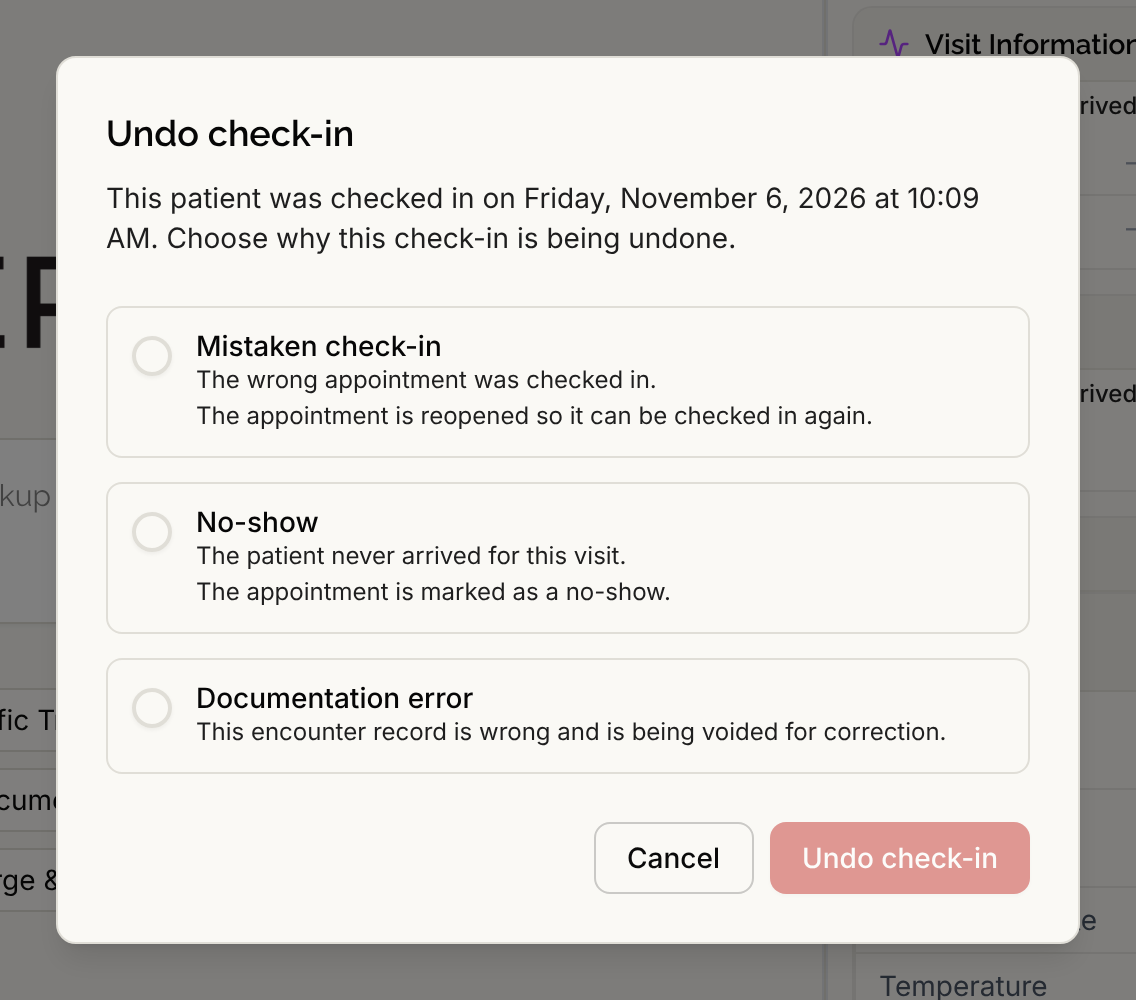
The dialog reads "This patient was checked in on" the day and time, then asks you to choose why. Nothing is preselected, and the Undo check-in button stays disabled until you pick one.
- Mistaken check-in. The wrong appointment was checked in. The appointment is reopened so it can be checked in again.
- No-show. The patient never arrived for this visit. The appointment is marked as a no-show.
- Documentation error. This encounter record is wrong and is being voided for correction. The appointment is left as it is.
For a walk-in visit there is no appointment, so only the visit is affected.
Step 3: Select Undo check-in
A message confirms Check-in undone. The Current visit card returns to "No visit open", and the patient can be checked in again. On the Calendar, a mistaken check-in's appointment goes back to Booked, and a no-show reads No-show.
Things to know
- Admin, Physician and Office Manager can undo a check-in. Other roles do not see the button.
- Notes already filed under the visit stay linked to it. In the note editor the visit shows with its voided status, and you can use Change to file the note under the right visit. See Attaching Notes to a Visit.
- While a visit is open, the appointment's status cannot be changed from the Calendar. Undo check-in is how you get the appointment back to a state you can edit.
- Pressing Cancel or closing the dialog changes nothing.