Search documentation
Find a documentation page by the words on it.
Documentation
Social History
Social history is the set of lifestyle and social answers about a patient, kept one topic per row. It is the last section of the History & Problems tab.
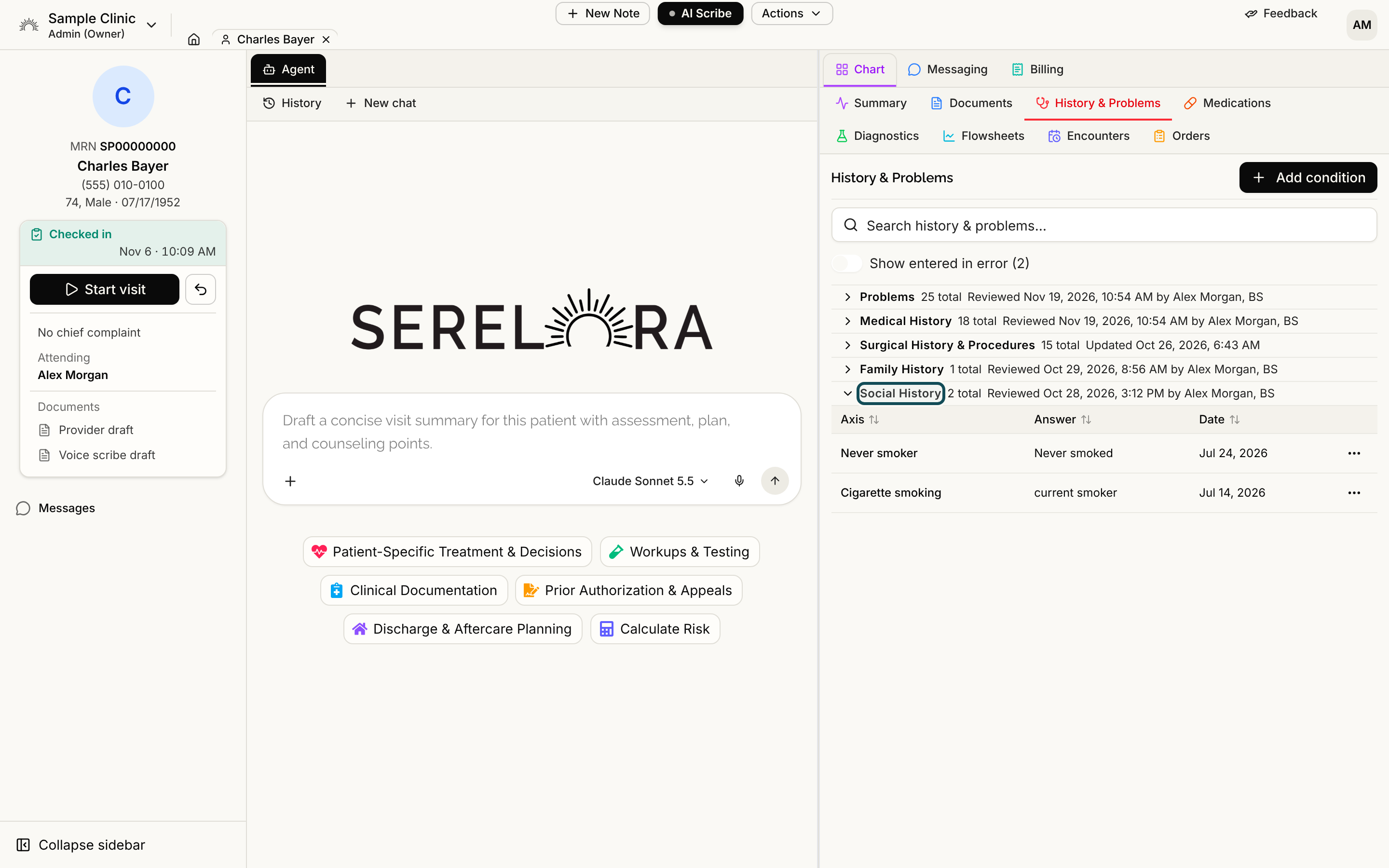
Step 1: Open the section
Open the History & Problems tab and select the header Social History to expand it. See History and Problems for how the sections and the search box work. When the patient has none on file, the section says No social history found.
Step 2: Read the table
| Column | What it shows |
|---|---|
| Axis | The topic the answer is about. Beside it, a small badge appears when the entry is not yet confirmed. |
| Answer | What the source said about that topic. A dash means the source named the topic but gave no answer. |
| Date | When the answer was recorded. A date can be a year, a year and month, or a full day. Date not stated means the source gave none, and hovering shows the document date Serelora used. |
Click a column heading to sort by it. Select a row to open its claim detail, where you can see the document or intake the answer came from. See Claim Detail and Where a Fact Came From.
Step 3: Correct an answer
If you can edit the chart, the Row actions menu at the end of a row offers Edit…, Confirm, Refute (ruled out) and Mark entered in error. Edit… changes the name, the Answer and the Date. Social history has no clinical status, so there is no status pill to change. See Correcting a Claim.
An entry marked entered in error is hidden until you turn on Show entered in error at the top of the tab.
Where social history comes from
You cannot add a row with a button on this tab. Rows come from the answers a patient gives in the health history interview in the patient portal (see The Health History Interview), from documents you upload, from C-CDA and FHIR files, and from entries the chart agent proposes and you approve. See Documents and Reviewing Chart Changes the Agent Proposes.
Mark the section as reviewed
Opening the section header records a review for people who can edit the chart, and the header then shows Reviewed with a name and a date. See Last Reviewed.