Search documentation
Find a documentation page by the words on it.
Documentation
Writing a Note
Write a note whenever you want to document something that did not come from the AI Scribe: a phone call, a procedure, a quick follow-up. Notes open as tabs next to the chart, save themselves as you type, and stay drafts until you sign them.
Step 1: Open a new note
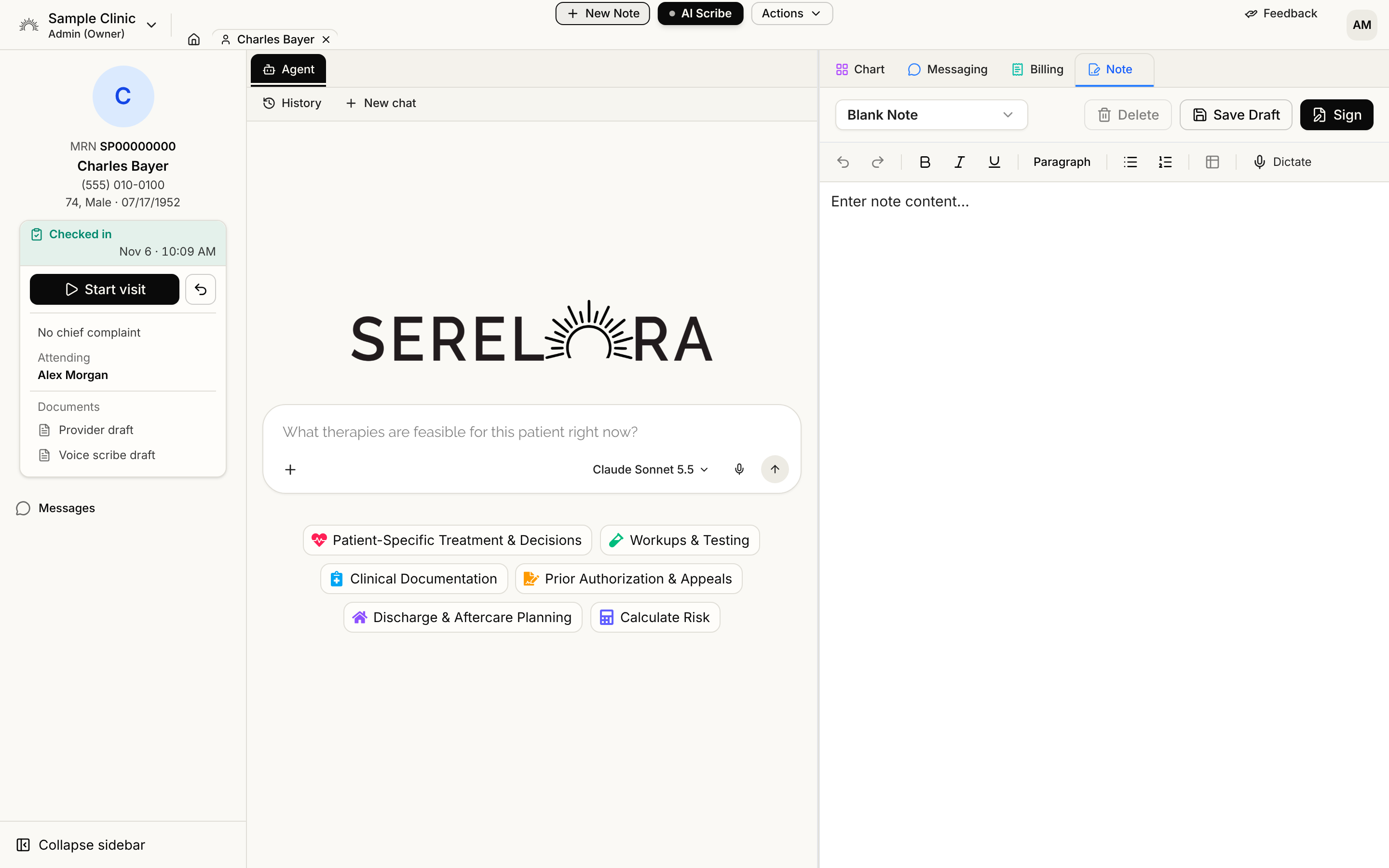
Open the patient's chart and select New Note in the top bar. A note tab opens in the workspace.
If you do not see New Note, widen your browser window, because the button is hidden on narrow screens. It is also hidden if you cannot edit charts. Admins, Physicians, Physician Assistants and Medical Assistants can write notes. Office Managers and Administrative Assistants can read charts but cannot write notes.
Step 2: Choose a starting point
The picker at the top of a new note starts on Blank Note. Open it to pick a note template instead. Choose before you start typing, because a template fills the note with its structure.
You can also ask the chart agent to write the note for you; see Writing Notes with the Chart Agent, or record the visit with the AI Scribe.
Step 3: Write
Type in the note. The toolbar has undo and redo, bold, italic and underline, headings, bullet and numbered lists, a table menu and a Dictate button. See Note Editor Formatting and Dictation in Chat and Notes.
Step 4: Let it save
You do not need to press anything to keep your work. A couple of seconds after you stop typing, Serelora saves the note as a draft. The first save happens once the note has some text, so an empty note creates nothing. The header shows:
- Saving… while a save is running.
- Saved once it is on the server.
- Reconnecting… if a save failed and Serelora is trying again by itself.
- Couldn't save if it could not. Keep the tab open and check your connection.
When you switch to another tab, close the note or leave the chart, Serelora saves first. It only asks you what to do if that save fails.
Step 5: Save, delete or sign
- Save Draft saves the note and closes its tab.
- Delete removes the draft after you confirm in the Delete draft? dialog. This cannot be undone. The button is available once the note has been saved at least once.
- Sign finalizes the note. See Signing a Note. Physician assistants and medical assistants use Submit for Review instead; see Co-Signing Notes.
Find a draft later
Drafts live in the chart's Documents tab with a draft status. Select the row to reopen it and keep writing. If you can sign or review notes, your unsigned drafts also appear on The Sign Notes Worklist.
See also Note Changed While You Were Working.