Search documentation
Find a documentation page by the words on it.
Documentation
Importing FHIR Files and Bundles
Use the FHIR importer when your other system can export a patient as a FHIR R4 Bundle in JSON. Each file creates one new patient, with their demographics and clinical data together.
Step 1: Open the FHIR importer
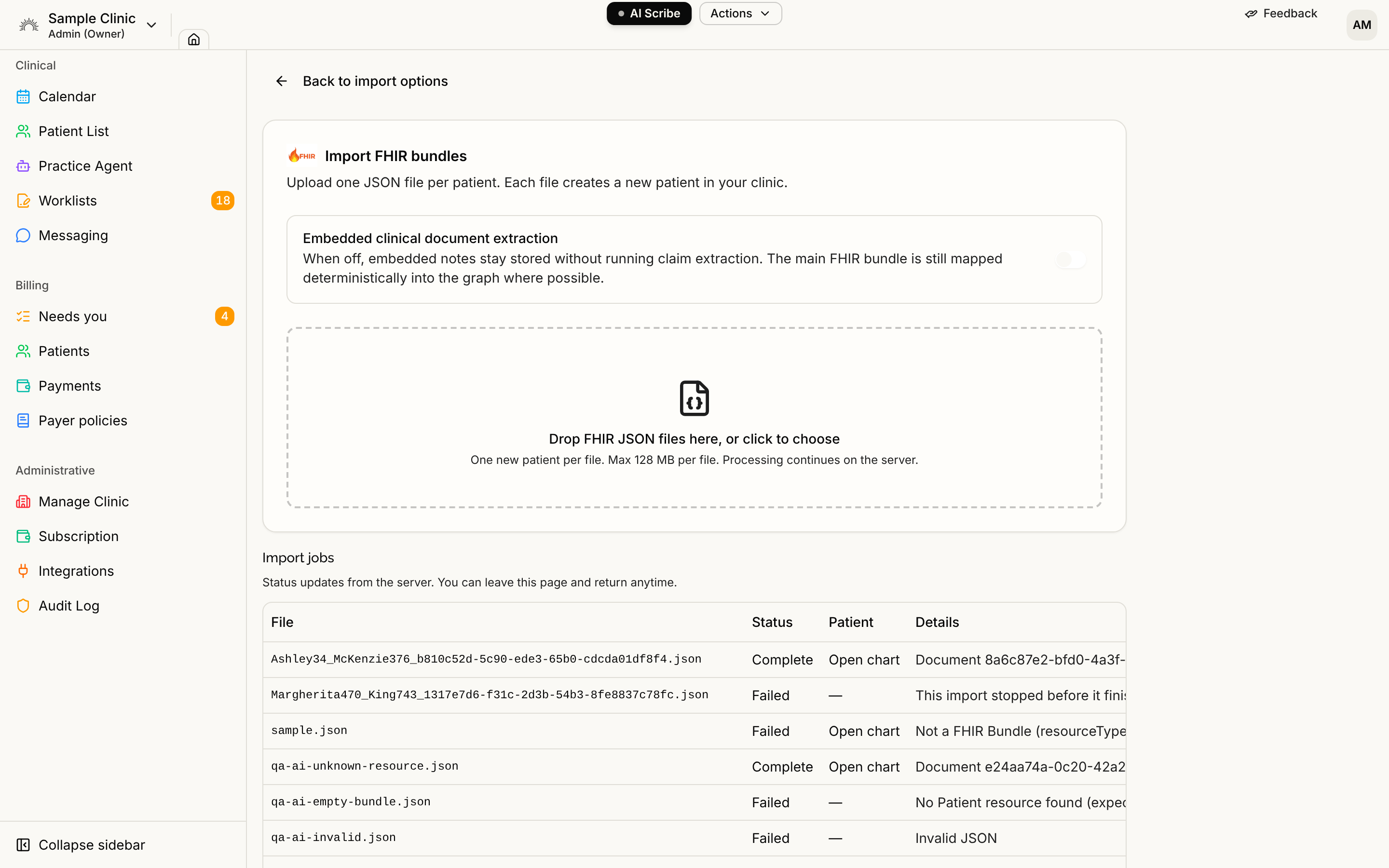
Select Patient List, then Import, then Raw FHIR. The page is titled "Import FHIR bundles" and says to upload one JSON file per patient, and that each file creates a new patient in your clinic.
Step 2: Drop your files
Drop files on the box that reads "Drop FHIR JSON files here, or click to choose", or click to choose them.
- Files end in .json or .fhir. A Bundle wrapped in a
fhirResourceenvelope, as some exports produce, is accepted too. - Each file can be up to 128 MB, and you can add up to 40 files at once.
- A file that is too large or the wrong type is rejected beside the drop area, for example "larger than 128 MB" or "use .json or .fhir (FHIR)".
The page says "Uploading files…" while it sends them. Processing then continues on the server, so you can leave the page.
The embedded-document switch
Below the drop area, Embedded clinical document extraction is off. Leave it off unless you need it. When off, notes embedded in a bundle are stored without running claim extraction, and the bundle's own structured data is still mapped into the chart.
Turning it on first shows "Enable AI extraction?" and then "Confirm extreme cost", because extracting embedded documents uses AI models and can be costly at scale. Continue only if you intend that.
Step 3: Follow the Import jobs table
Each file becomes a row under Import jobs with File, Status, Patient and Details columns. The status moves through Queued, Reading FHIR, Creating patient, Sending to graph, Processing in graph and Complete. The table says you can leave the page and come back anytime.
When a patient has been created, Open chart appears in the Patient column. A failed job shows the reason in Details. Typical reasons are a medical record number already in use in your clinic, or a file Serelora could not read.
If a job says Interrupted, see Resuming an Interrupted Import.
What a file creates
The patient's name, date of birth, sex, contact details, addresses, medical record number, Social Security number and driver's license, employer, emergency contacts and insurance coverage are read from the Bundle. The patient's email becomes the portal login email if no other patient already uses it. The chart's clinical content is added as separate entries, one per FHIR resource, with nothing merged together.
If the file's medical record number already exists in your clinic, the file is refused so you do not get two charts. A file with no medical record number creates a new patient every time it is uploaded, so do not upload the same one twice.
Adding a FHIR file to an existing patient
To add a file to a patient who already exists, upload it to their chart instead: open the chart, select Actions, then Upload, and choose the file. A .json or .fhir Bundle is read into the chart. For an existing patient, demographic fields are filled only where the chart is empty, so nothing already recorded is overwritten.
Who can import
Serelora does not use a separate permission for importing. Anyone signed in to the clinic can use the importer.