Search documentation
Find a documentation page by the words on it.
Documentation
Procedure Catalog
The procedure catalog is your clinic's master price list. Every charge on a visit is picked from it, so the code, the price and the modifiers come from one place instead of being typed each time. See Adding Charges from a Visit.
This feature is controlled by the Billing feature flag. If you do not see it in your clinic, contact Serelora at support@serelora.com and ask for it to be turned on.
Step 1: Open the Procedures tab
Select Manage Clinic in the sidebar, then the Procedures tab. The table lists every procedure with its Code, System, Name / Description, Price, POS (place of service), Modifiers and Active status. Select a column heading to sort by it. Select it again to reverse the order, and a third time to return to the default order, which lists active procedures first and then sorts by name.
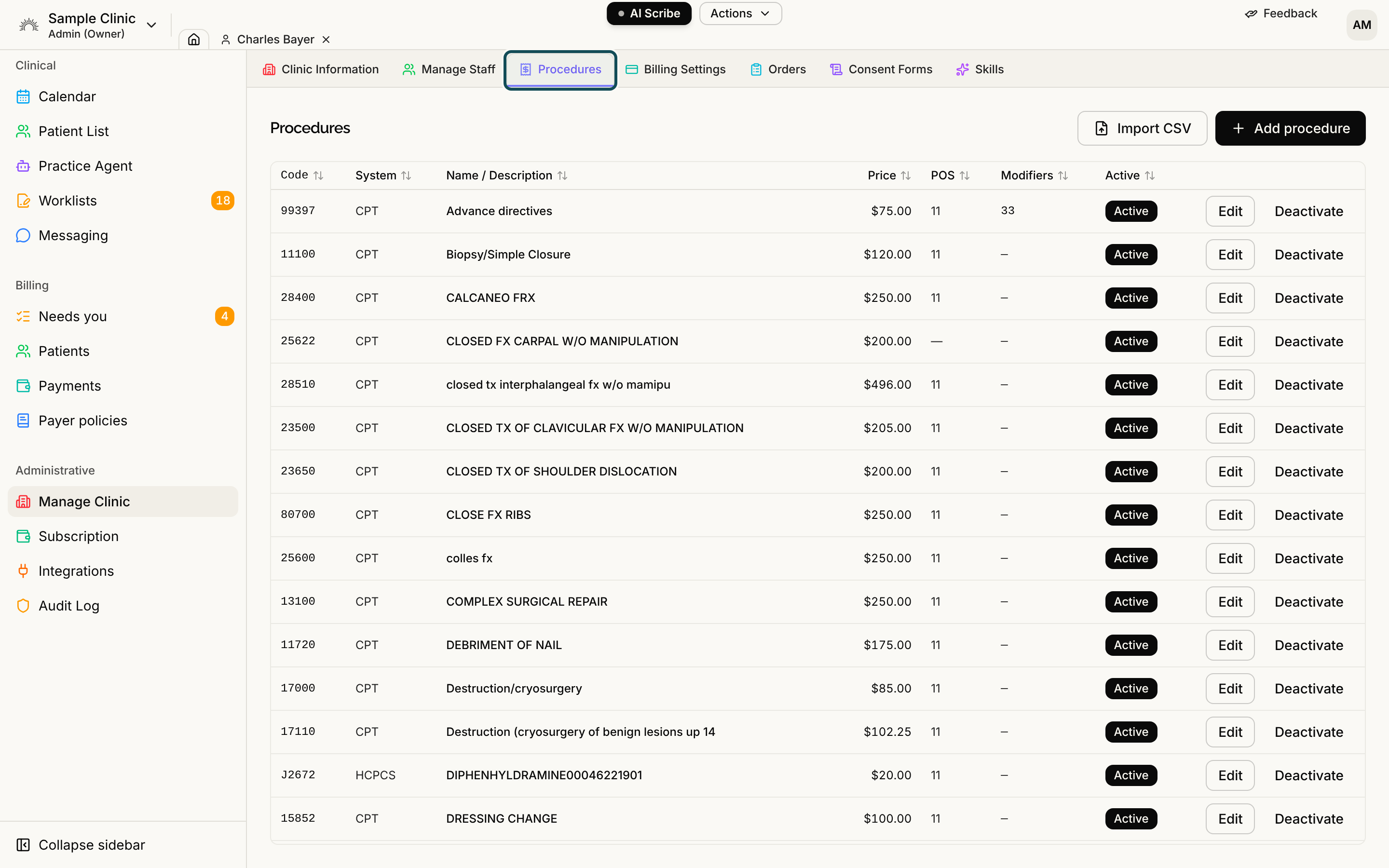
By default every role can open the tab and read the list. The buttons that change it appear only for roles that can edit the catalog, which by default are Admins and Office Managers. If the list is empty, the tab says "No procedures yet. Add one or import your price list from a CSV."
Step 2: Add a procedure
Select Add procedure. Fill in:
- Name (required): for example "Office visit, established patient".
- Price (required): a whole or decimal amount that is not negative.
- Code: a billing code such as a CPT or HCPCS code. Leave it blank for a custom item your clinic sells for cash.
- Place of service: the place-of-service code, if you use one.
- Modifiers: one or more, separated by commas or spaces.
- Description: optional text for the patient.
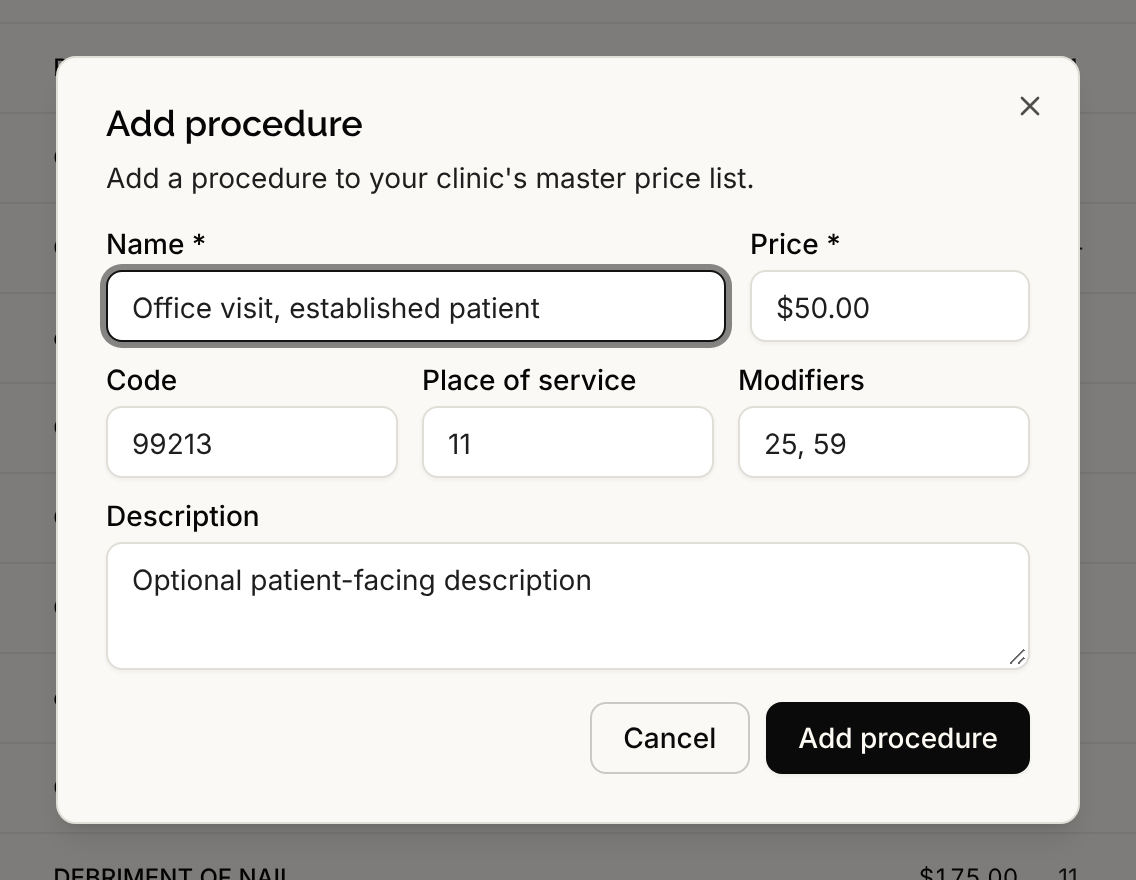
Select Add procedure. A message says "Procedure added". The System column fills in by itself: a five-digit code is marked CPT, and a letter followed by four digits is marked HCPCS.
If the code is already in your price list, an amber note under Code names the existing entry and says that adding this keeps both as separate services. It never stops you, because the same code can be sold at two prices.
If you leave out the name or the price, the dialog says "Name is required." or "Price is required." and does not save.
Step 3: Edit a procedure
Select Edit on a row, change the fields and select Save changes. A message says "Procedure updated". Charges that were already added to visits keep the price they were added with, so changing the catalog affects new charges only.
Step 4: Deactivate a procedure you no longer use
Select Deactivate on a row. The dialog titled "Deactivate procedure?" explains that the procedure will be hidden from new charges and that existing priced history is kept. Select Deactivate to confirm. The row stays in the table, dimmed, with the status Inactive. A procedure is never deleted, so past charges and invoices stay intact.
To bring it back, select Reactivate on the row and confirm. It becomes available on new charges again.
Who can do this
Admins and Office Managers can add, edit, deactivate and import procedures by default. A clinic admin can change what each role may do. To load many procedures at once, see Importing a Procedure Price List.