Search documentation
Find a documentation page by the words on it.
Documentation
Adding a Condition or Medication
When you learn something in the room, such as a new diagnosis or a supplement the patient started, you can add it to the chart yourself instead of waiting for a document to mention it. Conditions and medications are added the same way.
Adding needs permission to edit the chart. Admin, Physician, Physician Assistant and Medical Assistant have it by default. If you do not, the Add condition and Add medication buttons are not shown.
Step 1: Open the dialog
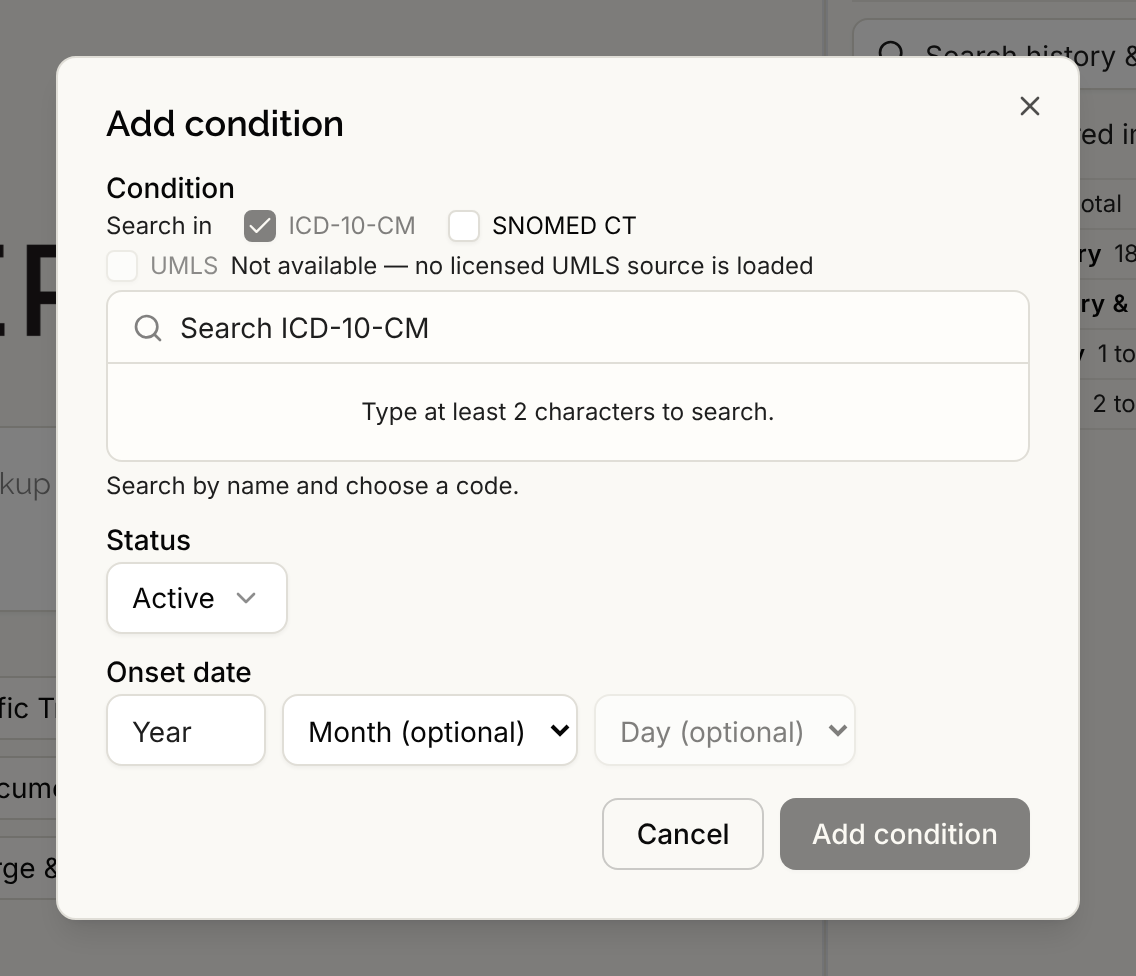
For a condition, open the History & Problems tab and select Add condition at the top right. For a medication, open the Medications tab and select Add medication.
Step 2: Search for the condition or medication
Type a name in the Condition or Medication field. The dialog searches the code lists and shows matches, and picking one fills in the name and attaches its code to the entry.
- For a condition, the search starts on ICD-10-CM. Under Search in, tick SNOMED CT to search it as well. The last ticked list cannot be unticked.
- For a medication, the search is on RxNorm.
- Words can be typed in any order.
You can type free text only when the search finds no match. In that case the dialog says No matching code. This will be added as free text. A free-text entry starts with no code. You can attach one later. See Claim Detail and Where a Fact Came From.
If the code search is not working, the dialog says so and does not accept free text until it is.
Step 3: Set the status and date
Choose a Status. The choices are Active, Recurrence, Relapse, Inactive, Remission and Resolved, and the default is Active.
Enter an Onset date for a condition or a Start date for a medication. You may give only a year, or a year and month, if that is all you know. The chart then shows exactly that, such as 2019, and does not invent a day.
For a medication, you can also fill in Dose and Frequency, for example 10mg and once daily.
Step 4: Save
Select Add condition or Add medication. A short message confirms it, for example that the entry was added with its code. The chart updates without a reload.
If the same name is already on the chart, Serelora does not create a second entry. It adds your information to the existing one and tells you so.
What adding a medication does not do
Adding a medication only records that the patient takes it. It does not create a prescription and nothing is sent to a pharmacy.
Next steps
To change an entry after you add it, see Correcting a Claim.