Search documentation
Find a documentation page by the words on it.
Documentation
The Staff Roster
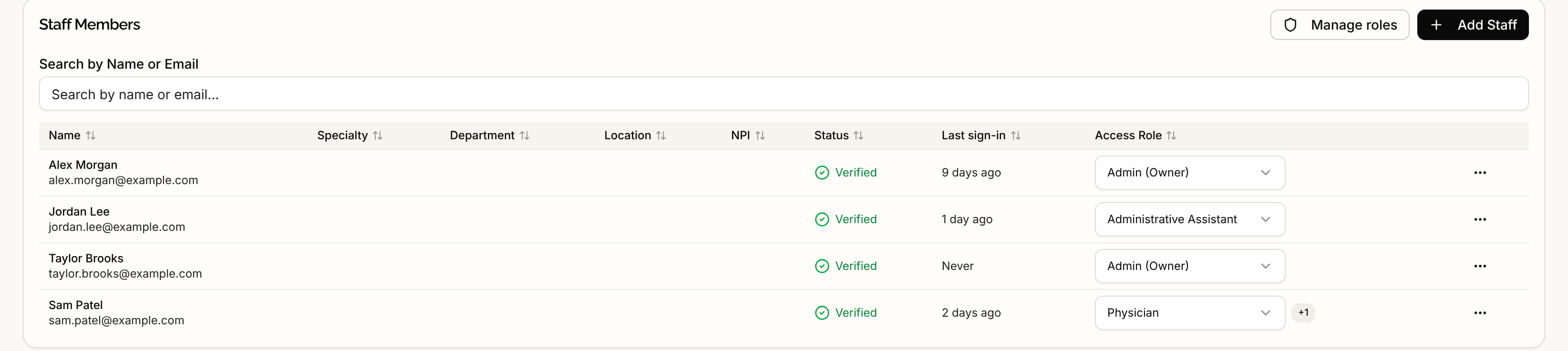
The roster is the list of everyone who has access to your clinic. It is where you see who is on your team, who still needs to set a password, who is waiting for approval and when each person last signed in. Adding, approving and removing people each have their own page. This page explains what you are looking at.
Select Manage Clinic in the sidebar, then the Manage Staff tab. Every member of the clinic can open it. Some columns and buttons depend on your role, as noted below.
Find a person
Type in Search by Name or Email to narrow the list. It matches the name and the email address. If nobody matches, the table says No staff members found.
The columns
| Column | What it shows |
|---|---|
| Name | The person's legal name, with their suffix such as MD, and their email address beneath. Someone whose name is not on file yet shows their email in italics. |
| Specialty, Department, Location | Descriptive details an administrator entered. A dash means blank. |
| NPI | The person's individual NPI, if one is on file. |
| Status | Verified, Unverified, Pending approval or Rejected. See below. |
| Last sign-in | When the person last signed in. Only people who can view the staff roster see it. |
| Access Role | The role that decides what the person can do. Only people who can view the staff roster see it. |
On a narrow window Serelora hides columns to make room. NPI goes first, then Location, Specialty and Department, and Status last. Name, Last sign-in and Access Role always stay. A wider window shows them all.
Select a column heading to sort by it. Select it again to reverse the order, and a third time to return to the default order.
Status
- Verified. The person has verified their email and set a password.
- Unverified. An invitation went out but the person has not set a password. A Resend button sends a new link, and the old link stops working. See Adding Staff.
- Pending approval. The person joined through your Google Workspace domain and needs an administrator to approve them. The cell can also show Google Workspace: and the domain, and a note when another account on your roster has the same name. See Approving New Providers.
- Rejected. An administrator refused the registration. There is nothing to act on.
A person waiting for approval shows Pending approval even if they have also verified their email, because approval is what stops them signing in.
Last sign-in
The column shows a plain time such as just now, 5 minutes ago, 3 days ago or 2 months ago. Hover over it to see the exact date and time in your clinic's time zone. Never means the person has not signed in. While the roster is still loading, the cell shows a dash.
Read it as a sign-in time, not as a sign that someone is active. A sign in lasts up to seven days, so a person who stays signed in can show a sign-in up to a week old while they use Serelora every day. See Sessions and Signing Out.
Access Role
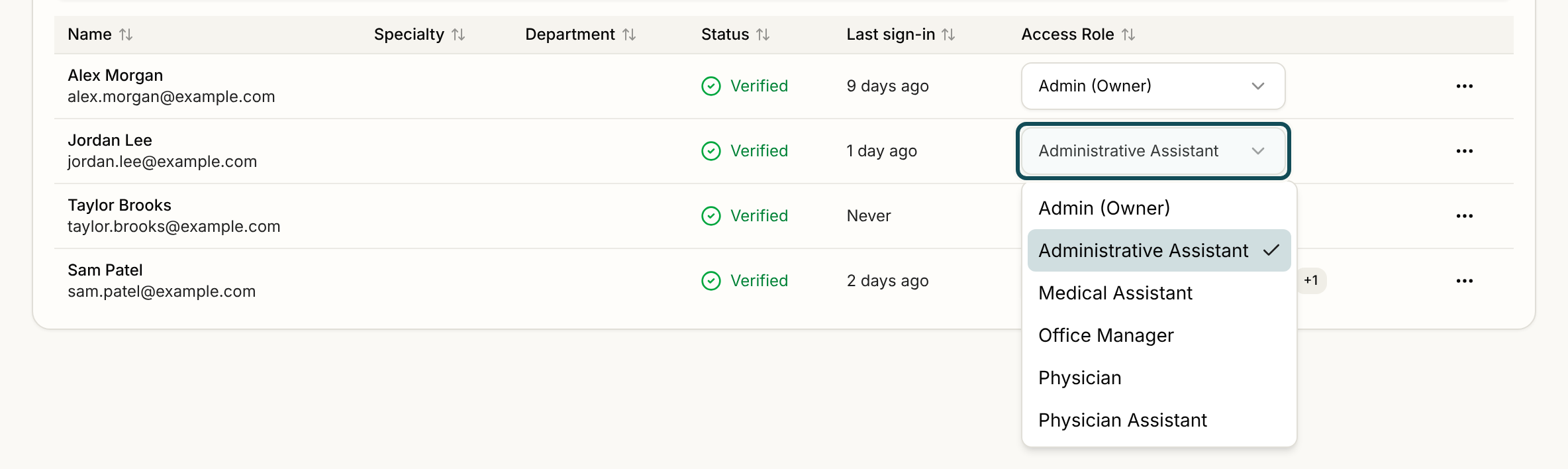
People who can manage staff, which is the Admin role, change someone's role from the dropdown on their row. Everyone else who sees the column sees the role as text. A small +1, +2 and so on beside a role means the person has that many extra permissions beyond their role. See Custom Roles and Per-User Permissions.
Buttons and the row menu
- Manage roles opens the Roles page. It appears for people who can view the staff roster, which is Admin and Office Manager by default.
- Add Staff appears only for people who can manage staff. See Adding Staff.
- The actions button on a row, only for people who can manage staff, opens Edit staff info, Permissions and Remove from clinic. See Removing Staff.
Pending invitations
Under the table, a Pending invitations list appears when you have invited someone who already has a Serelora account. It says These people already have a Serelora account. They join your clinic once they accept the emailed invitation. Each line shows the address you typed and an Expires date. The person appears in the roster once they accept. Only people who can view the staff roster see this list.
If the list or the roster does not look right, see Missing Clinic Administration Controls.