Search documentation
Find a documentation page by the words on it.
Documentation
Recording a Payment
Use this page for money you took in person: cash, a check, or a card run on your office's own terminal. Online card payments through a payment link are recorded for you, so do not enter those by hand.
This feature is controlled by the Billing feature flag. If you do not see it in your clinic, contact Serelora at support@serelora.com and ask for it to be turned on.
Step 1: Start from the right place
Pick the place that fits what you are doing:
- On an invoice. Open the invoice (see Invoices) and select Record payment on its card. It is offered on issued invoices.
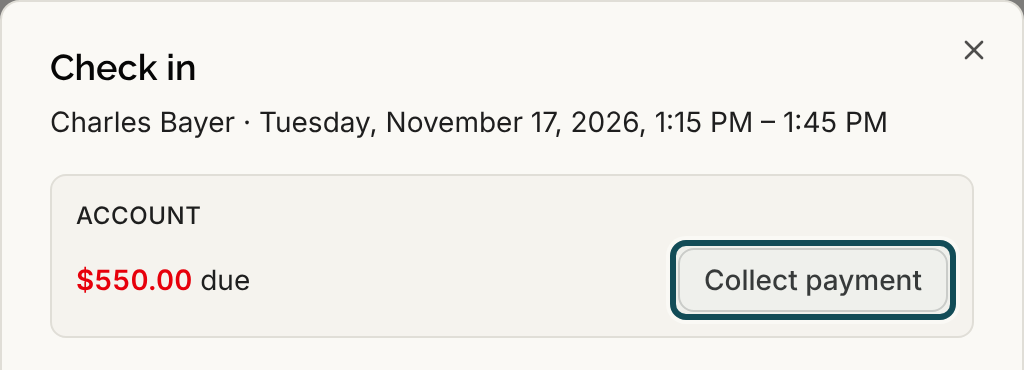
- At check-in. The Check in dialog on the schedule shows what the patient owes. Select Collect payment. It records against the patient's oldest open invoice. When nothing is open, the same button reads Take payment. See Balances at Check-In and on the Calendar.
- With no invoice yet. Open the patient's Billing tab, then Summary. On the Account balance card, select Details. Under Unapplied payments, select Take payment. This is for a deposit or a copay taken before charges exist.
Step 2: Fill in the payment
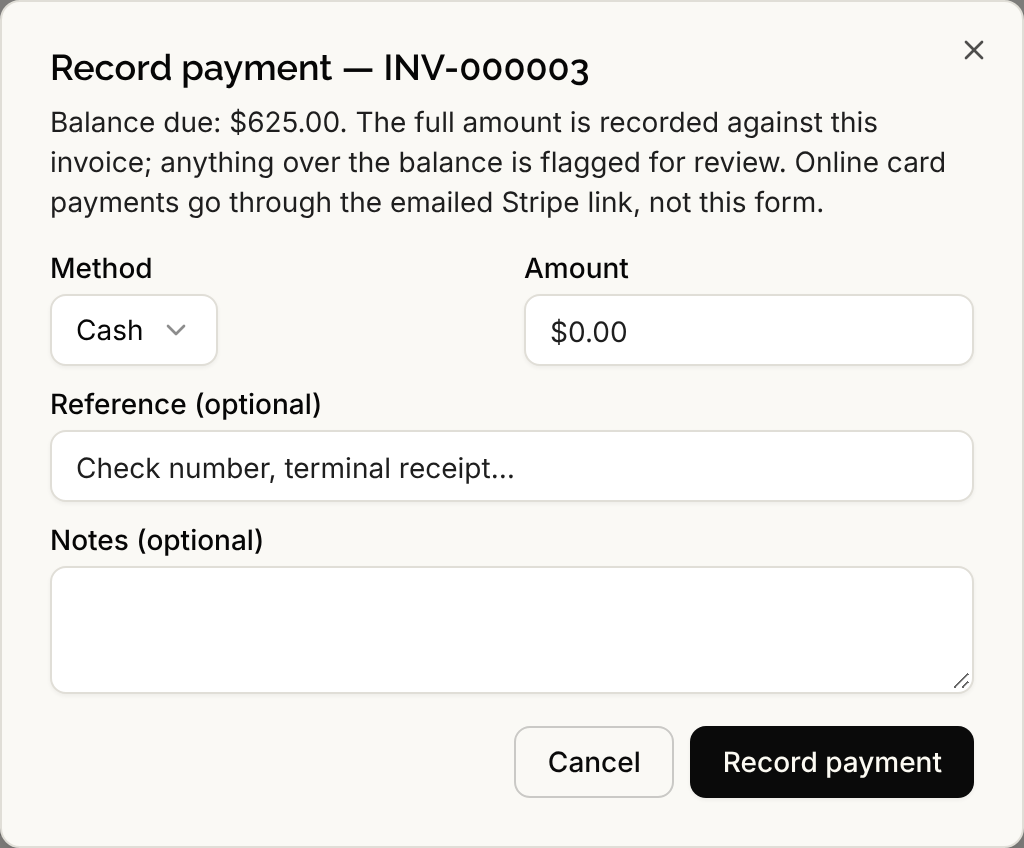
The Record payment dialog, or Take payment when there is no invoice, asks for:
- Method: Cash, Check, Card (office terminal) or Other. It starts on Cash.
- Amount: a positive dollar amount.
- Reference (optional): a check number or terminal receipt, for example.
- Notes (optional): anything the next person should know.
For an invoice, the dialog shows the balance due. The full amount you enter is recorded against that invoice.
Step 3: Select Record payment
Select Record payment. A message says "Payment recorded". The invoice's balance goes down. A payment for less than the balance leaves the invoice Issued. A payment that covers the balance changes it to Paid.
A payment taken with no invoice is held as an unapplied credit until someone applies it. See Applying Payments to Invoices.
If the patient paid too much
Serelora records the full amount you enter, even when it is more than the balance. The invoice shows Needs review, and a task appears in Needs You Worklist. Open the invoice from the task, or from Records in the patient's Billing tab, and select Mark reviewed once you have looked at it. The extra money stays on the account as the patient's credit. You can add an optional note when you mark it reviewed.
If your connection drops
Select Record payment again without changing anything. Serelora recognizes a repeat of the same submission and records the payment only once.
If you entered a payment by mistake
A payment that is not applied to any invoice can be voided, and a payment applied to the wrong invoice can be moved back. See Applying Payments to Invoices. To correct an amount on an invoice without touching payments, use an adjustment, see Adjustments and Write-Offs.
If Serelora refuses the payment
A message tells you why and nothing is recorded. See Payment Cannot Be Recorded or Changed.
Who can do this
Admins and Office Managers can record payments by default. Anyone who can read billing can see them on the invoice.