Search documentation
Find a documentation page by the words on it.
Documentation
Adding Staff
Add colleagues from Manage Clinic. Serelora emails each person a link, so you do not set anyone's password. Only people whose role can manage staff, which is the Admin role, see Add Staff.
Step 1: Open the Add Staff dialog
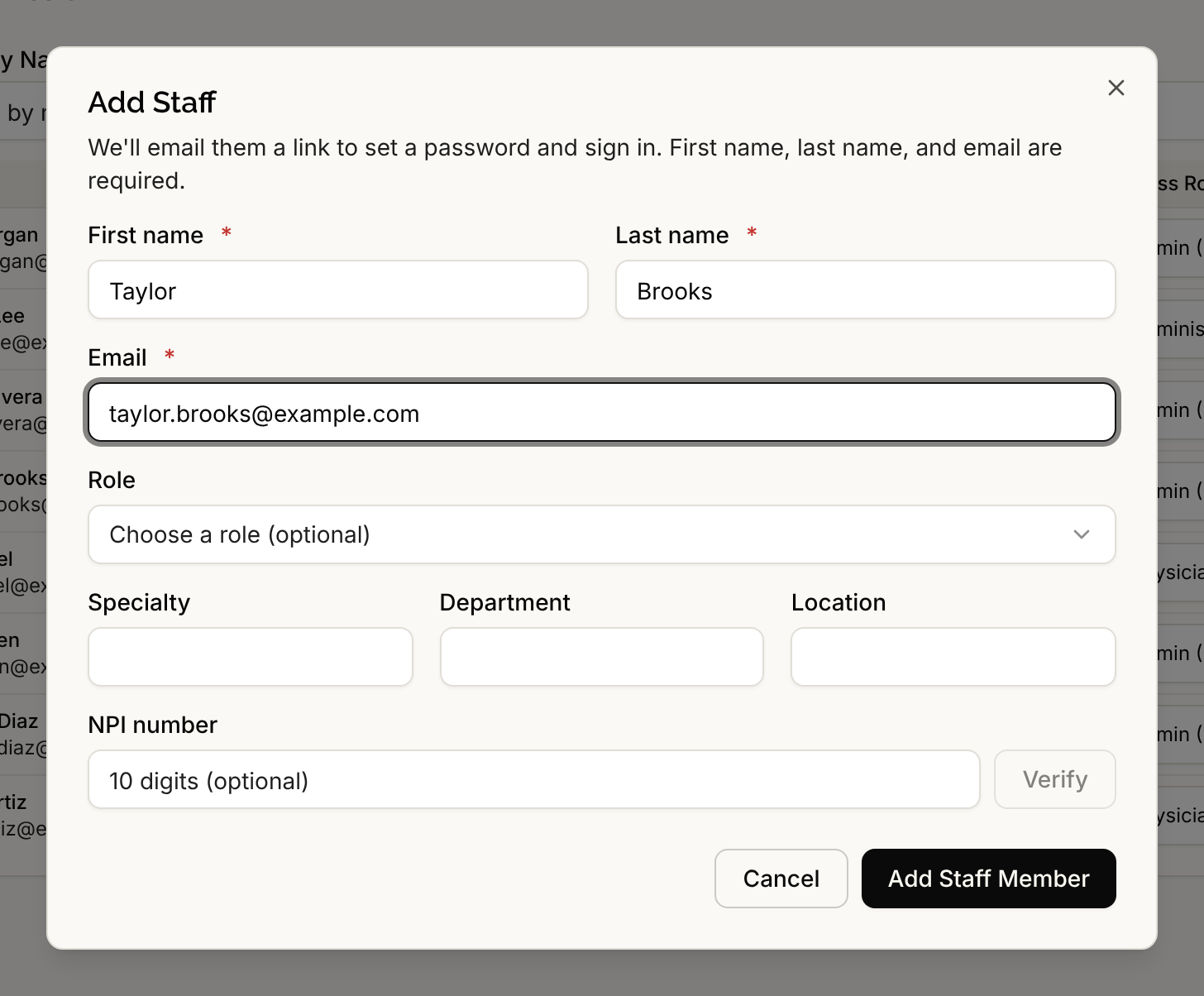
Select Manage Clinic in the sidebar, then the Manage Staff tab, then Add Staff.
Step 2: Fill in the person's details
First name, Last name and Email are required. The rest is optional:
- Role is the person's job title: Physician, Nurse, Administrator or Other. It describes them in the staff list. It is not the same as their access role, which decides what they can do (see Step 4).
- Specialty, Department and Location describe the person in the staff list.
- NPI is for clinicians who have one. Type the number and select Verify. The Add Staff Member button stays unavailable until the exact number you typed has been confirmed with the CMS NPI Registry. See NPI Verification.
Step 3: Add the person
Select Add Staff Member. What happens next depends on the email address.
The address has no Serelora account. Serelora creates the account and emails a link. Serelora confirms the person was added and that it emailed them a link to set their password. The link works for 7 days. The person sets a password and is signed in, with no separate approval step. See Accepting a Clinic Invitation.
The address already has an account. Serelora tells you This user already has a Serelora account. Add them to the clinic? and explains that their name, role and specialty stay as they are. Select Add to clinic to send an invitation, or Use a different email. The person joins only after they accept the invitation, and Serelora does not show you their profile before then. Until they respond, the invitation is listed under Pending invitations, with the day it expires.
If the invitation email cannot be sent, Serelora says We couldn't send the invitation email to that address and asks you to try adding them again.
Step 4: Set their access role
A new staff member starts with the Physician access role. The Add Staff dialog does not ask for an access role. If Physician gives them more access than they need, such as for front desk staff, open the Access Role column in the staff table and pick the right role right away. See Roles and Permissions.
Resend a missed invitation
In the staff table, the Status column shows Unverified for someone who has not yet set a password. Select Resend to send a new link. Serelora confirms Invite resent. The previous link no longer works.
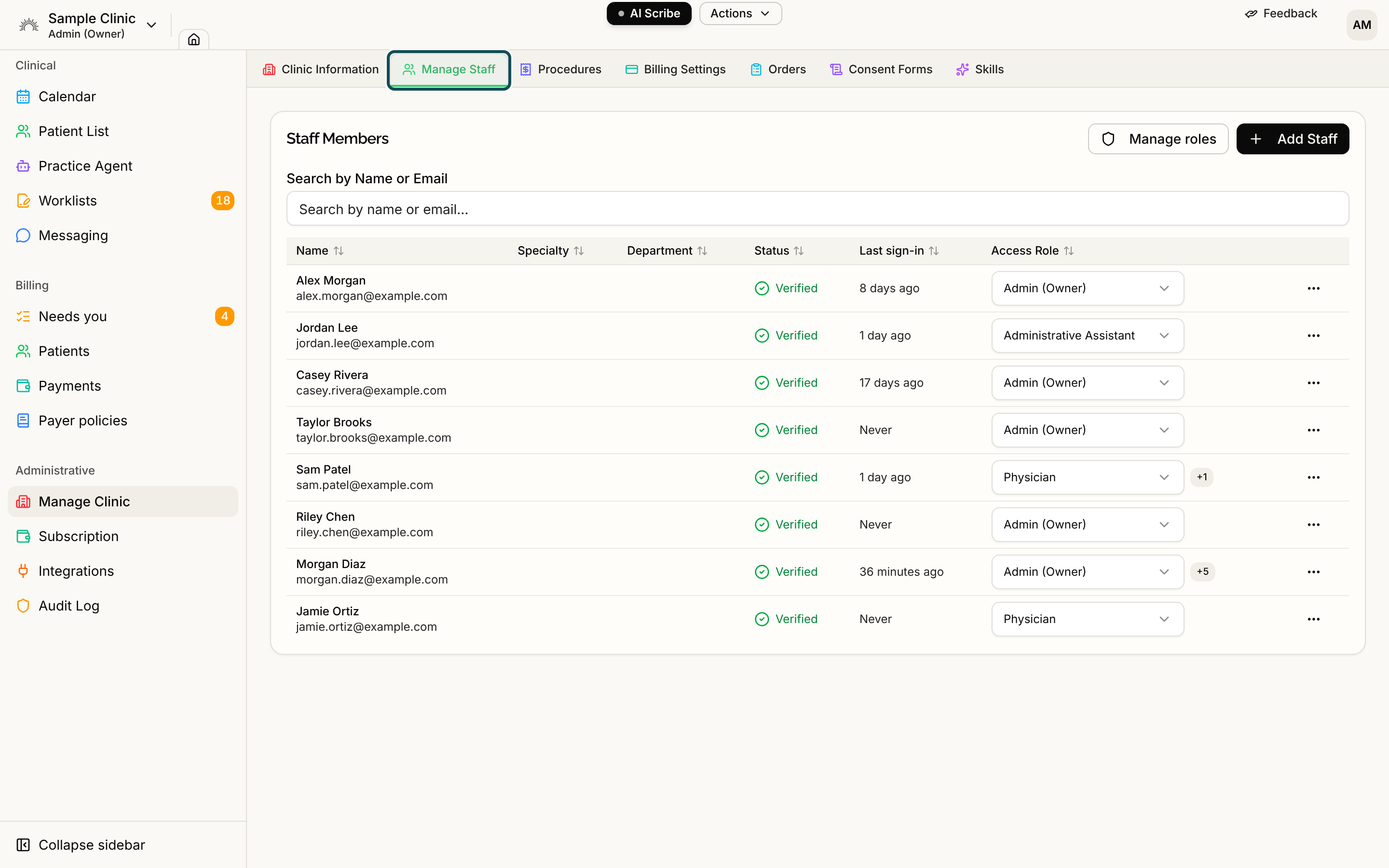
Someone who has already set a password shows Verified and has no Resend button. They can use Forgot password? on the sign-in screen.
Edit a colleague's details later
Select the actions button (three dots) on a person's row, then Edit staff info. You can change their name, Suffix, Role, Specialty, Department, Location and NPI, then select Save changes. You cannot change their sign-in email.
When Add Staff says no
- That person is already a staff member at this clinic.
- This person's access to the clinic was revoked by an administrator. A platform administrator must restore it. See Removing Staff.
See also
- The Staff Roster explains every column, the statuses and the pending invitations list.
- A Staff Member Cannot Sign In helps when an invited colleague cannot get in.